🌐 🇯🇵 JP | 🇺🇸 EN | 🇹🇭 TH | 🇪🇸 ES

วิธีรับพัสดุของคุณที่ร้านสะดวกซื้อ Lawson


ขั้นตอนที่ต้องปฏิบัติเมื่อสินค้าที่คุณต้องการอยู่ในรถเข็นของคุณ


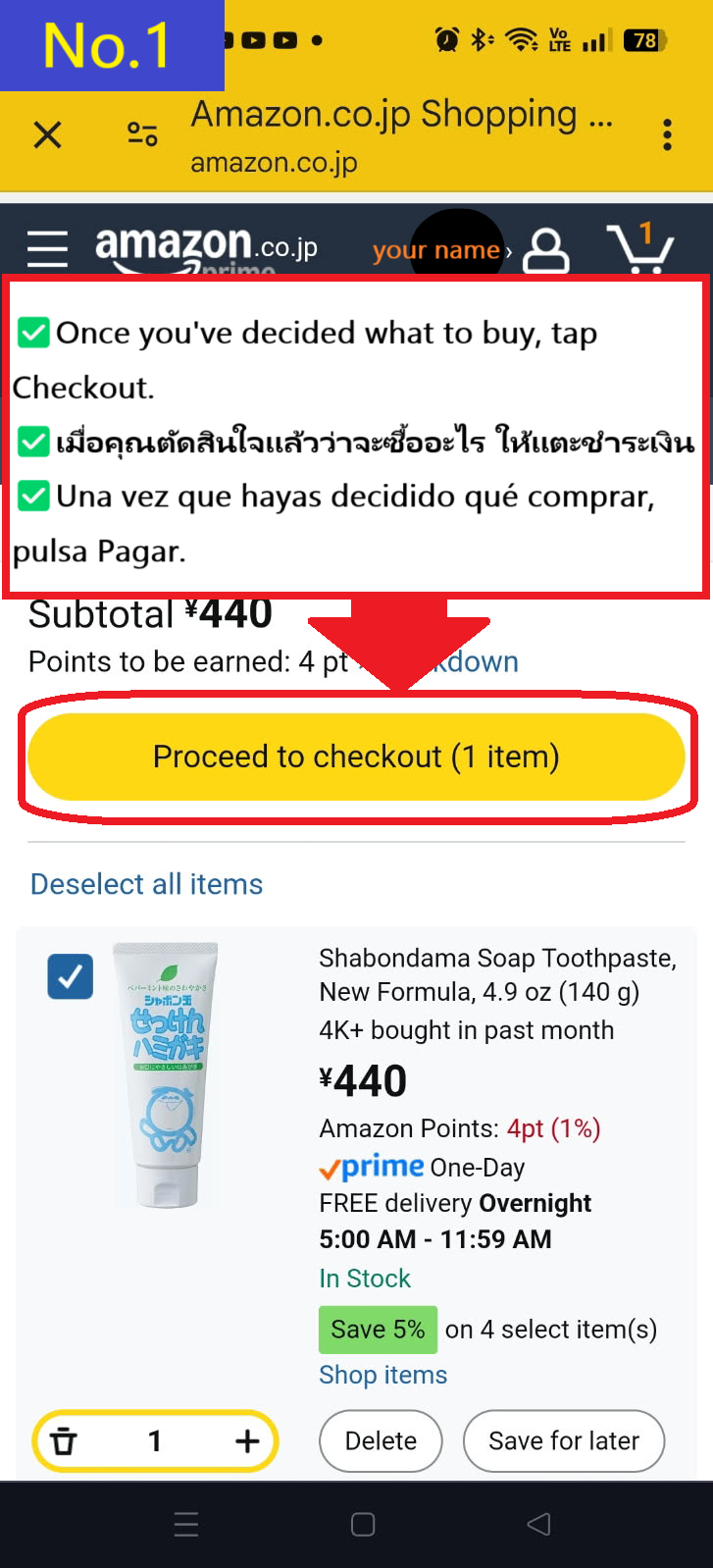
  • หากสินค้าที่คุณต้องการซื้อเหมือนกับสินค้าที่อยู่ในรถเข็นของคุณ ให้แตะที่ "ดำเนินการชำระเงิน(Proceed to checkout)"
  • Image description of If the item you want to purchase is the same as the item in your cart, tap Proceed to checkout

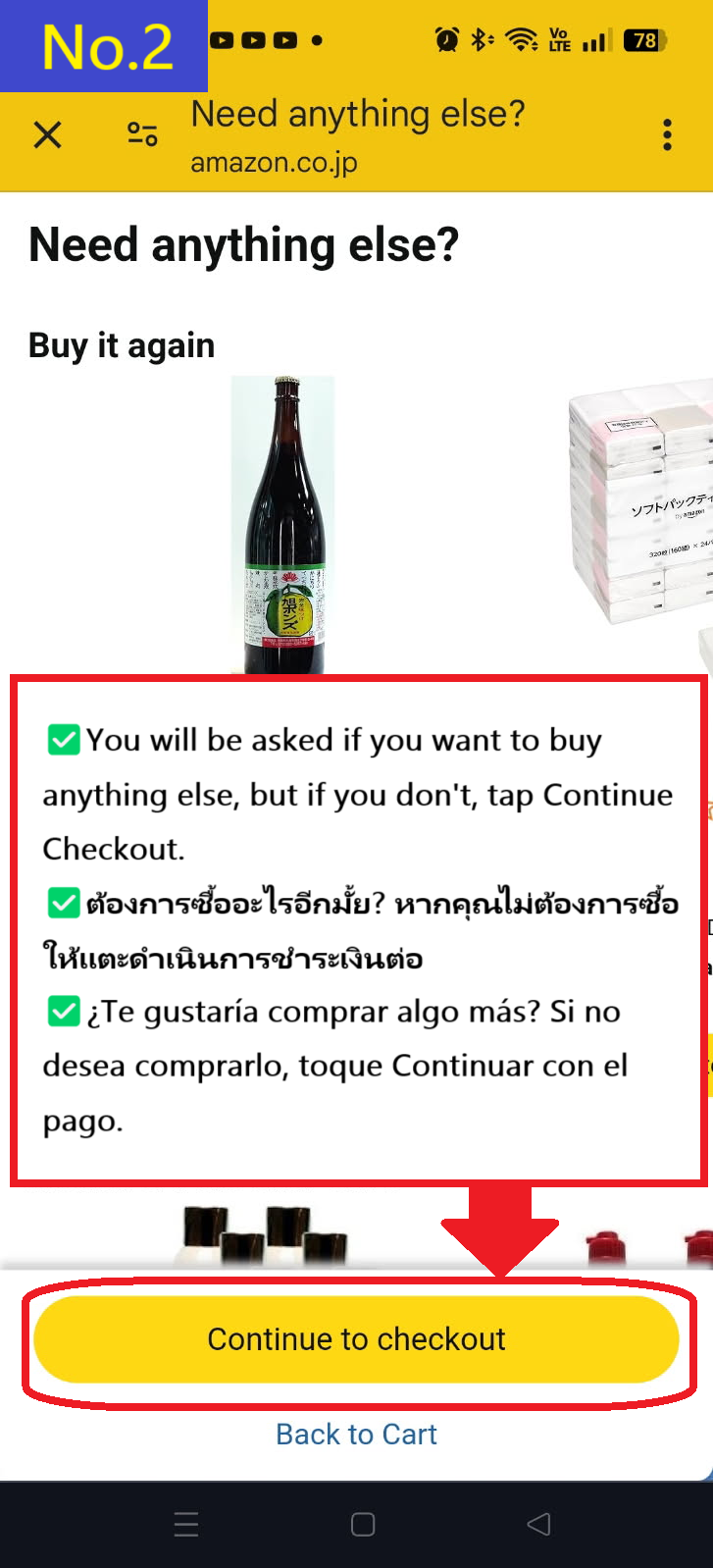
  • คุณจะได้รับคำแนะนำสินค้ารายการอื่น ๆ แต่หากคุณไม่ต้องการ ให้แตะที่ "ดำเนินการชำระเงิน(Continue to checkout)"
  • Image description of You will be recommended other products, but if you don't need them, tap Continue to checkout.

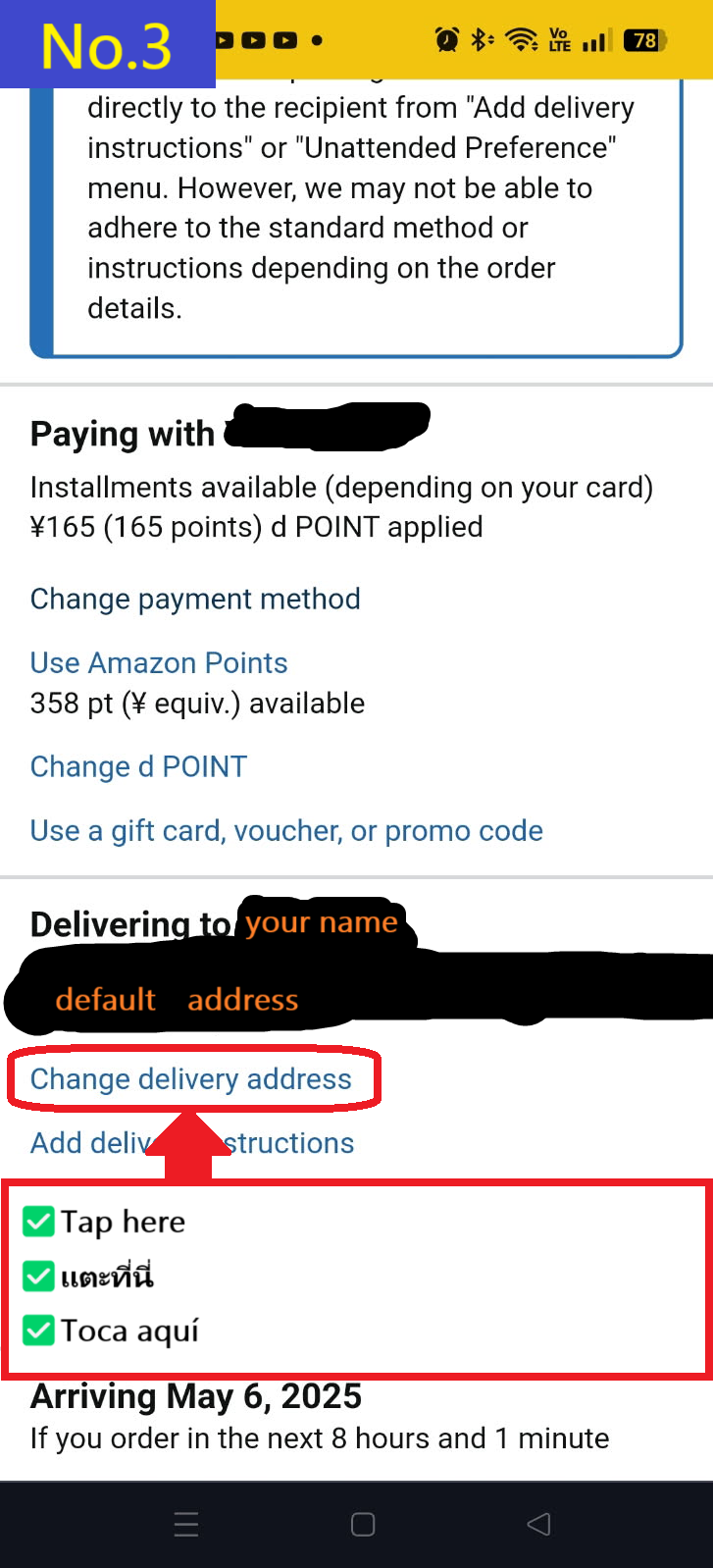
  • แตะที่ "เปลี่ยนที่อยู่จัดส่ง(Change delivery address)" ที่ด้านล่าง
  • Image description of Tap Change delivery address at the bottom

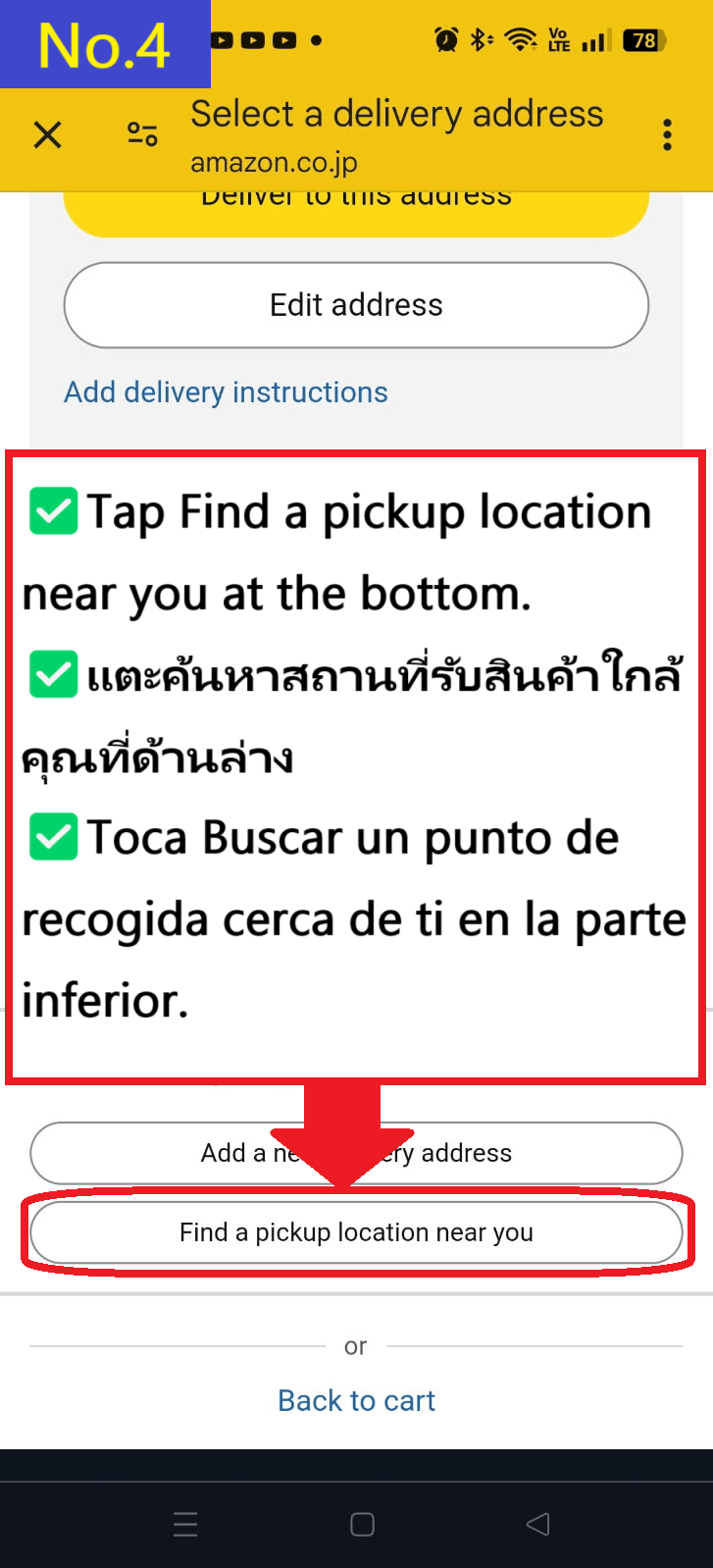
  • แตะที่ "ค้นหาสถานที่รับสินค้าที่อยู่ใกล้คุณ(Find a pickup location near you)" ที่ด้านล่าง
  • Image description of Tap Find a pickup location near you at the bottom.

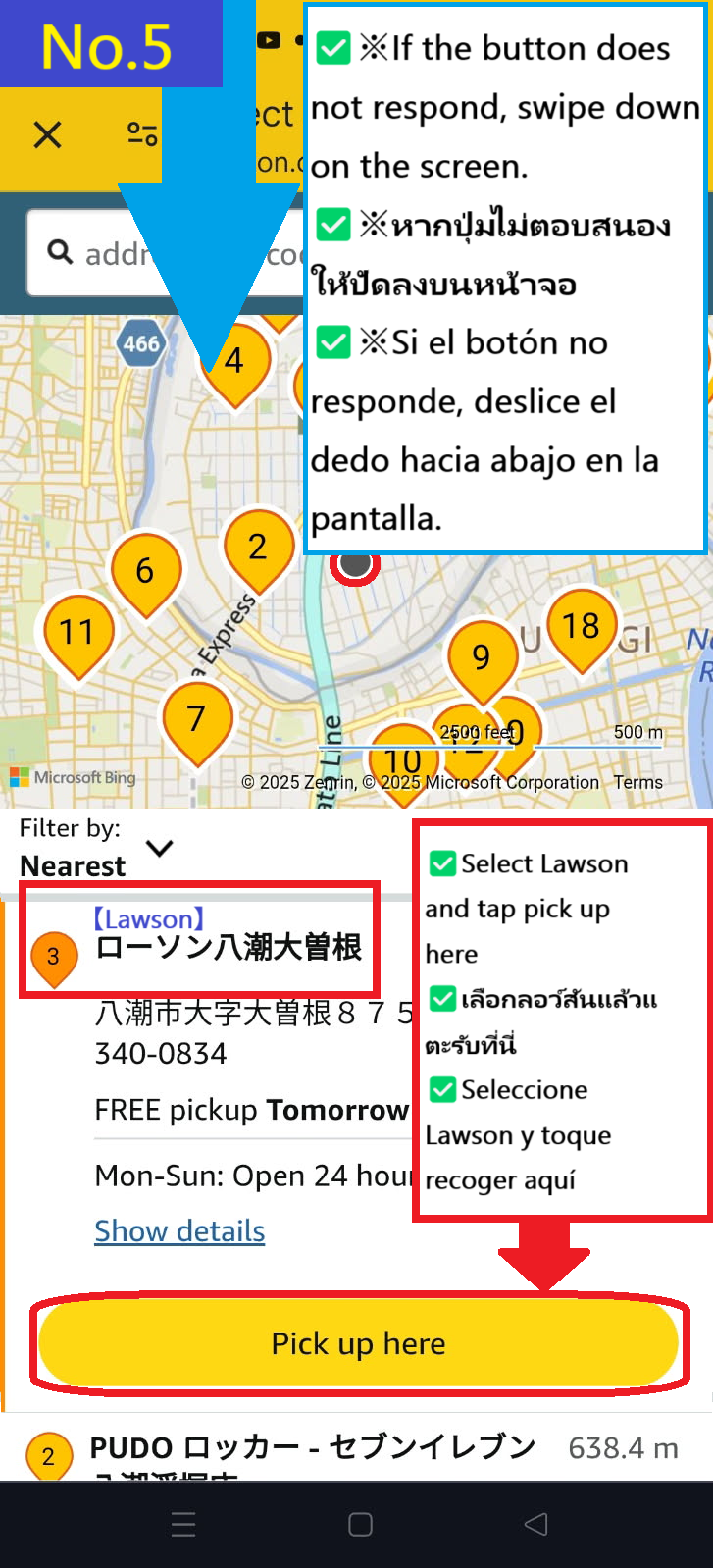
  • ครั้งนี้ ให้เลือก Lawson Yashio Ozone สาขาหมายเลข 3 บนแผนที่ แล้วแตะที่ "รับสินค้าที่นี่(Pick up here)"
    ※หากคุณไม่สามารถแตะได้ ให้เลื่อนหน้าจอลงเพื่อรีเฟรชหน้าจอ จากนั้นเลือกสาขาและแตะที่ "รับสินค้าที่นี่(Pick up here)" อีกครั้ง
    เราแนะนำให้ติดตั้งแอป Amazon Japan อย่างเป็นทางการ เนื่องจากข้อบกพร่องนี้จะได้รับการแก้ไข
  • Image description of This time, select Lawson Yashio Ozone store number 3 on the map and tap Pick up here.

    ✅ ดาวน์โหลดแอป Amazon Japan อย่างเป็นทางการ

    🍎 ดาวน์โหลดผ่าน App Store
    🤖 ดาวน์โหลดผ่าน Google Play


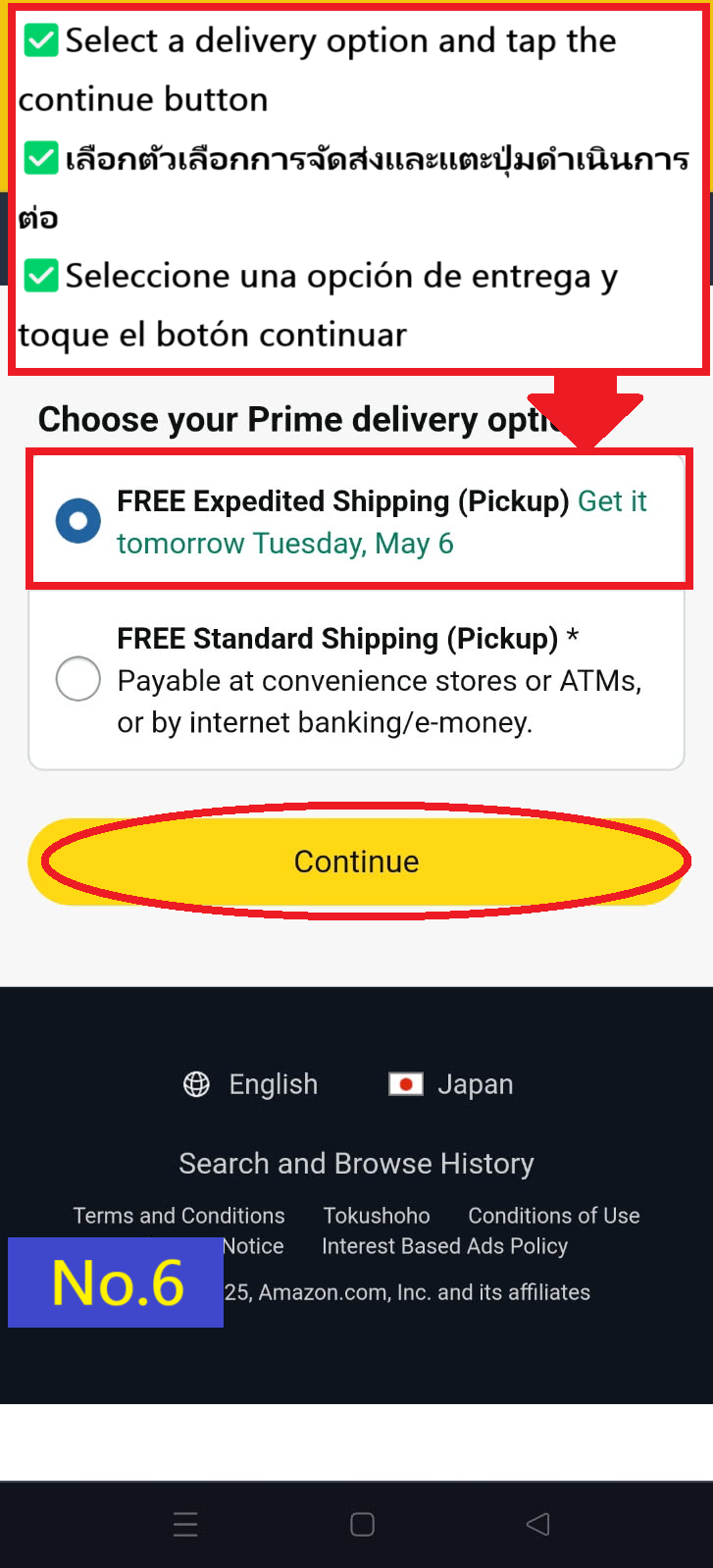
  • เลือกตัวเลือกการจัดส่งที่คุณต้องการแล้วแตะที่ "ดำเนินการต่อ(continue)"
  • Image description of Select your preferred delivery option and tap continue

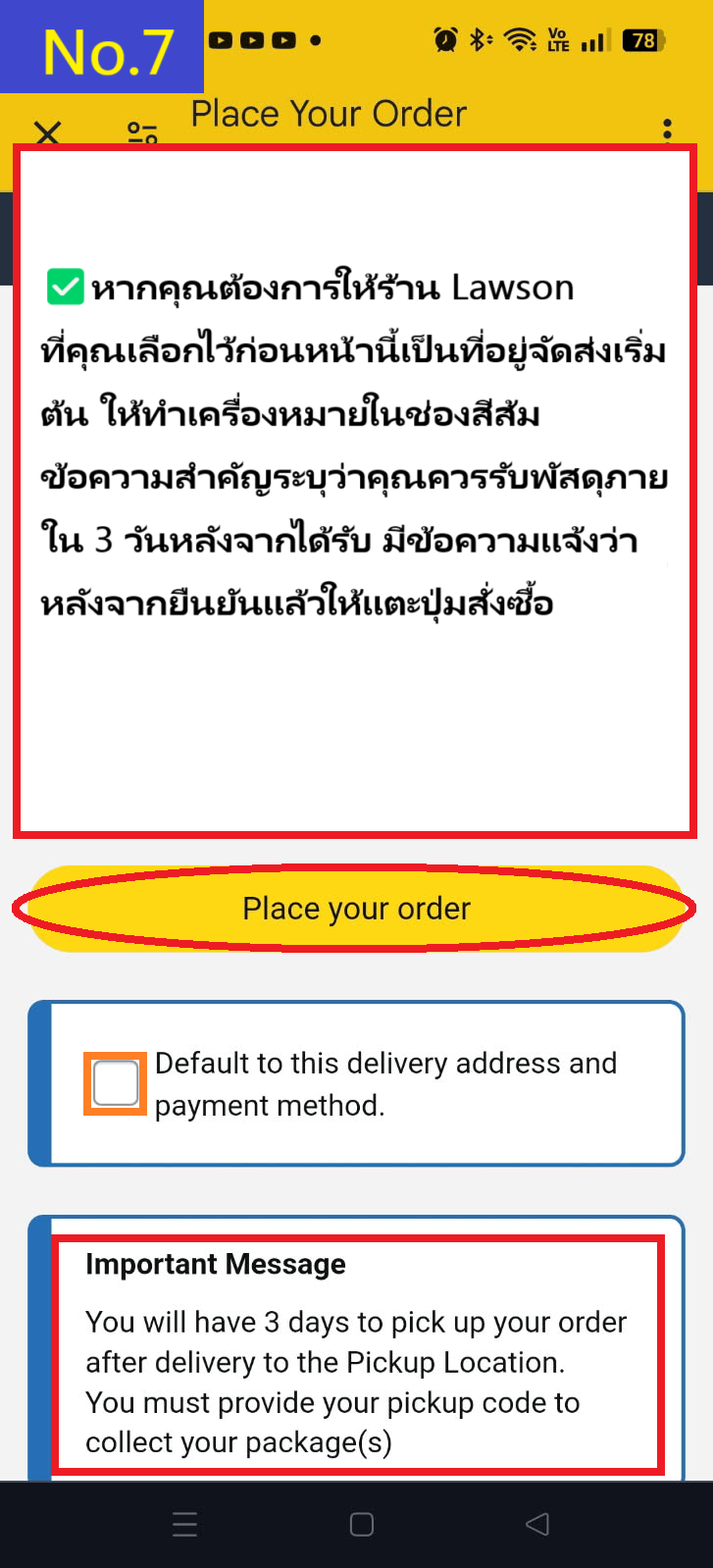
  • หากคุณต้องการตั้งค่านี้เป็นที่อยู่เริ่มต้น ให้ทำเครื่องหมายที่ "ตั้งเป็นที่อยู่จัดส่งเริ่มต้น(default to this delivery address)" แล้วแตะที่ "สั่งซื้อของคุณ(Place your order)"
  • Image description of If you want to make this address the default, check default to this delivery address and tap Place your order.

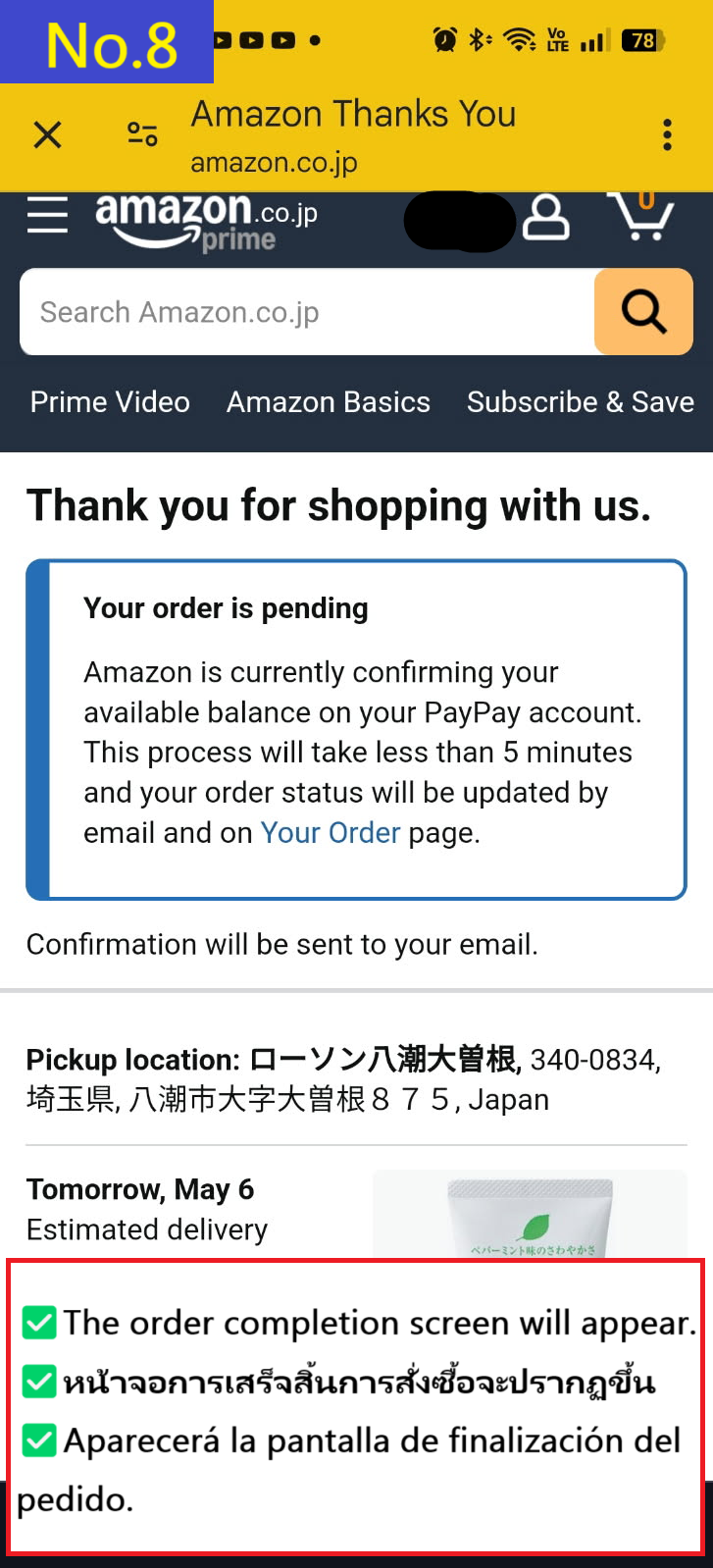
  • หน้ารายละเอียดการยืนยันคำสั่งซื้อจะปรากฏขึ้น
  • Image description of The order confirmation details page will appear.

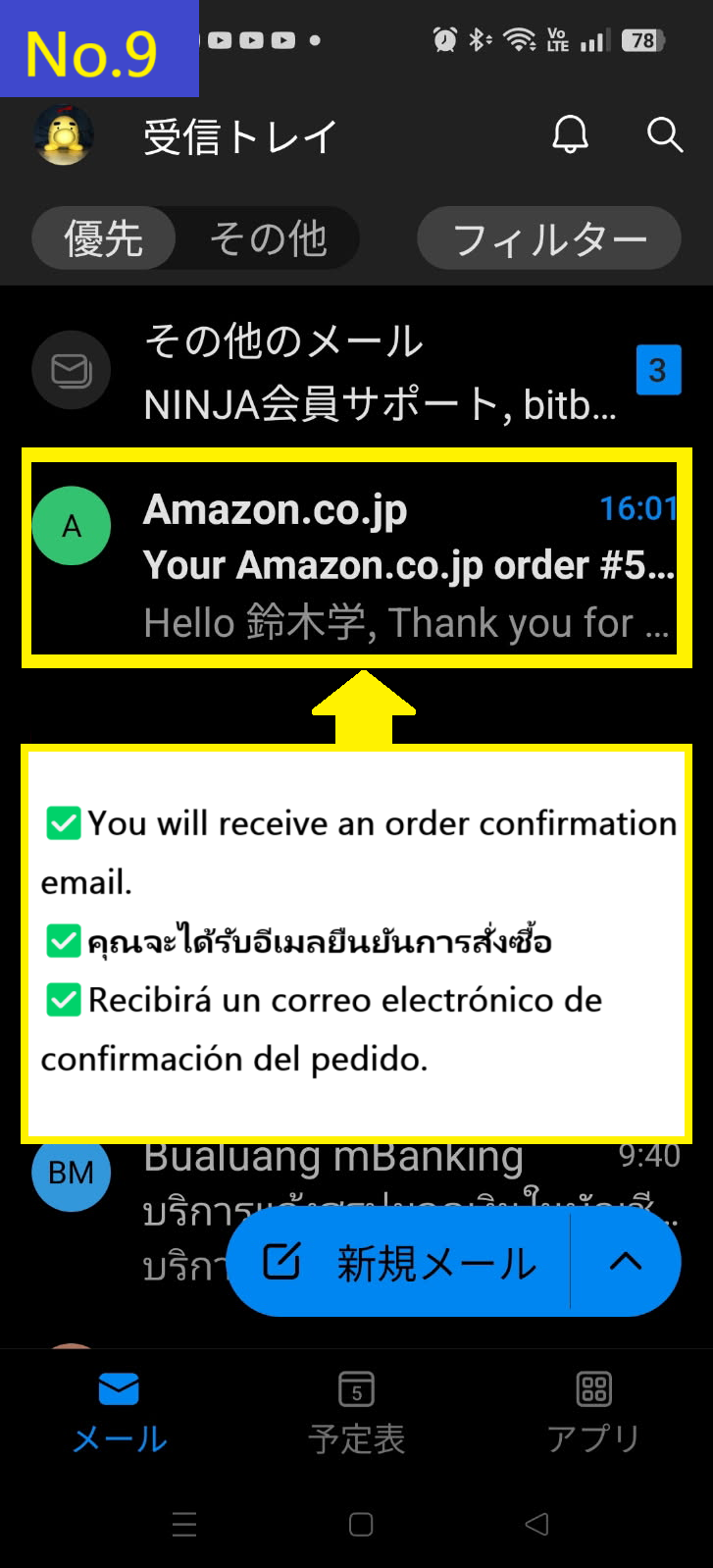
  • ก่อนอื่น คุณจะได้รับอีเมลยืนยันคำสั่งซื้อ
  • Image description of First, you will receive an order email.

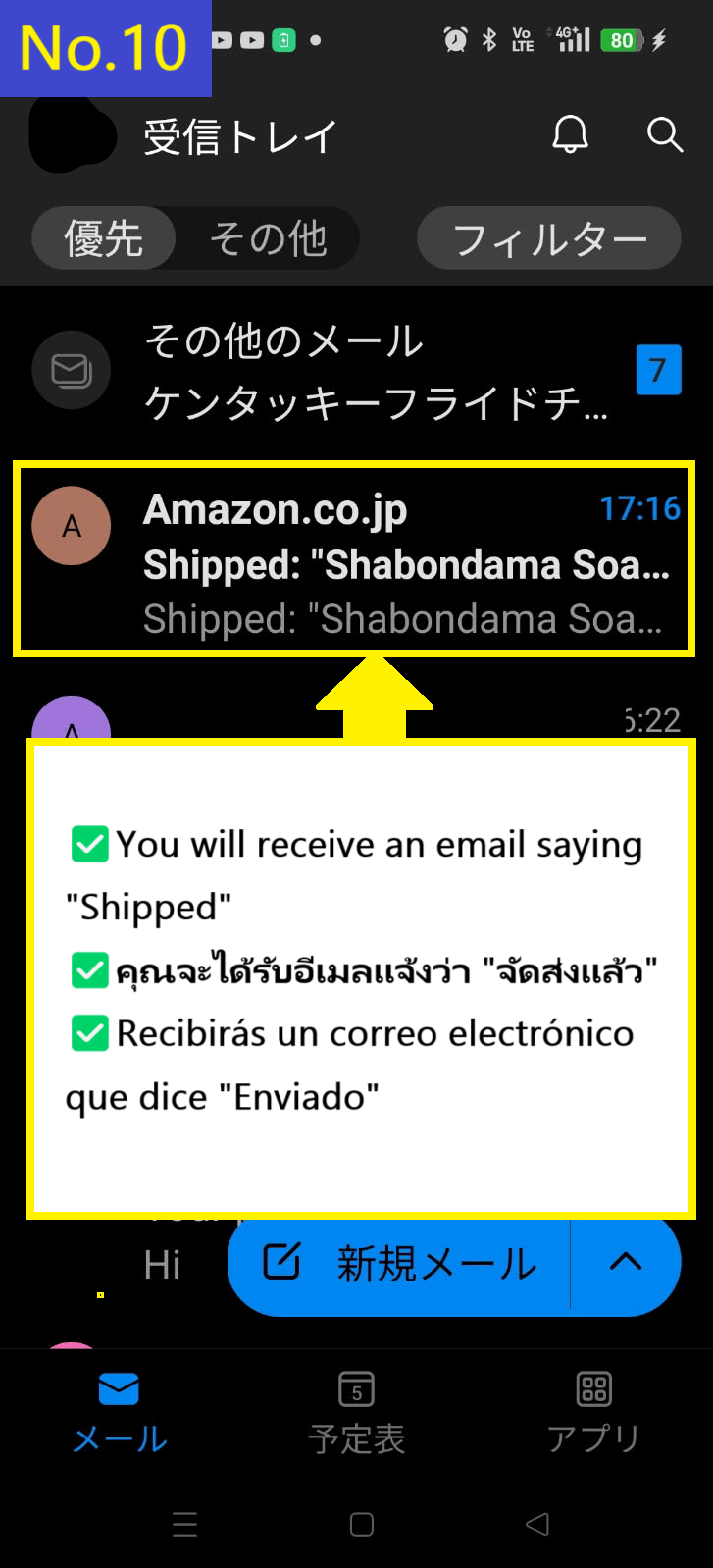
  • คุณจะได้รับอีเมล "จัดส่งแล้ว" เป็นฉบับที่สอง
  • Image description of You will receive the Shipped email second.

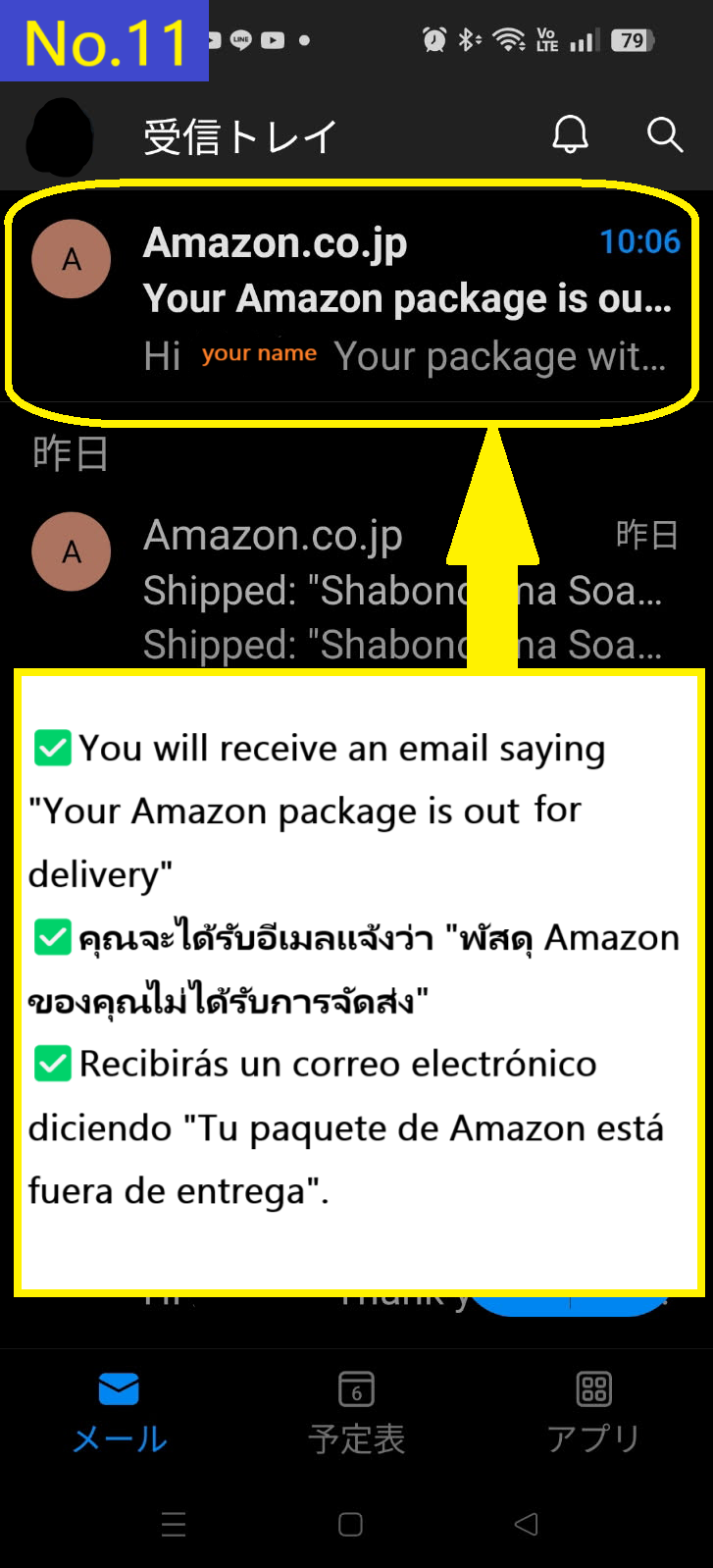
  • คุณจะได้รับอีเมลฉบับที่สามที่แจ้งว่าพัสดุของคุณกำลังอยู่ระหว่างการจัดส่ง
  • Image description of You receive the third email saying that the package is out for delivery.

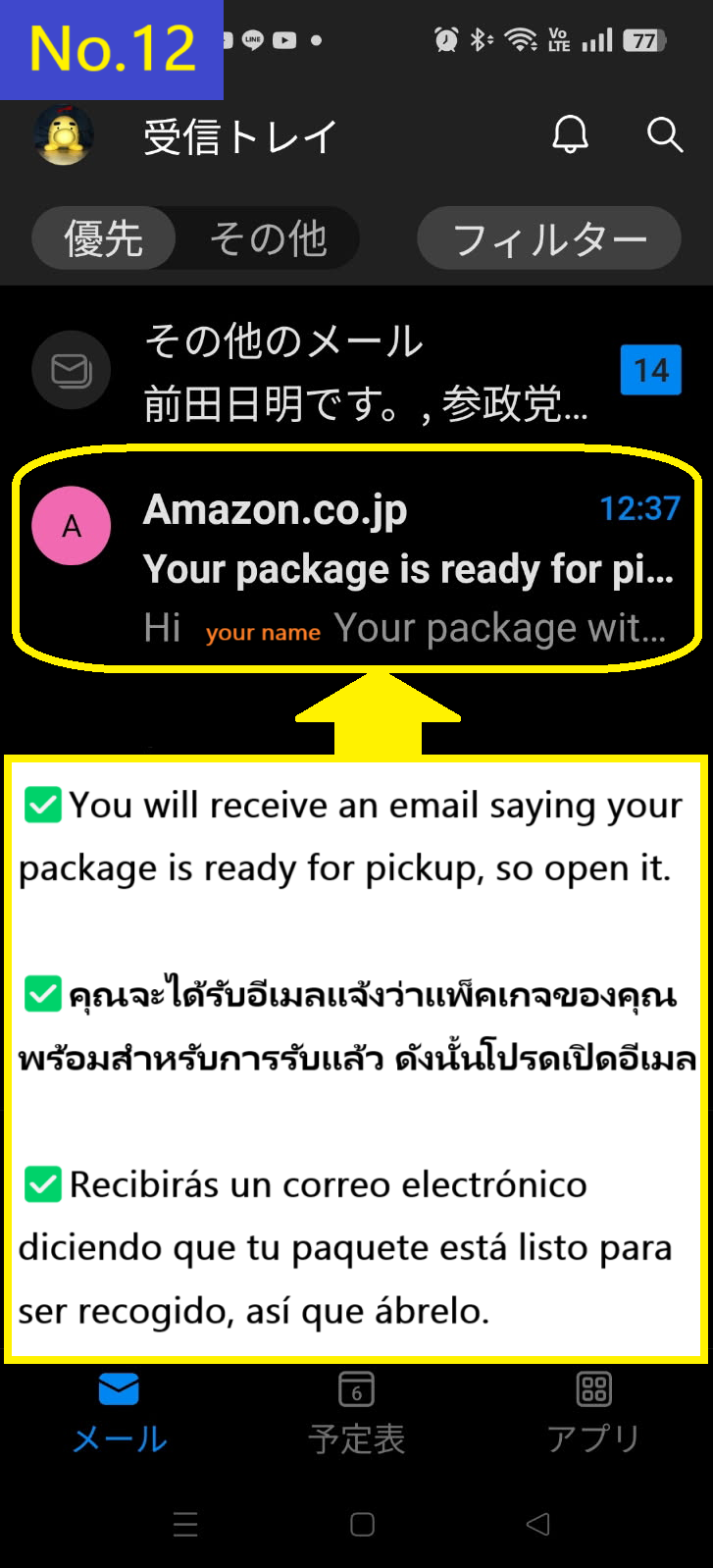
  • คุณจะได้รับอีเมลฉบับที่สี่ที่แจ้งว่าพัสดุของคุณพร้อมสำหรับการรับแล้ว
  • Image description of You will receive a fourth email saying your package is ready for pickup.

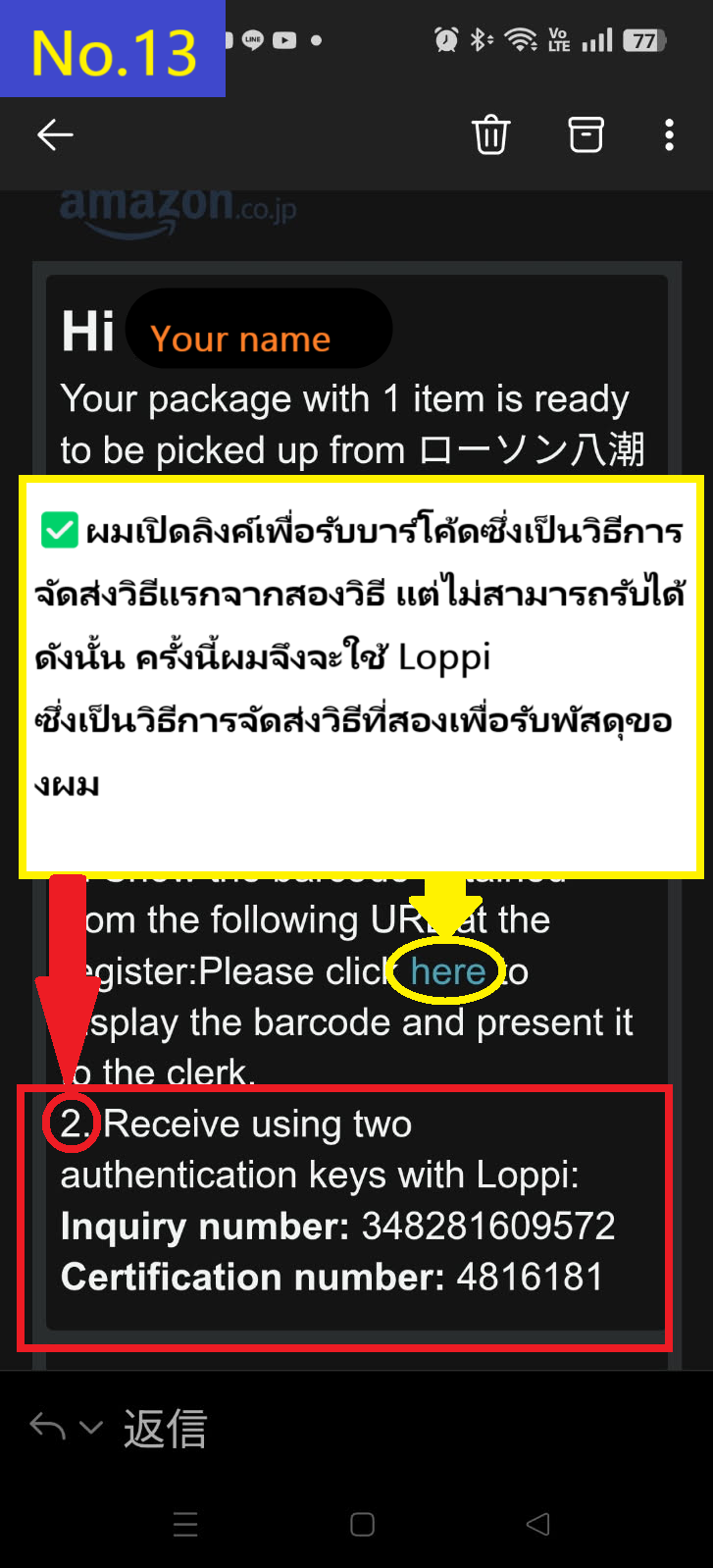
  • มีสองวิธีในการรับสินค้า แต่ลิงก์สำหรับรับบาร์โค้ดไม่สามารถใช้งานได้ในครั้งนี้ ดังนั้นเราจะอธิบายวิธีการรับสินค้าที่เครื่อง Loppi ที่ Lawson โดยใช้หมายเลขสอบถามและหมายเลขรับรอง
  • Image description of There were two ways to receive the item, but the link to get the barcode didn't work this time, so I will explain how to receive it at the Loppi terminal at Lawson using the inquiry number and certification number.

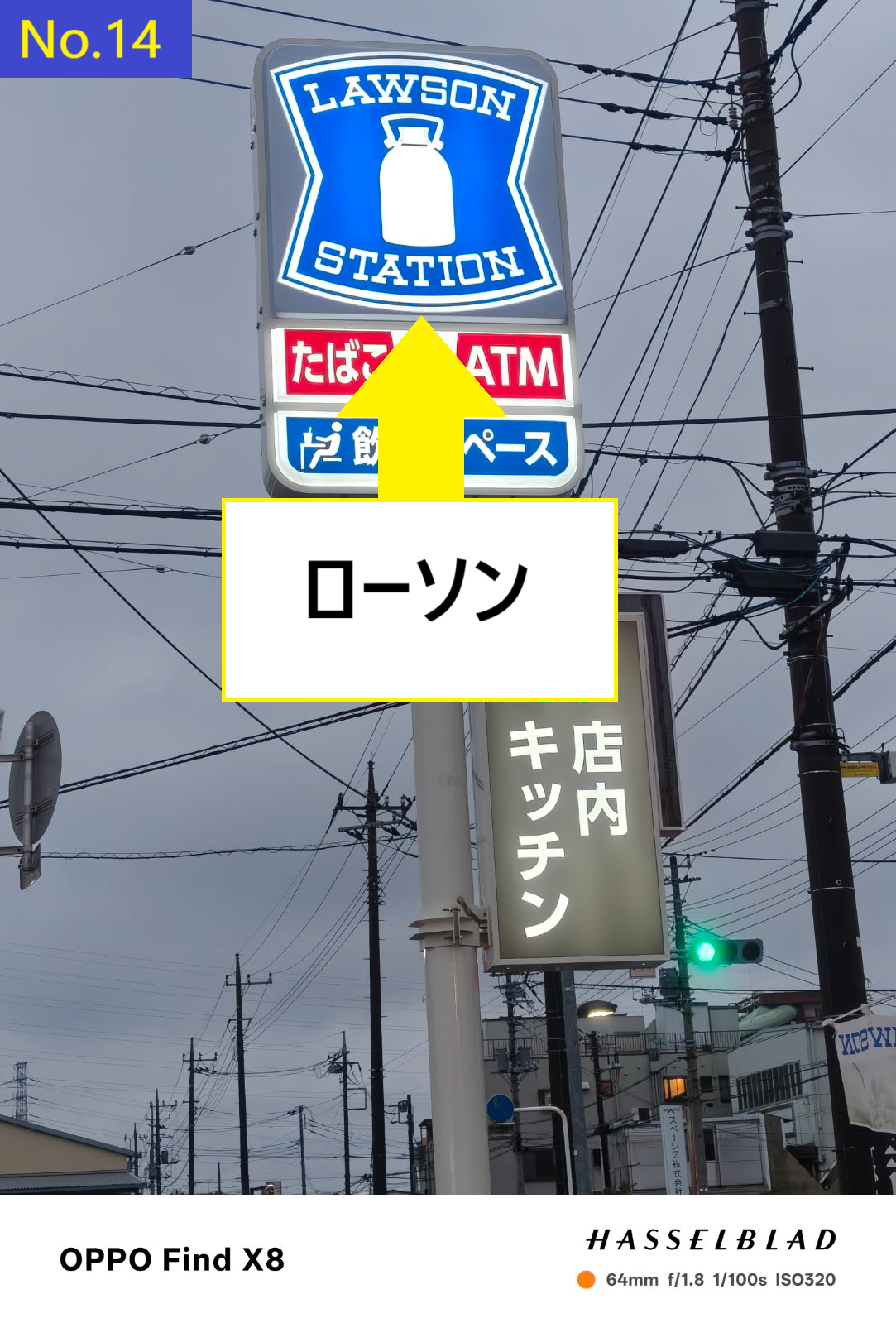
  • นี่คือป้าย Lawson
  • Image description of This is the Lawson sign.

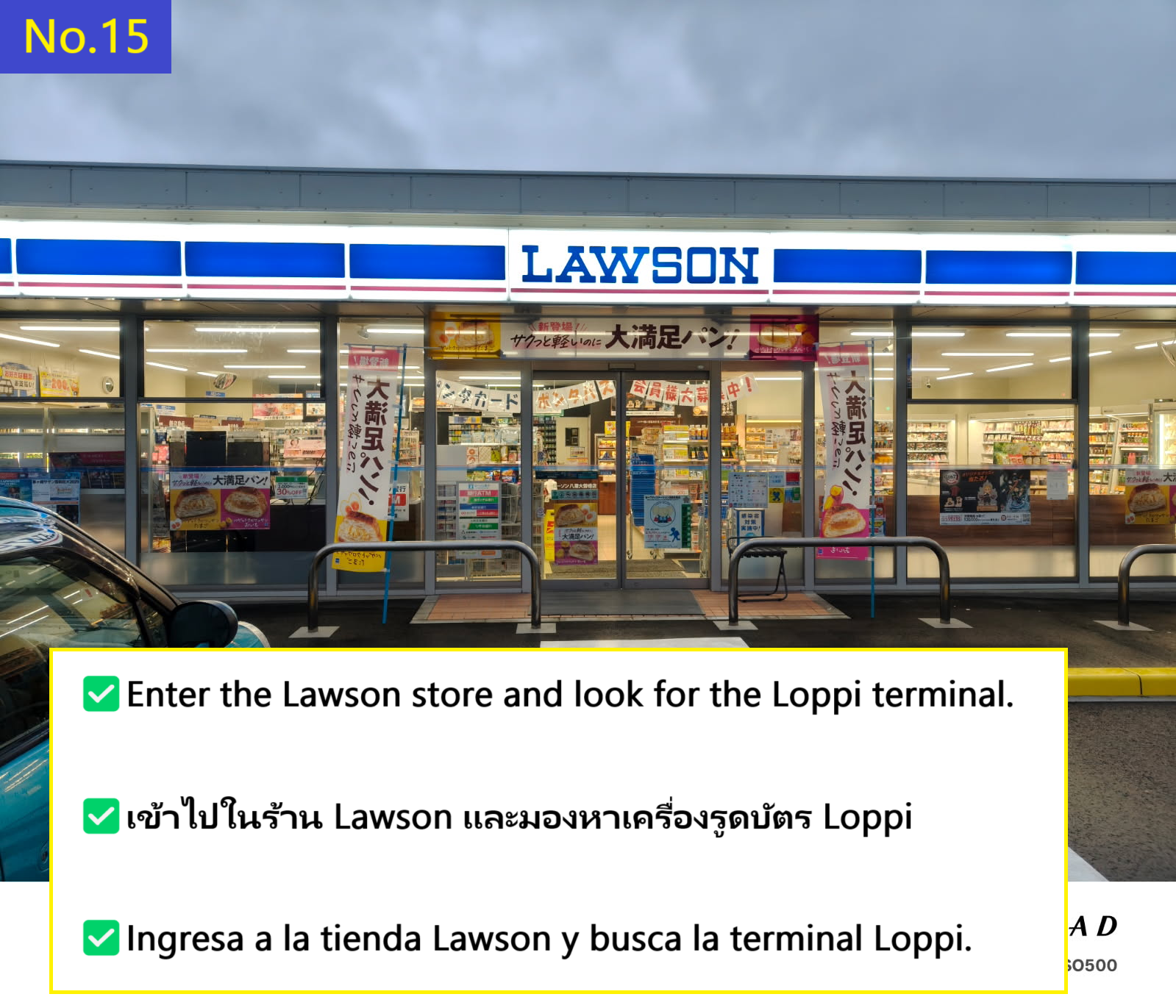
  • นี่คือร้าน Lawson ที่ฉันไปรับคำสั่งซื้อของฉัน
  • Image description of This is the Lawson store where I received my order.

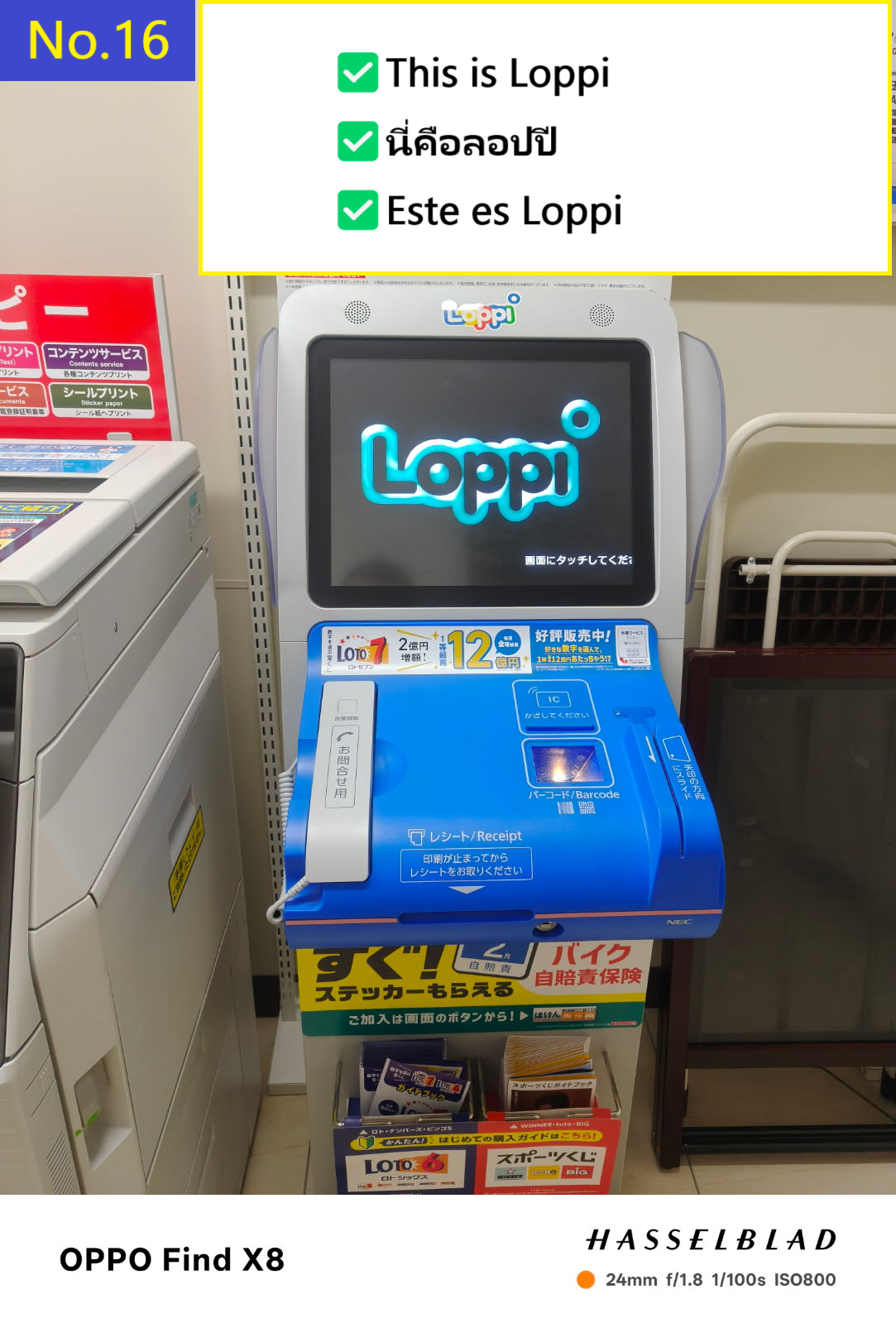
  • เข้าสู่ร้านและมองหาเครื่อง Loppi
  • Image description of Enter the store and look for the Loppi terminal.

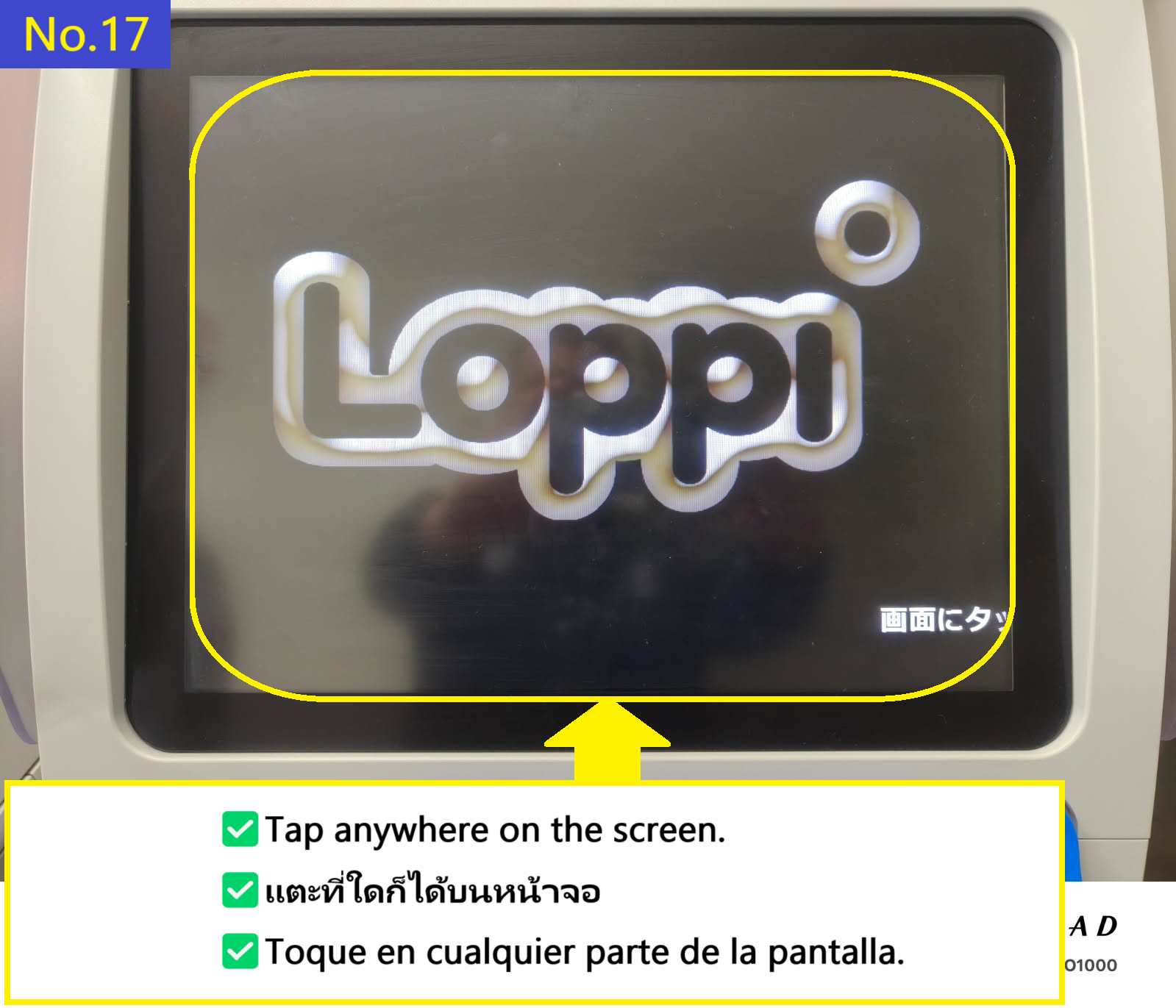
  • แตะที่ใดก็ได้บนหน้าจอเครื่อง Loppi
  • Image description of Tap anywhere on the Loppi terminal screen

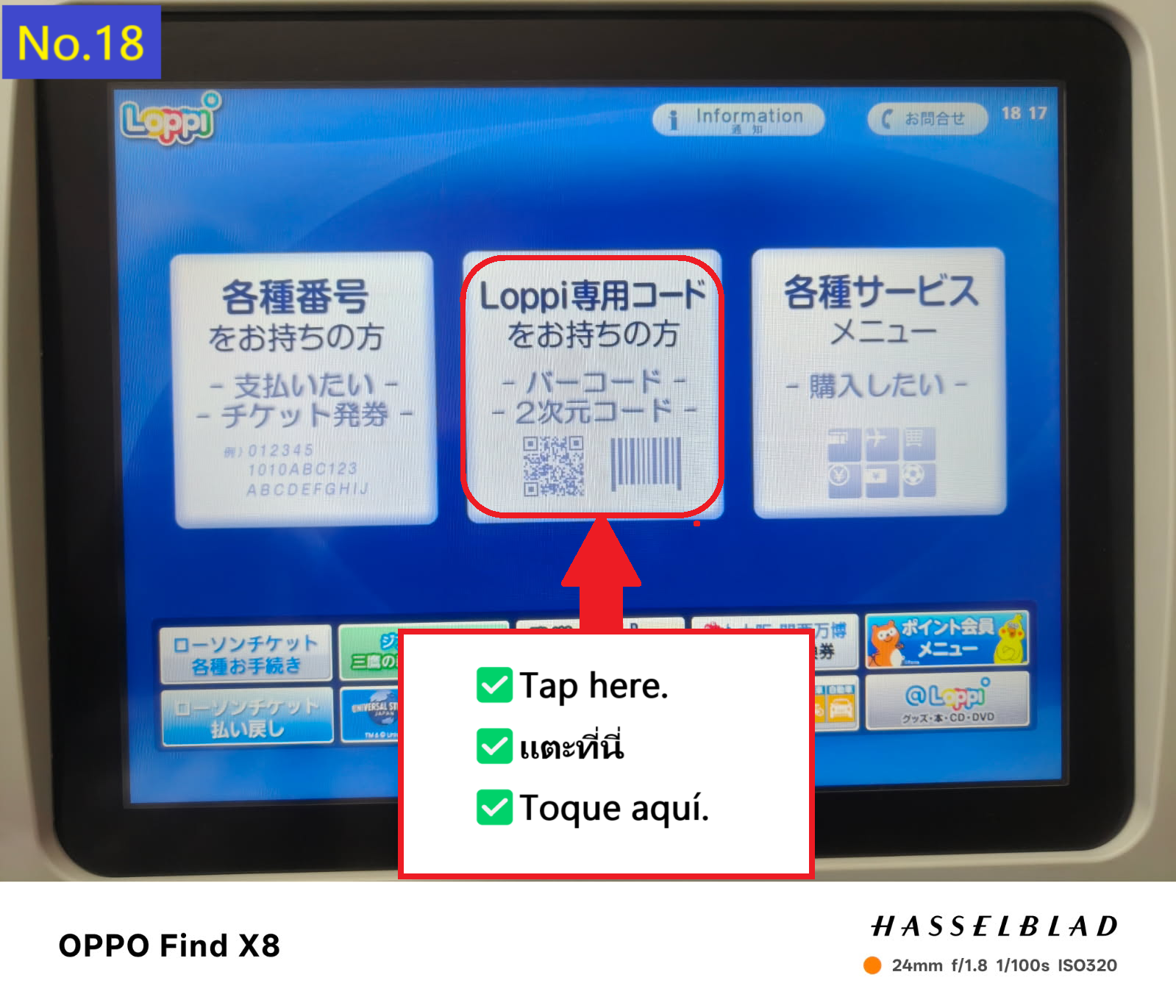
  • ฉันพยายามเปลี่ยนเป็นภาษาอังกฤษ แต่ไม่สามารถใช้งานได้ ดังนั้นฉันจะอธิบายเป็นภาษาญี่ปุ่น แตะที่แท็บ Loppi code ตรงกลาง
  • Image description of I tried to switch to English translation, but it didn't work and I'll explain it in Japanese. Tap the Loppi code tab in the middle.

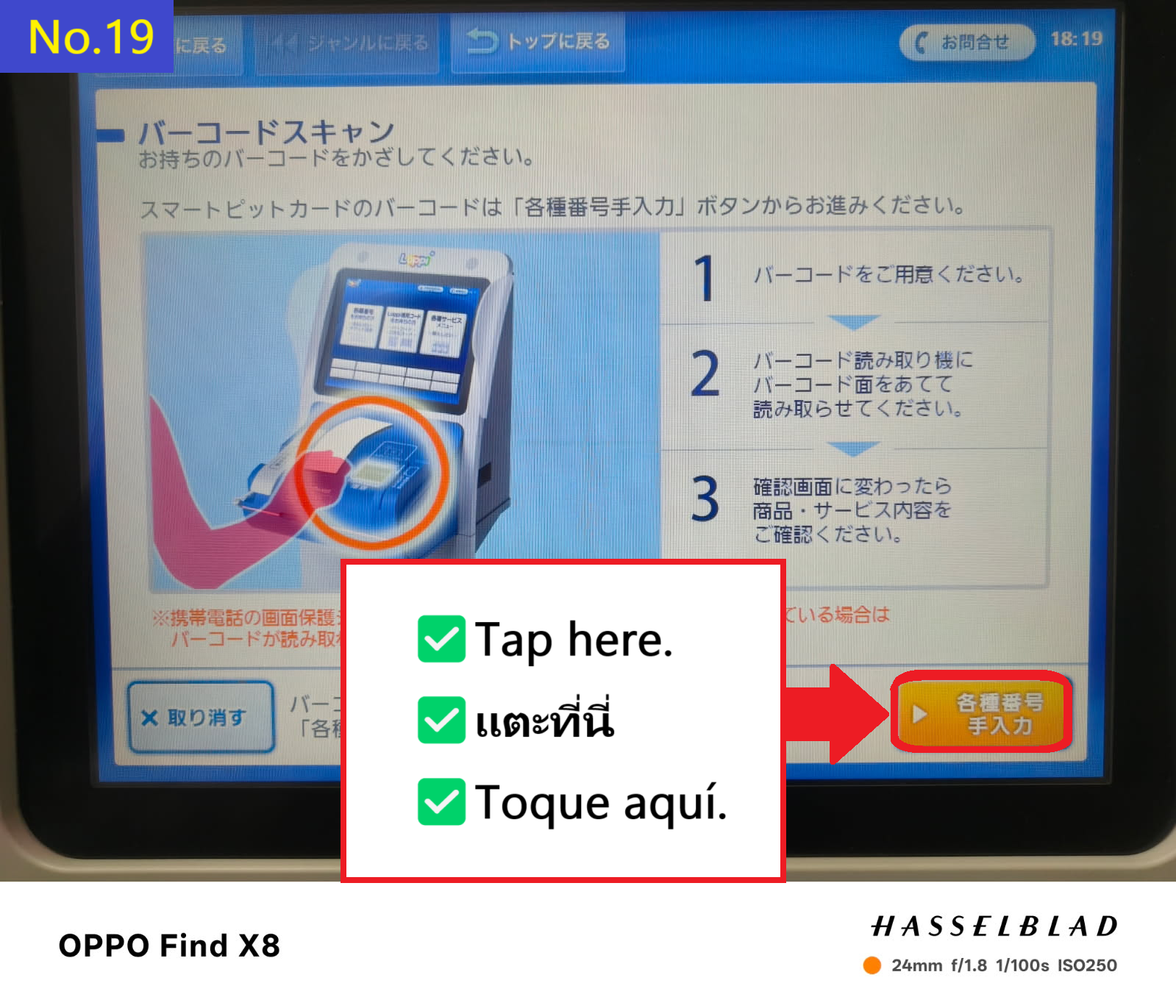
  • แตะที่แท็บสีส้มที่มุมล่างขวา
  • Image description of Tap the orange tab in the bottom right

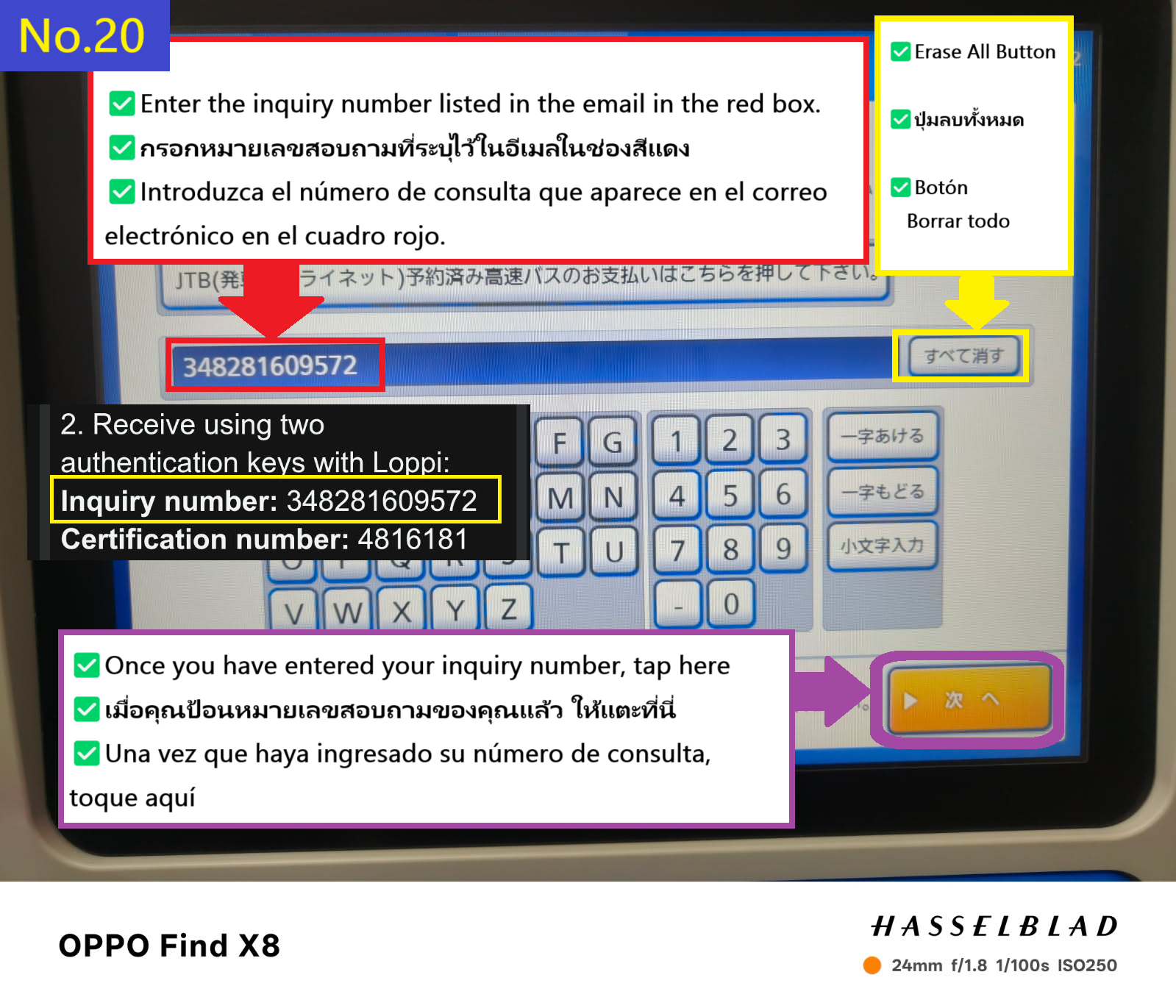
  • ก่อนอื่น ป้อนหมายเลขสอบถามของคุณแล้วแตะที่แท็บสีส้มที่มุมล่างขวา
  • Image description of First, enter your inquiry number and tap the orange tab on the bottom right.

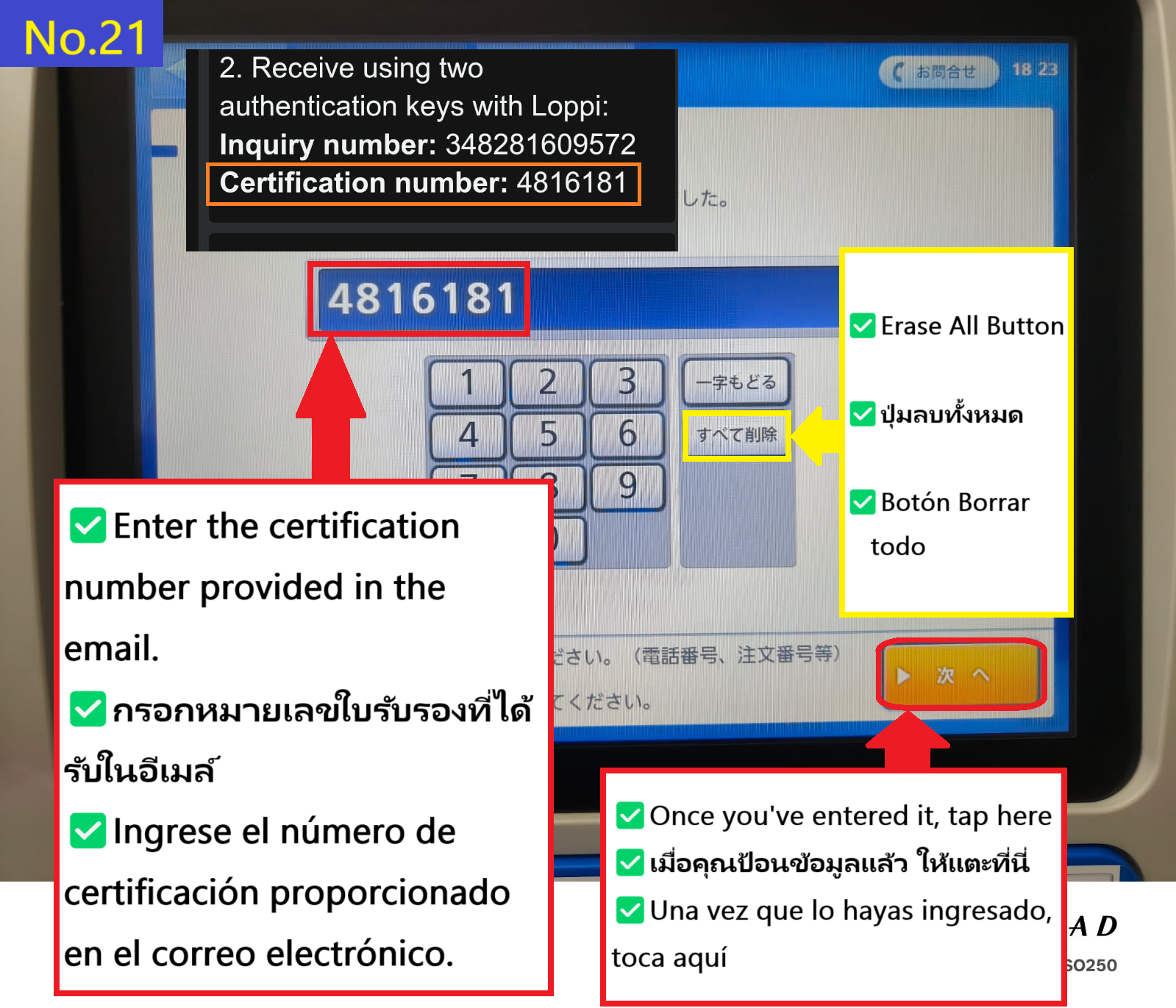
  • ตอนนี้ป้อนหมายเลขรับรองของคุณแล้วแตะที่แท็บสีส้มที่มุมล่างขวา
  • Image description of Now enter your certification number and tap the orange tab at the bottom right

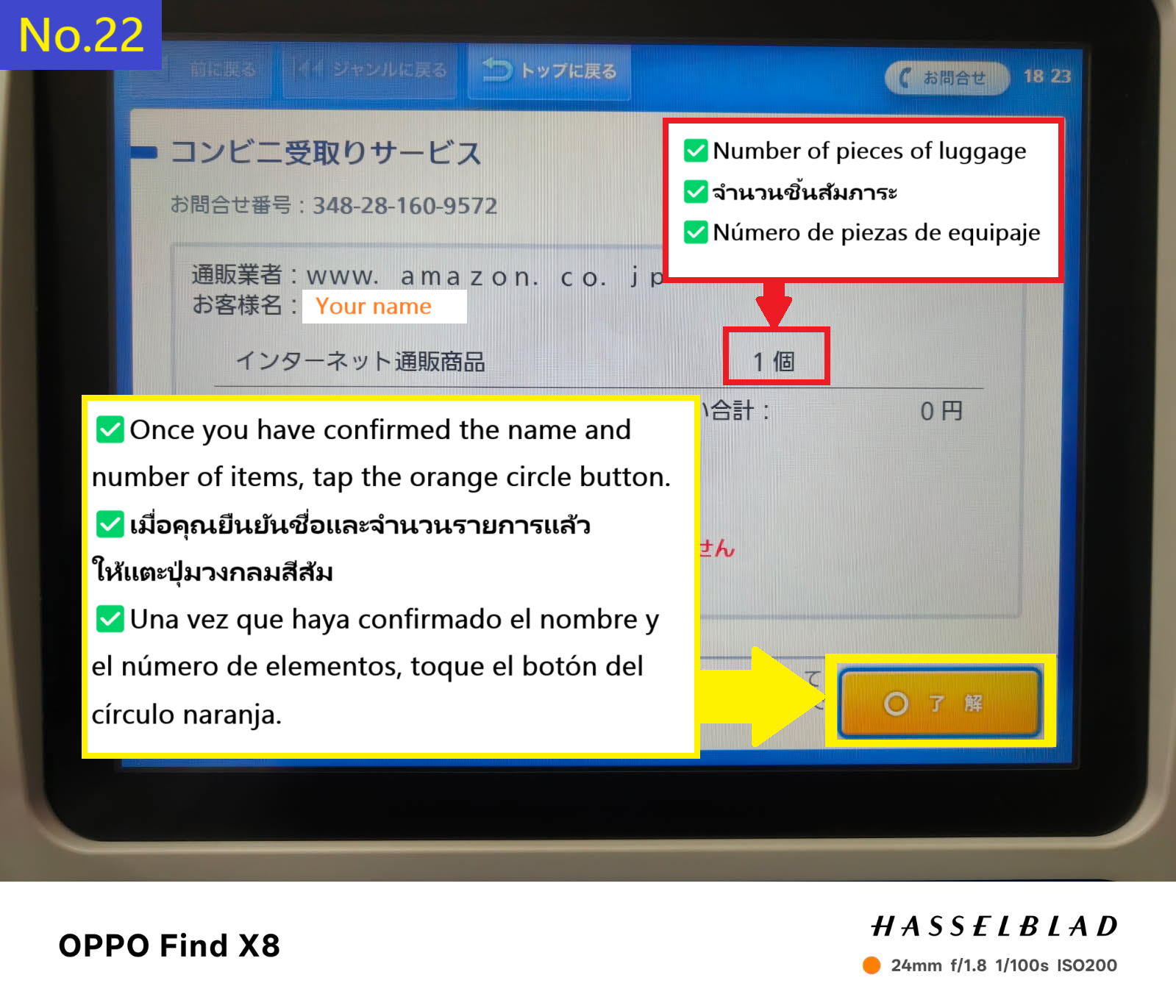
  • www.amazon.co.jp เมื่อคุณยืนยันชื่อของคุณแล้ว แตะที่แท็บวงกลมสีส้มที่มุมล่างขวา
  • Image description of www.amazon.co.jp
  Once you have confirmed your name, tap the orange circle tab in the bottom right

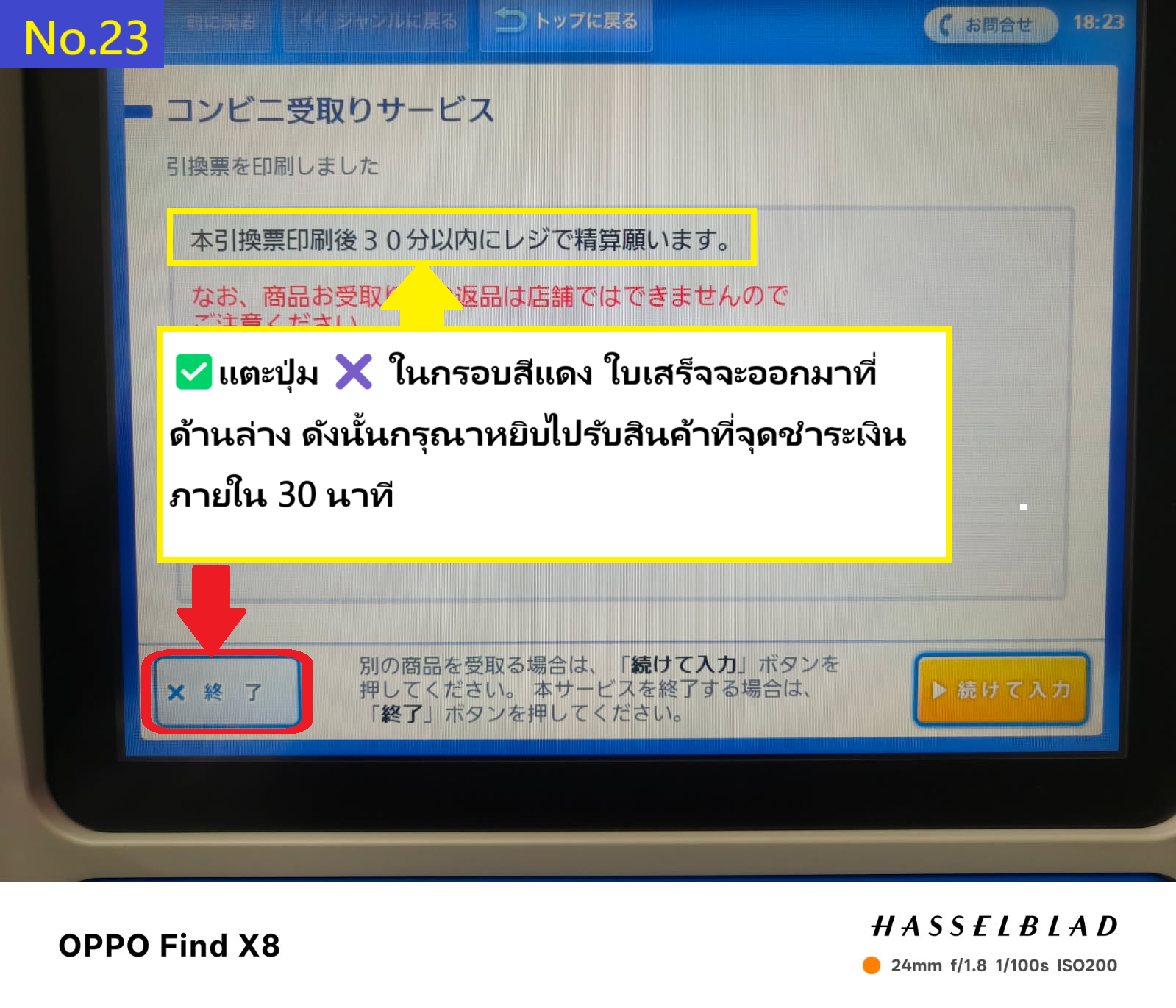
  • ใบเสร็จจะปรากฏที่ด้านล่างของหน้าจอเครื่อง Loppi แตะที่แท็บ X ที่ด้านล่างของหน้าจอเพื่อรับใบเสร็จของคุณ กรุณาไปรับสินค้าที่เคาน์เตอร์ร้านภายใน 30 นาทีหลังจากได้รับใบเสร็จ
  • Image description of The receipt will appear at the bottom of the Loppi terminal screen. Tap the X tab at the bottom of the screen to receive your receipt. Please collect your item at the store's cash register within 30 minutes of receiving the receipt.

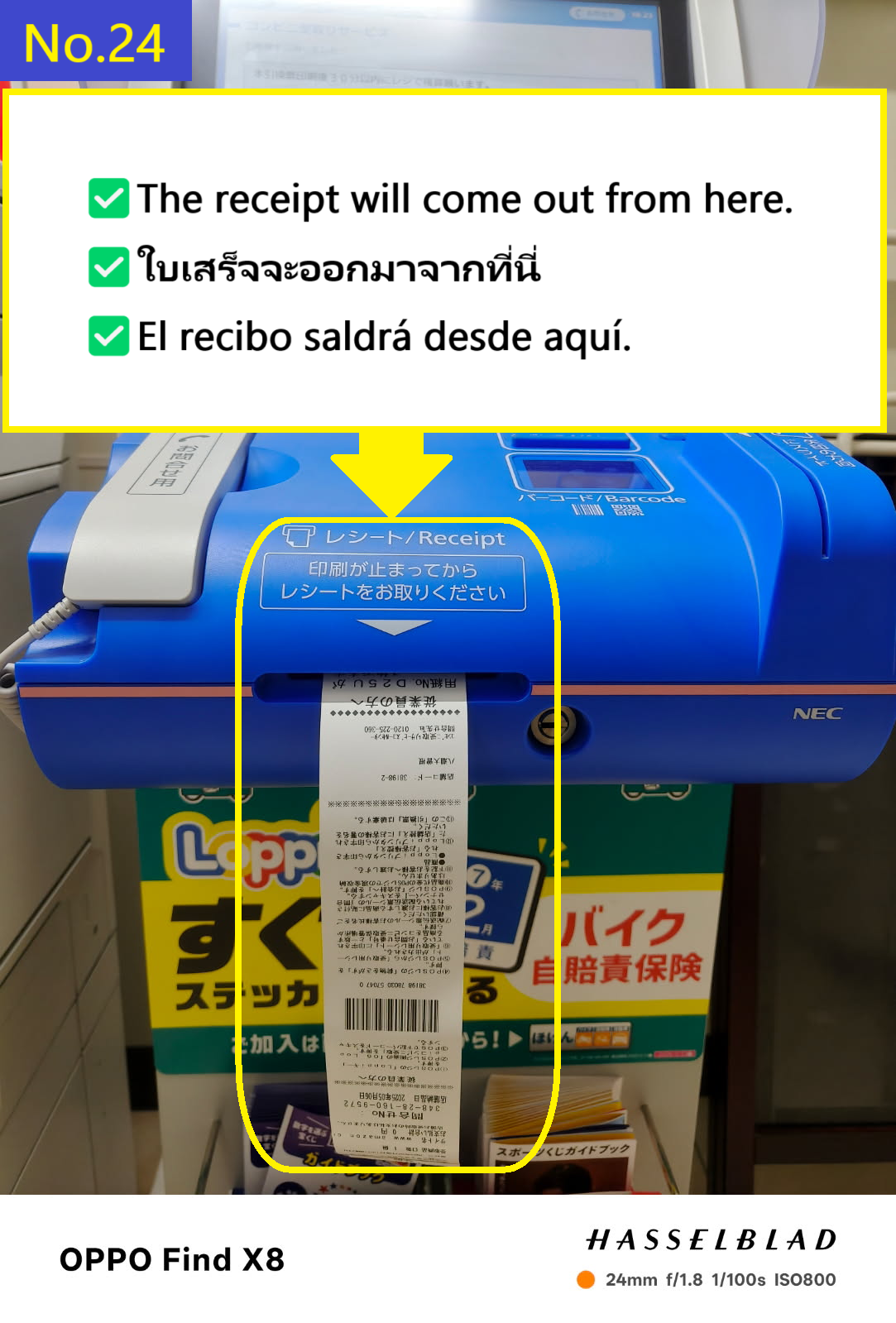
  • ใบเสร็จจะออกมาดังนี้
  • Image description of The receipt will come out like this

  • นำใบเสร็จไปที่เคาน์เตอร์ชำระเงินภายในร้าน ในเวลานี้ การแปลคำว่า "Amazon parcel pickup(アマゾンの荷物受取)" เป็นภาษาญี่ปุ่นด้วย Google Translate หรือแอปอื่น ๆ และแสดงหน้าจอแปลพร้อมใบเสร็จให้พนักงานดู จะทำให้ขั้นตอนง่ายขึ้น
  • Image description of Take the receipt and go to the cash register inside the store.
     At this time, it will be easier if you use Google Translate or similar to translate Amazon parcel pickup(アマゾンの荷物受取) into Japanese and show the receipt and the translation screen to the cashier.

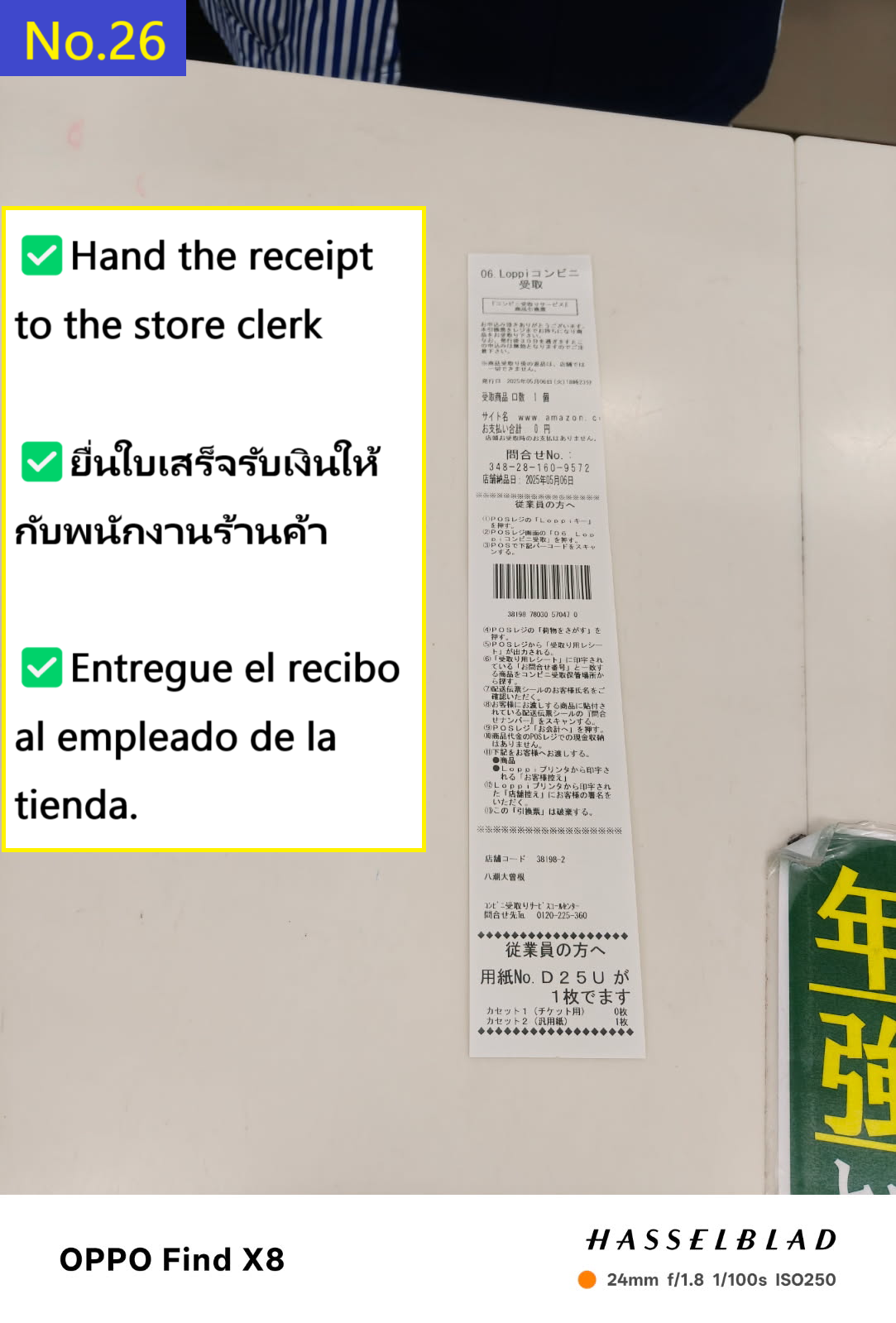
  • ยื่นใบเสร็จให้พนักงาน
  • Image description of Hand the receipt to the clerk

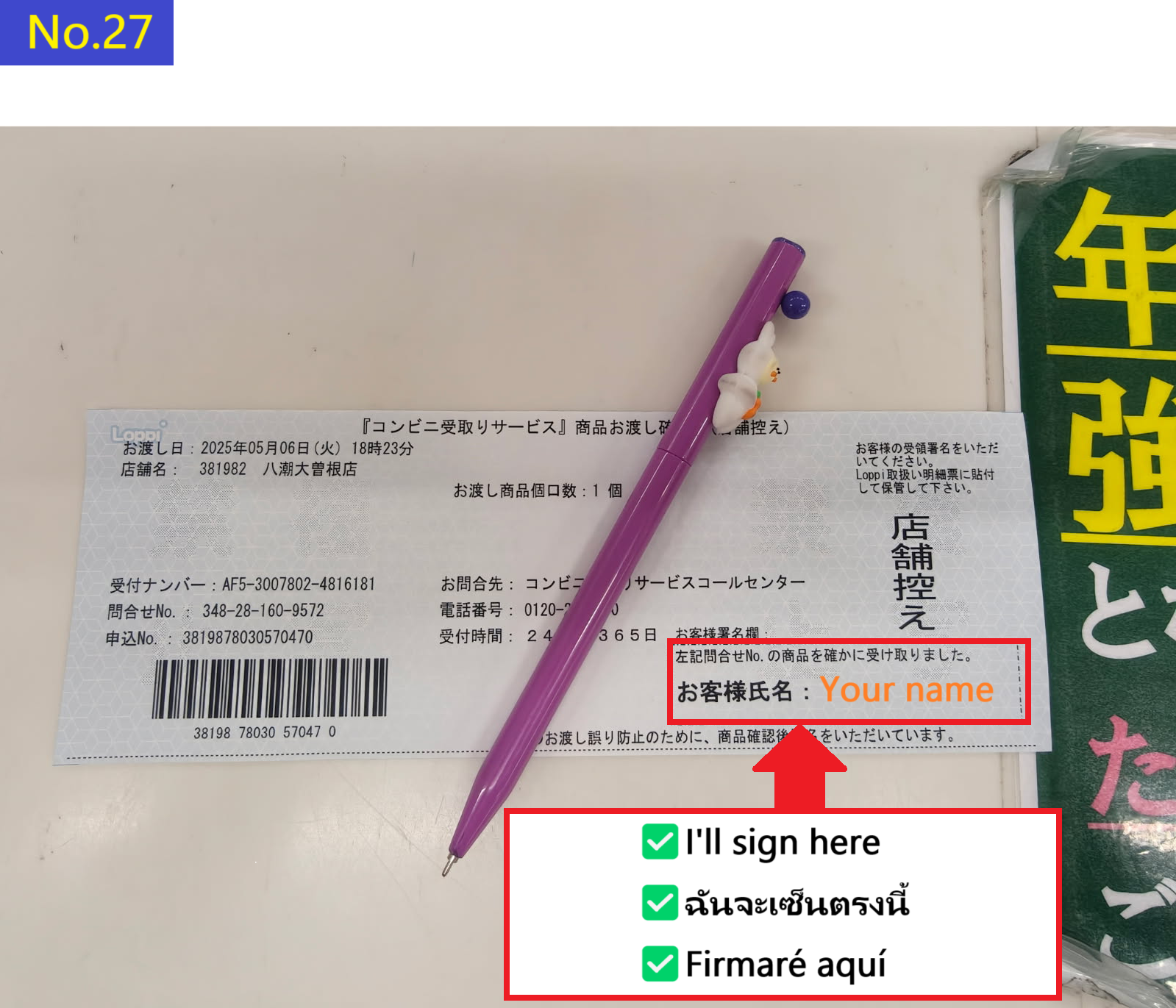
  • พนักงานจะยื่นเอกสารให้คุณแบบนี้ กรุณาเซ็นชื่อในช่องว่างด้านล่างขวา
  • Image description of The clerk will show you a piece of paper like this, so please sign in the blank space at the bottom right.

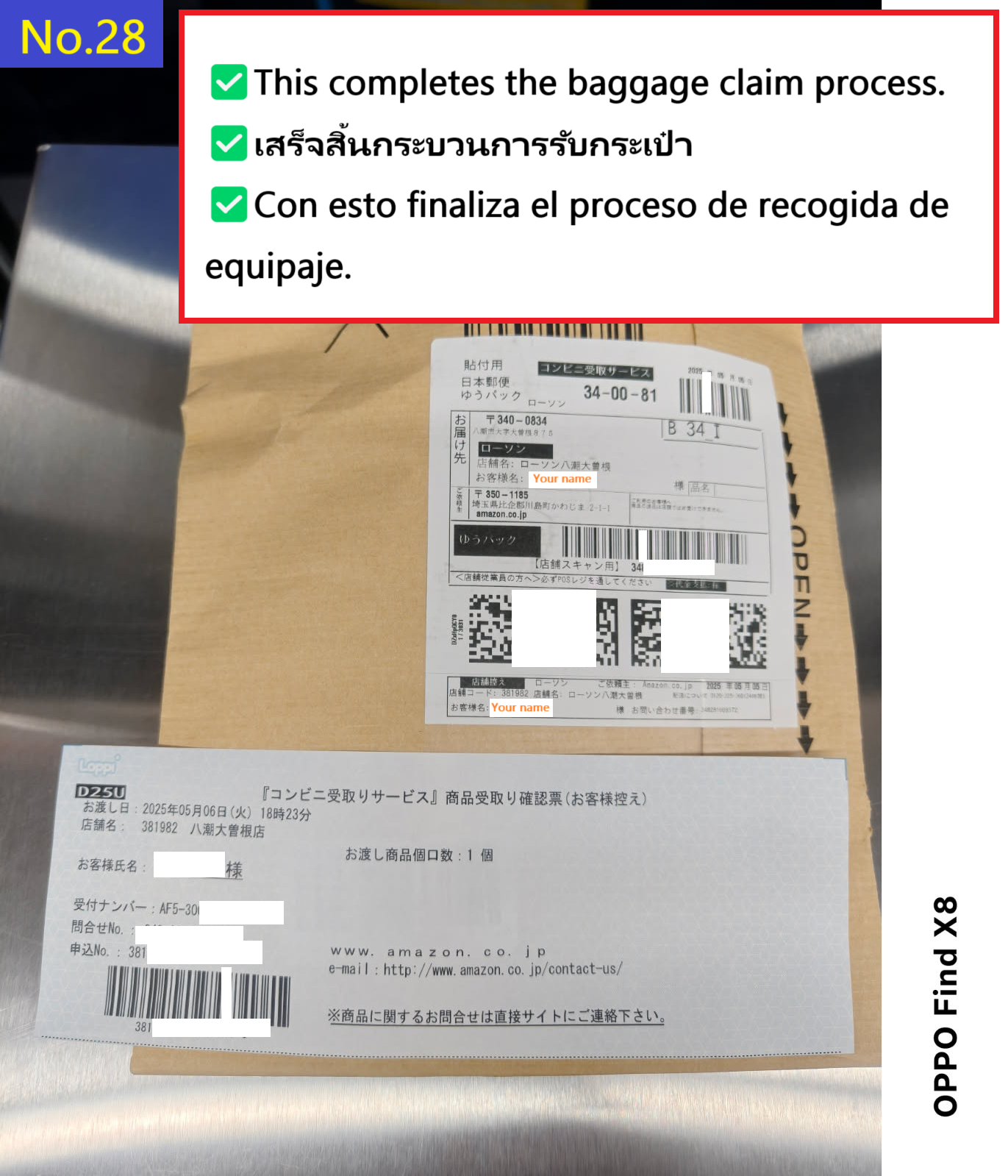
  • ขั้นตอนการรับพัสดุเสร็จสมบูรณ์แล้ว
  • Image description of This completes the receipt of your luggage.

    🤖 Search for Products by Text or Image (AI-powered)

    Can’t find what you want? Let AI help!
    You can search using images or keywords—even if you don't know the product name.

    📷📝 ค้นหาสินค้า (ข้อความหรือรูปภาพ)