🌐 🇯🇵 JP | 🇺🇸 EN | 🇹🇭 TH | 🇪🇸 ES

How to receive your parcel at the Amazon Locker(Amazonロッカー)


To receive your package using Amazonlocker, you must install the official Amazon Japan app and log in.

🍎 Download on the App Store
🤖 Get it on Google Play

Steps to follow when the product is in your cart


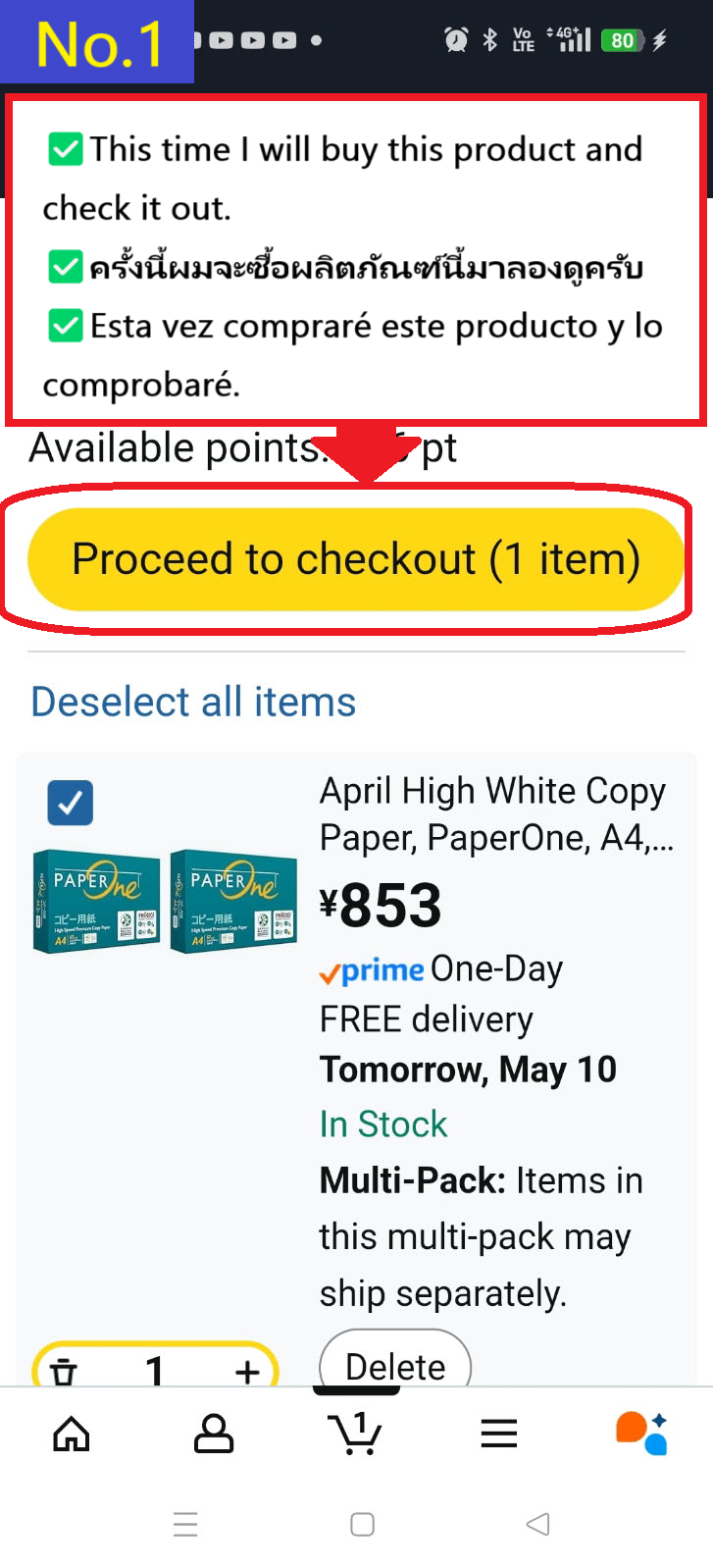
  • If the item you want to purchase is the same as the item in your cart, tap Proceed to checkout
  • Image description of If the item you want to purchase is the same as the item in your cart, tap Proceed to checkout

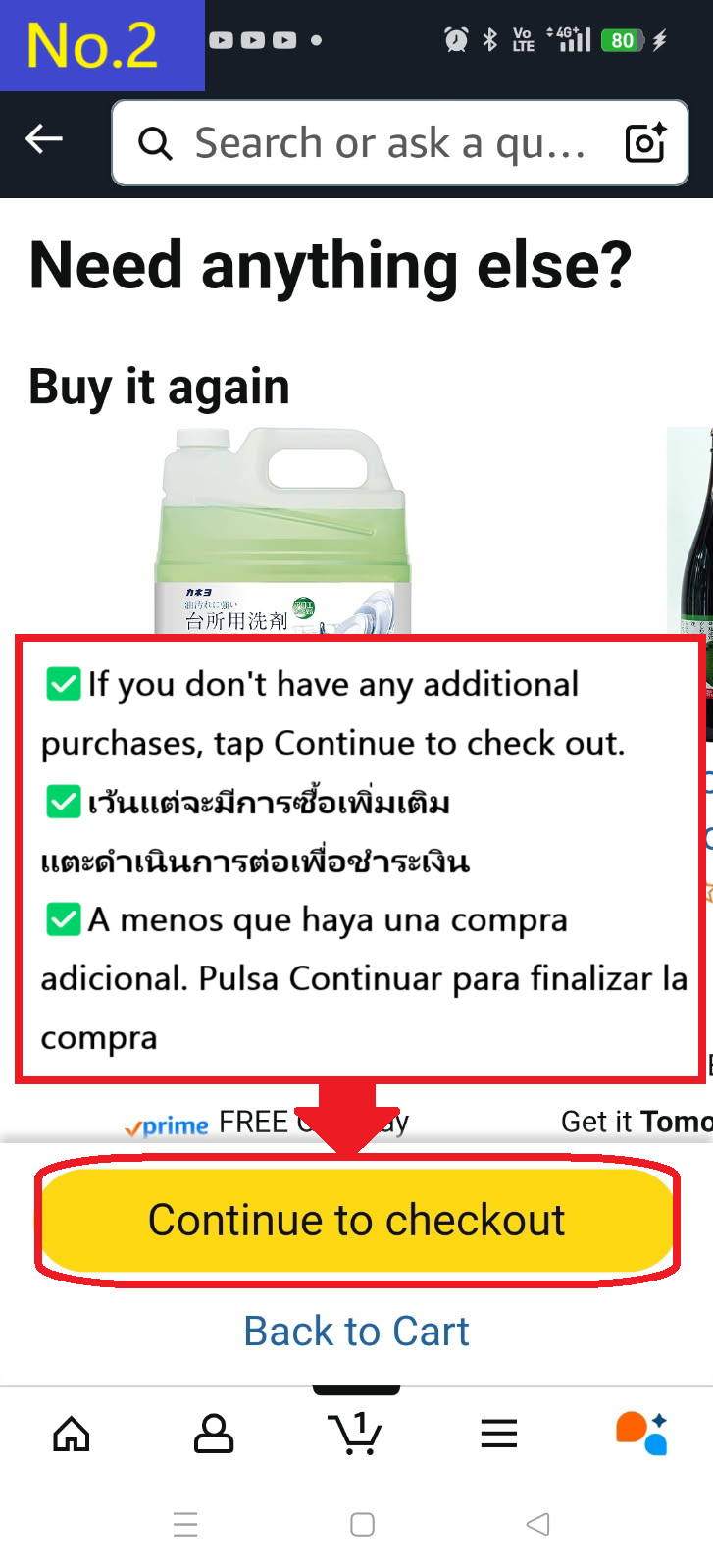
  • You will be recommended other products, but if you don't need them, tap Continue to checkout.
  • Image description of You will be recommended other products, but if you don't need them, tap Continue to checkout.

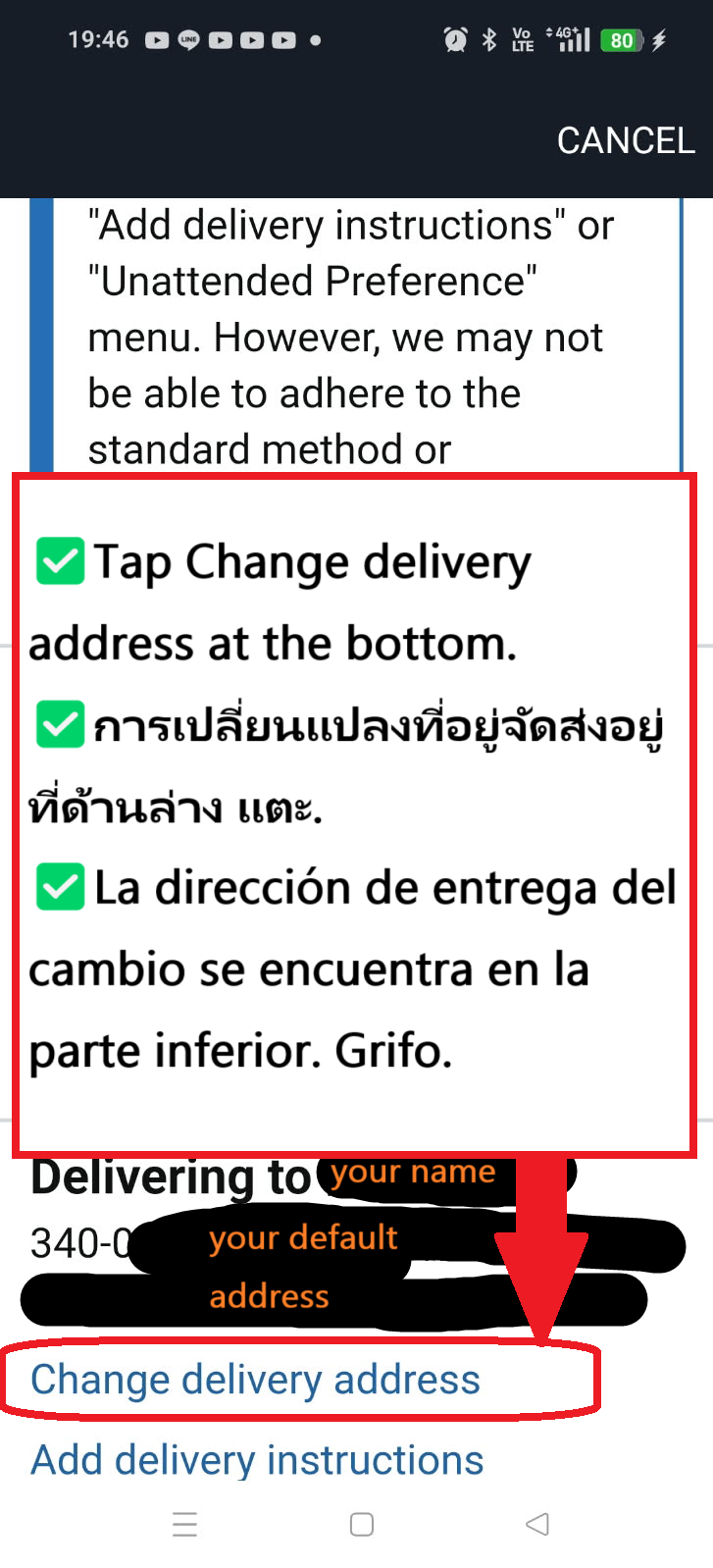
  • Tap Change delivery address at the bottom
  • Image description of Tap Change delivery address at the bottom

  • Tap Find a pickup location near you at the bottom.
  • Image description of Tap Find a pickup location near you at the bottom.

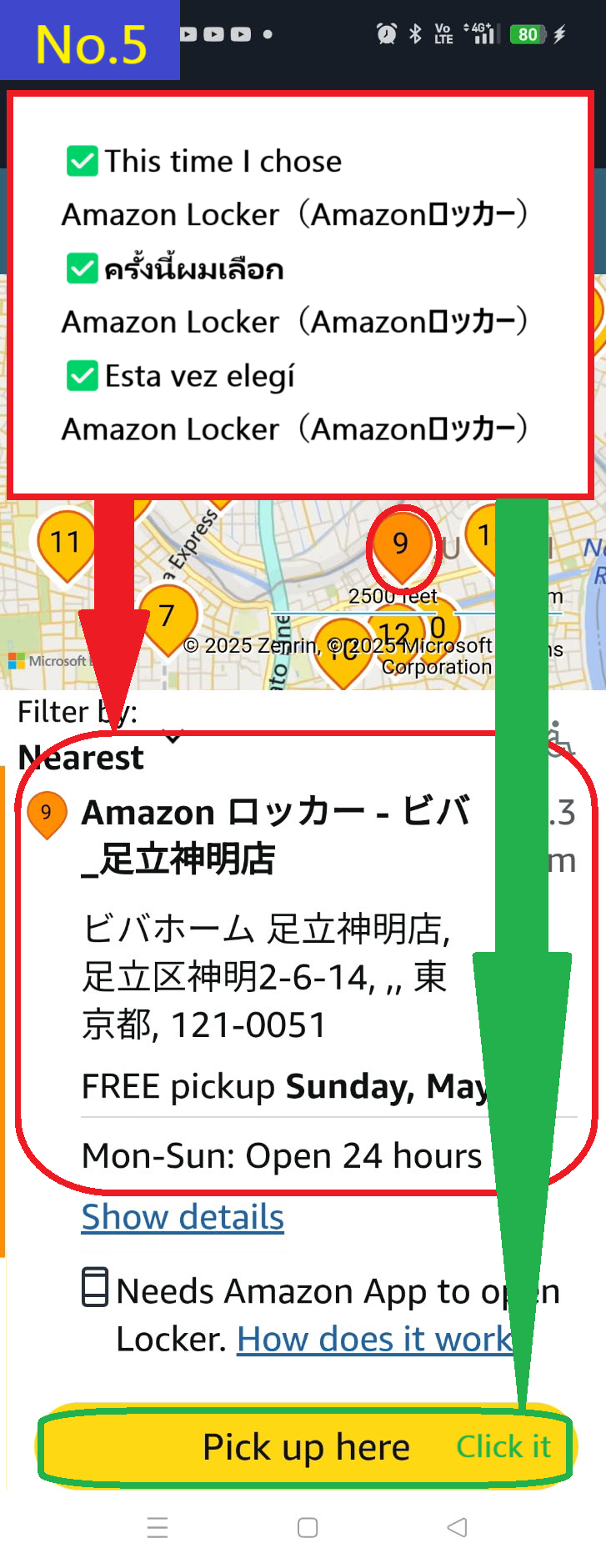
  • This time, select Amazonロッカー(Amazon Locker)ビバホーム足立神明店 store number 9 on the map and tap Pick up here.
    ※If you can't tap, swipe down on the screen to reload the screen, then select the store and tap Pick up here again.
    We recommend installing the official Amazon Japan app, as this bug will fix the problem.
  • Image description of This time, select Amazonロッカー(Amazon Locker)ビバホーム足立神明店 store number 9 on the map and tap Pick up here.

    ✅ Download the Amazon Japan Official App

    🍎 Download on the App Store
    🤖 Get it on Google Play


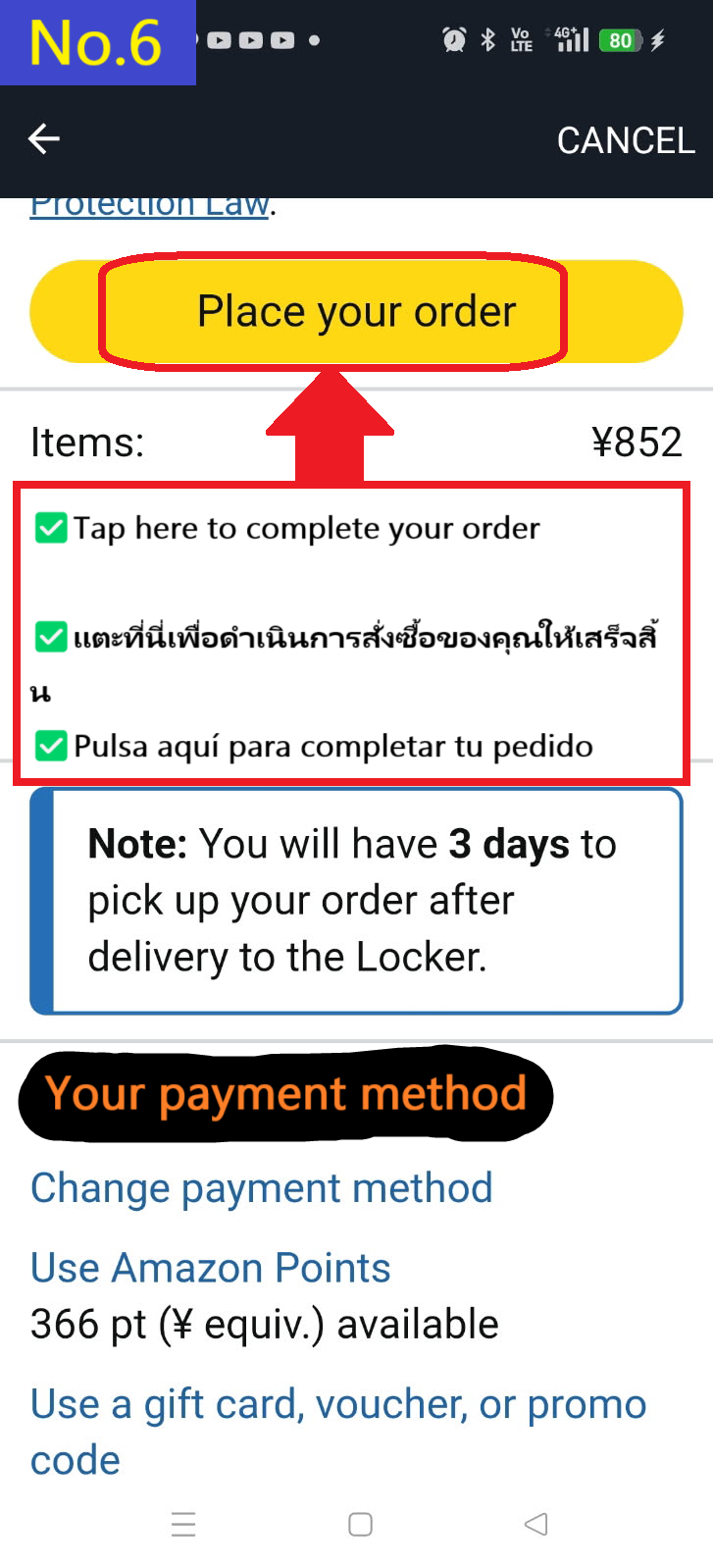
  • Check the delivery location, payment method, and package, and if OK, tap (Place your order)
  • Image description of Check the delivery location, payment method, and package, and if OK, tap (Place your order)

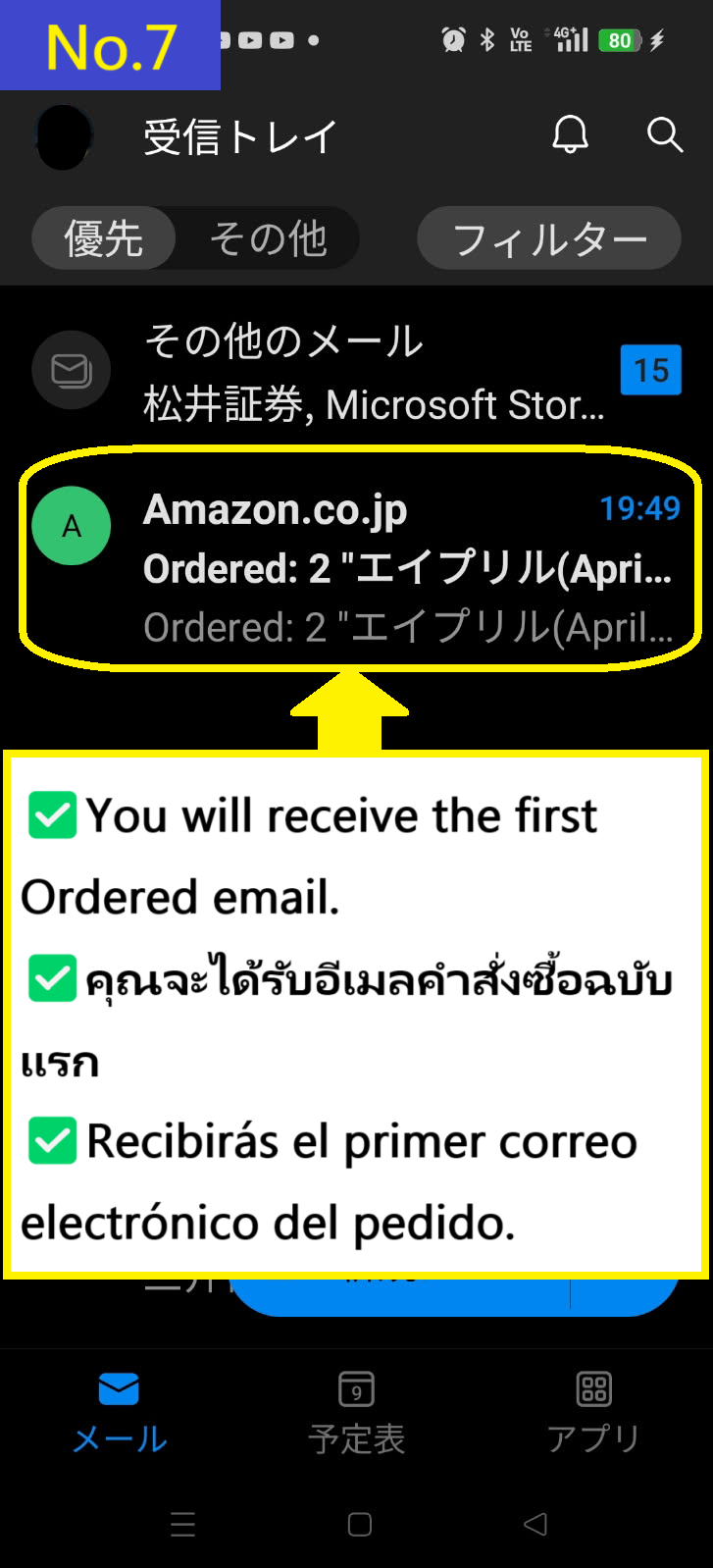
  • You will receive an Ordered email first.
  • Image description of You will receive an Ordered email first.

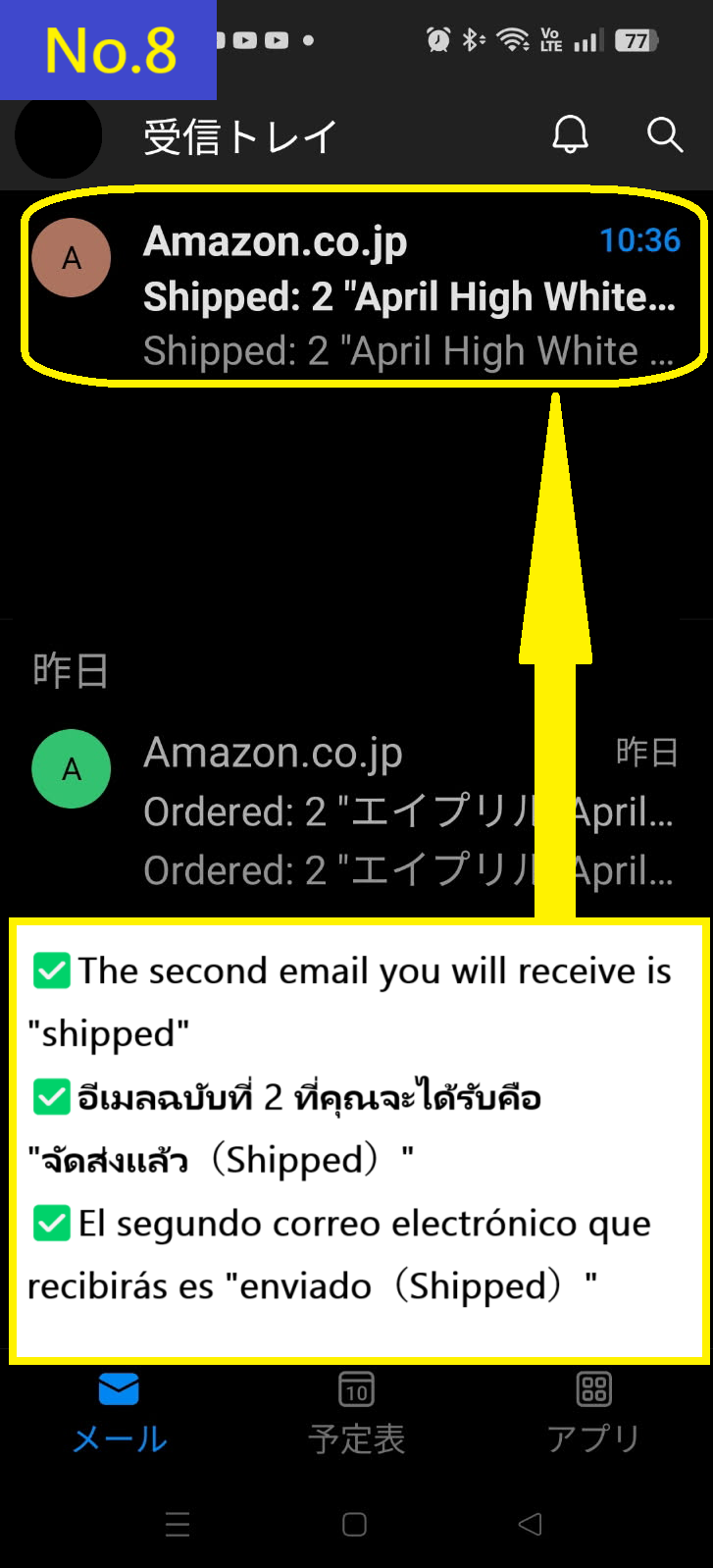
  • The second email you will receive is "Shipped"
  • Image description of The second email you will receive is (Shipped)

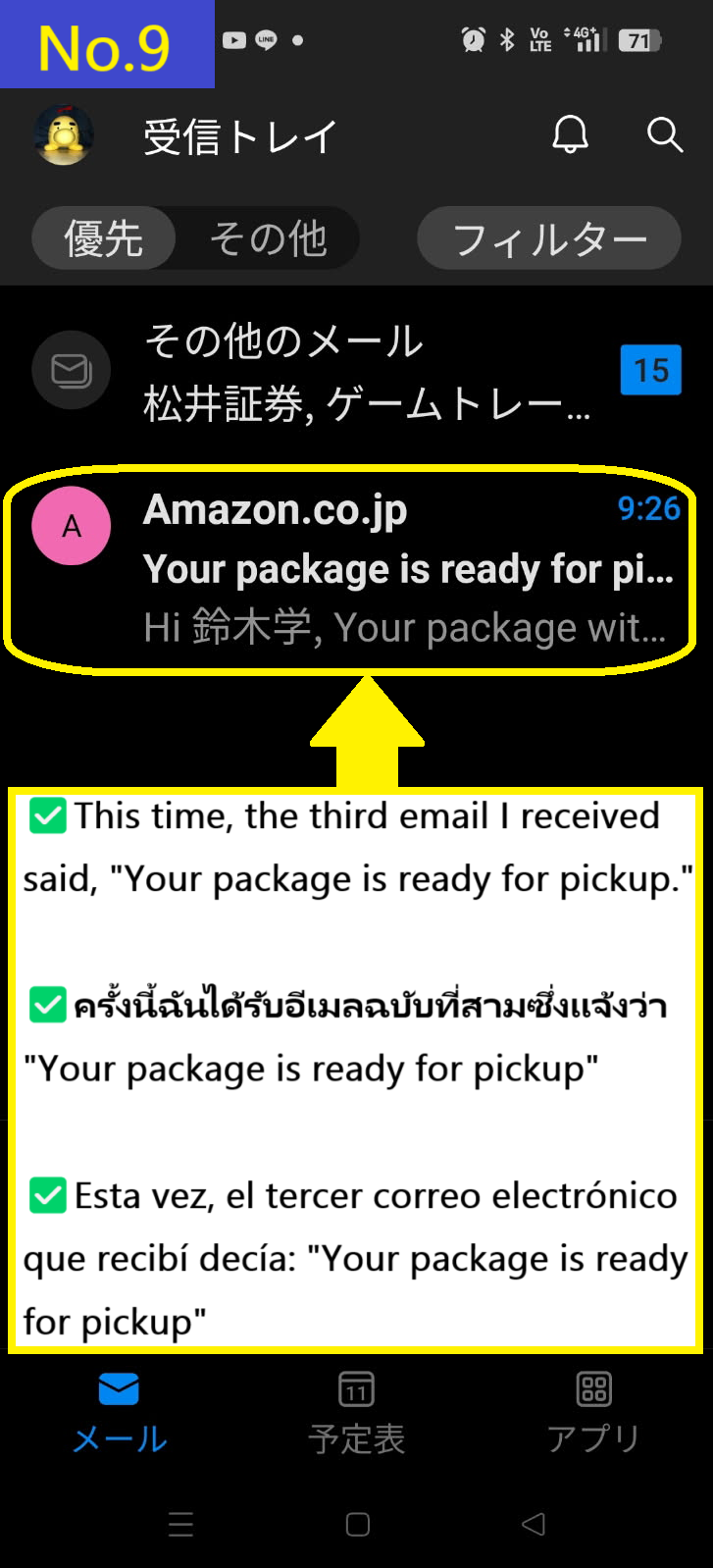
  • The email "Your package is ready for pickup" usually arrives fourth, but this time it arrived third.
  • Image description of The email (Your package is ready for pickup)usually arrives fourth, but this time it arrived third.

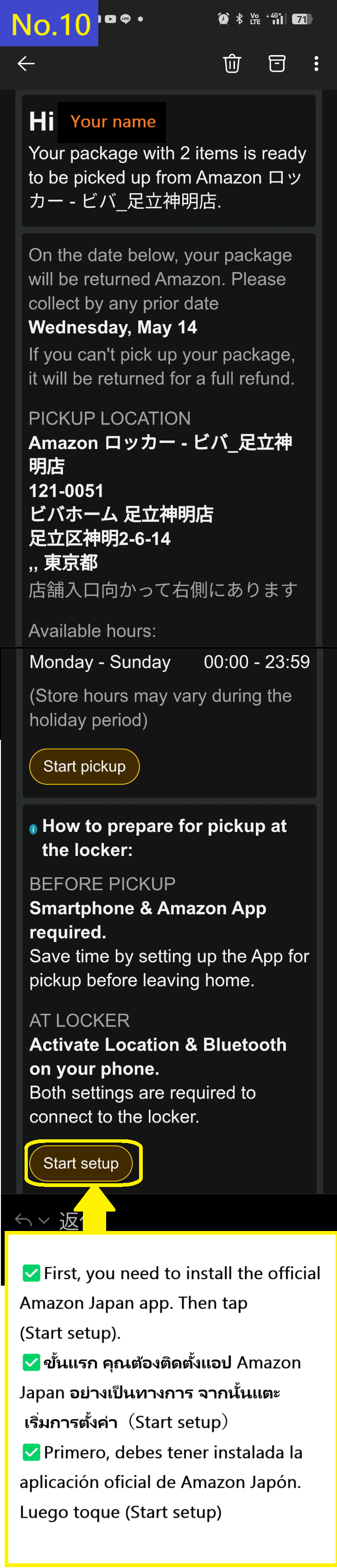
  • While logged in to the official Amazon Japan app, tap (Start setup) in the email.
  • Image description of While logged in to the official Amazon Japan app, tap (Start setup) in the email.

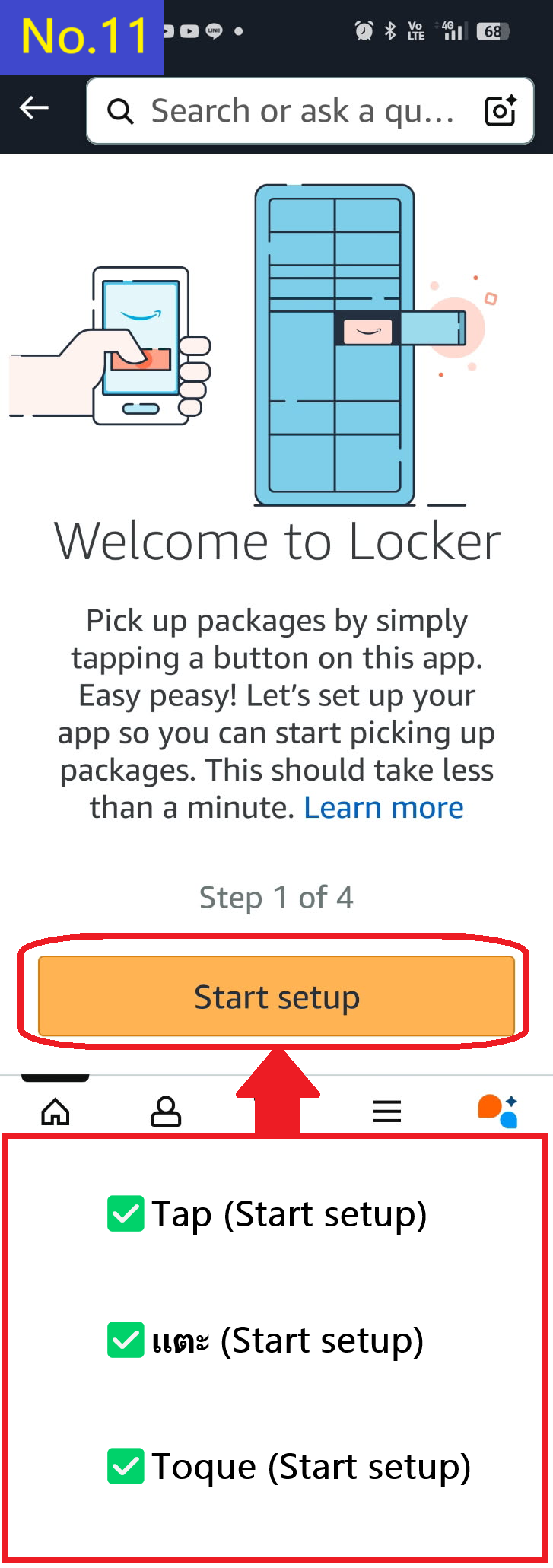
  • Tap (Start setup)
  • Image description of Tap (Start setup)

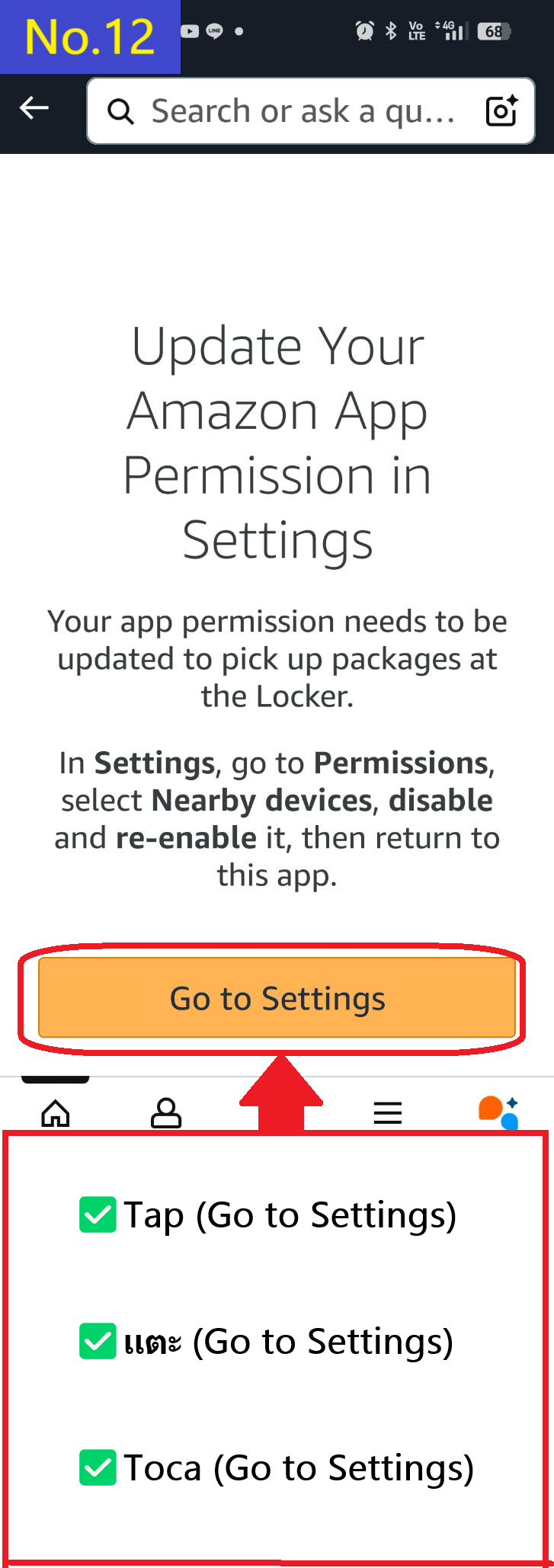
  • Tap (Go to Settings)
  • Image description of Tap (Go to Settings)

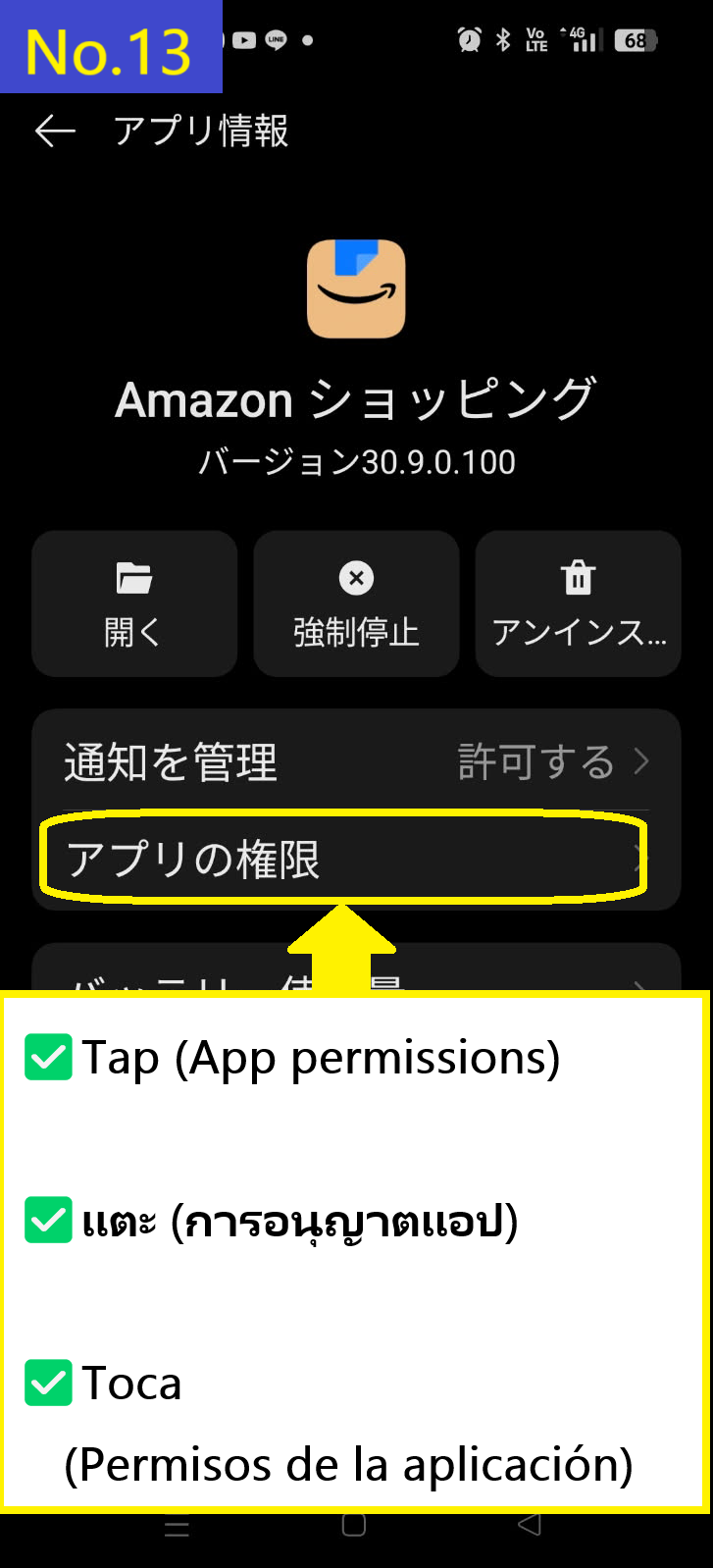
  • Tap (App permissions)
  • Image description of Tap (App permissions)

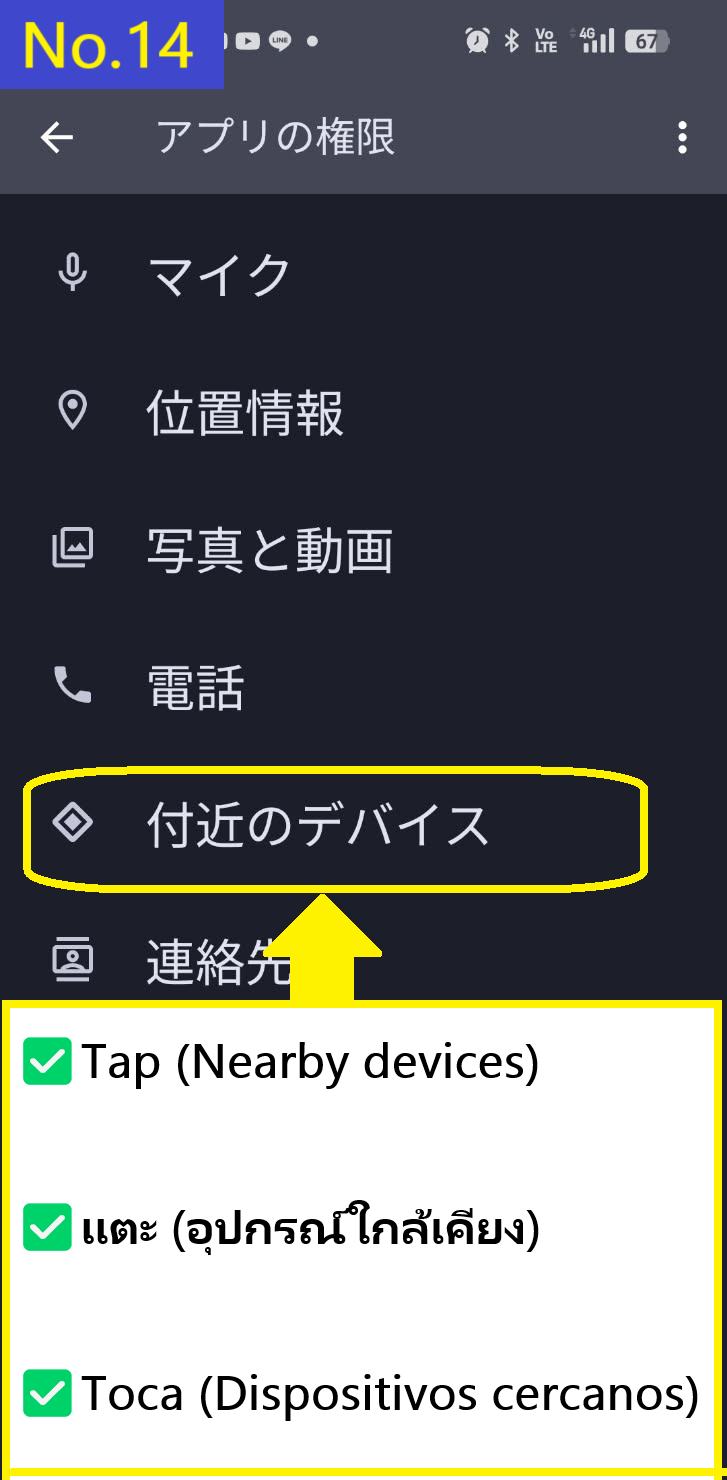
  • Tap (Nearby devices)
  • Image description of Tap (Nearby devices)

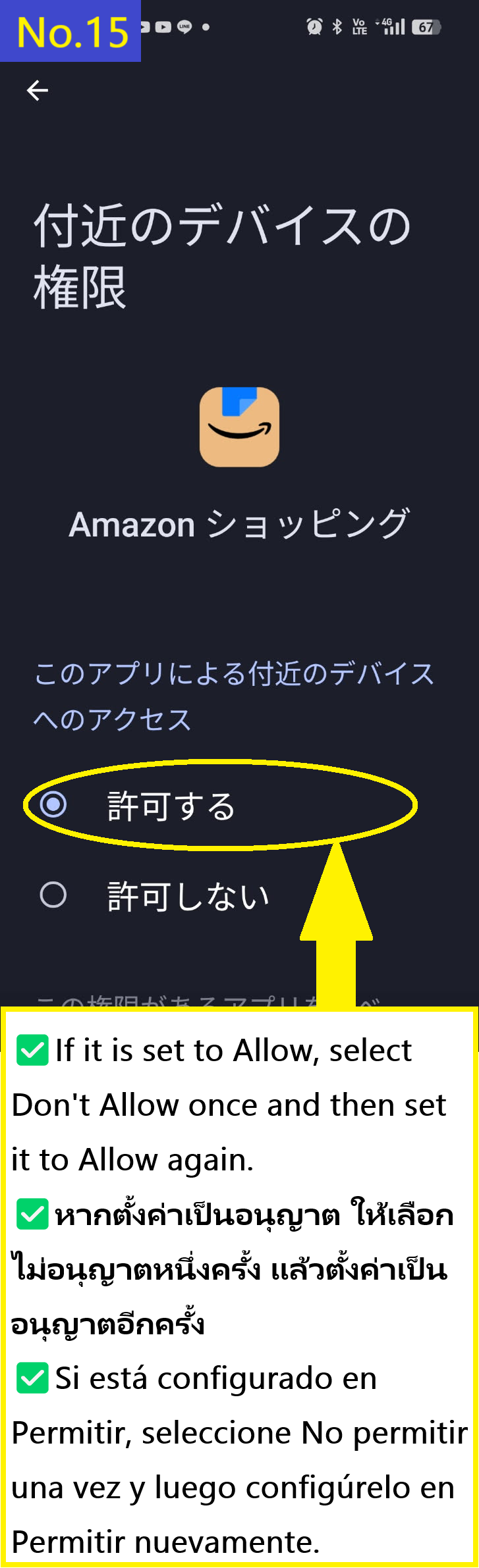
  • If it is set to Allow, select Don't Allow once and then set it to Allow again.
  • Image description of If it is set to Allow, select Don't Allow once and then set it to Allow again.

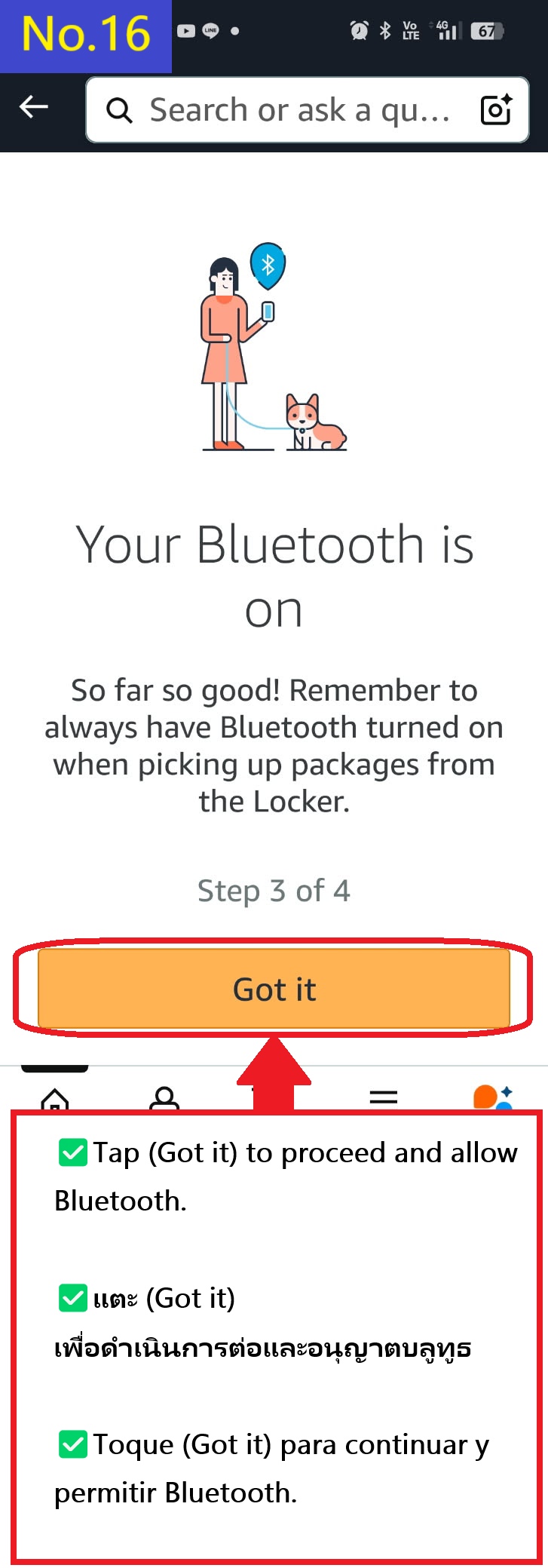
  • Tap (Got it) to proceed and allow Bluetooth.
  • Image description of Tap (Got it) to proceed and allow Bluetooth.

  • Tap (Allow access). If you want to save the settings in the future, check the red box.
  • Image description of Tap (Allow access). If you want to save the settings in the future, check the red box.

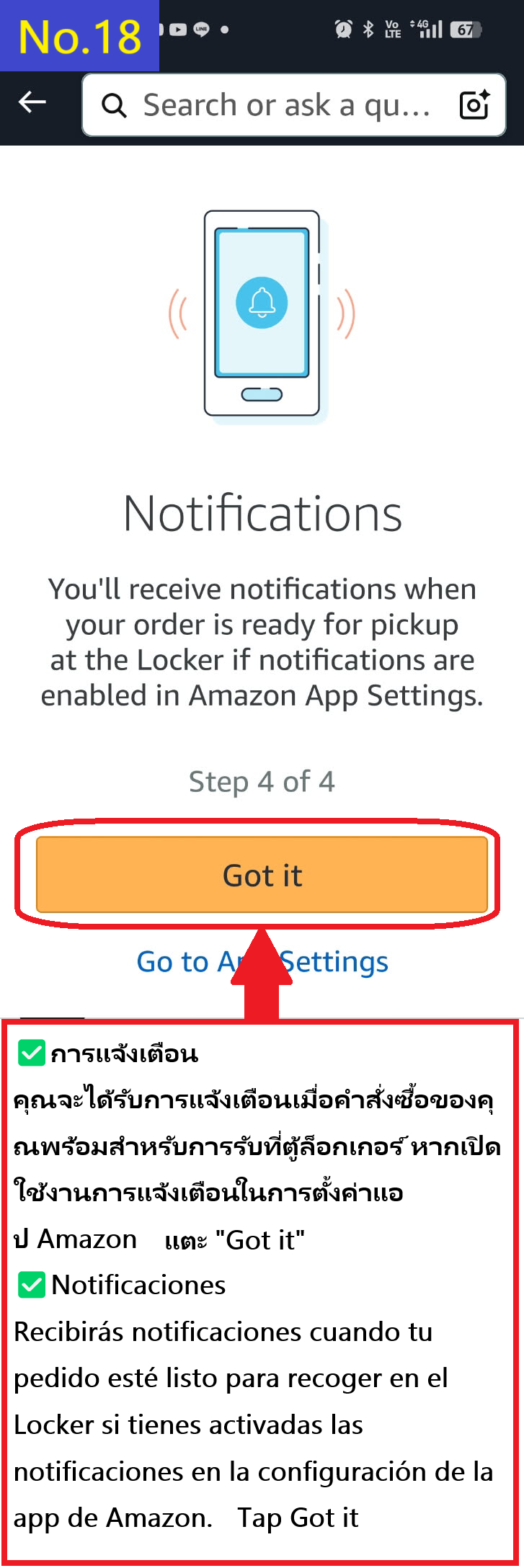
  • Notifications
    You'll receive notifications when your order is ready for pickup at the Locker if notifications are enabled in Amazon App Settings.
  • Image description of Notifications:You'll receive notifications when your order is ready for pickup at the Locker if notifications are enabled in Amazon App Settings.

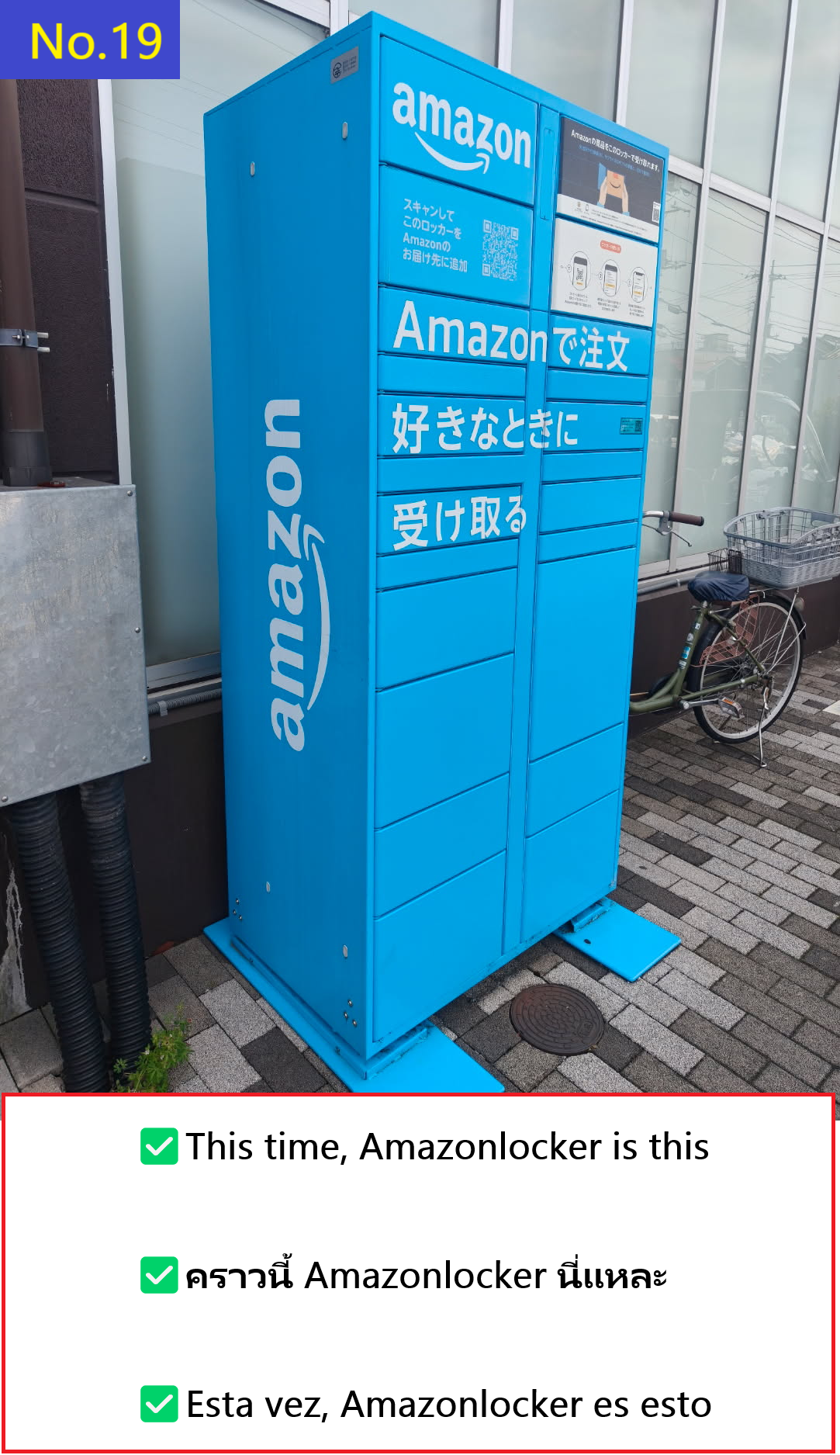
  • This time, Amazonlocker is this
  • Image description of This time, Amazonlocker is this

  • When you tap (Connect to Locker) in front of the locker, the door containing your luggage will open.
  • Image description of When you tap (Connect to Locker) in front of the locker, the door containing your luggage will open.

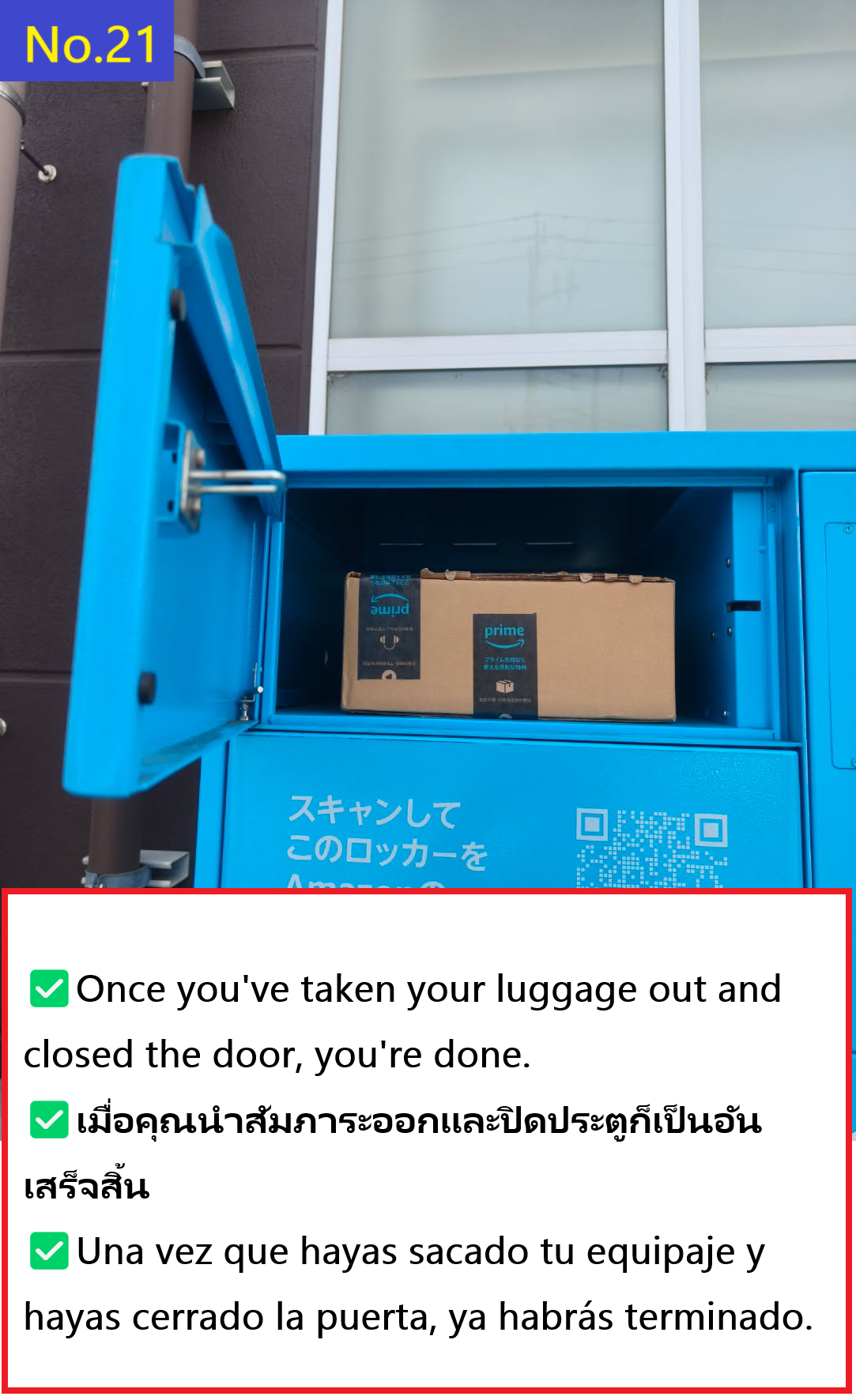
  • Once you've taken your luggage out and closed the door, you're done.
  • Image description of Once you've taken your luggage out and closed the door, you're done.

    📷📝 Search Products (Text or Image)