🌐 🇯🇵 JP | 🇺🇸 EN | 🇹🇭 TH | 🇪🇸 ES

How to receive your parcel at the FamilyMart(ファミリーマート) convenience store


Steps to follow when the product is in your cart


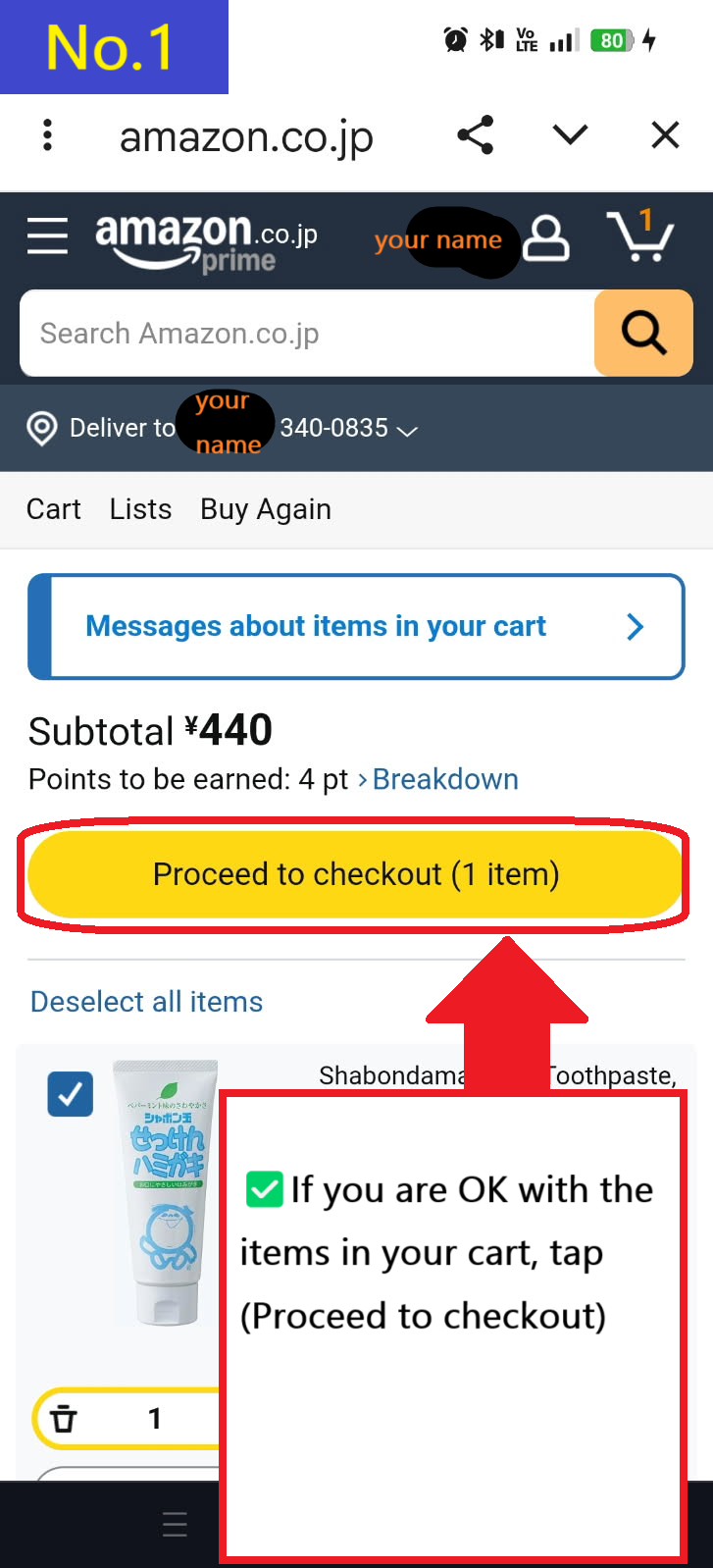
  • If the item you want to purchase is the same as the item in your cart, tap Proceed to checkout
  • Image description of If the item you want to purchase is the same as the item in your cart, tap Proceed to checkout

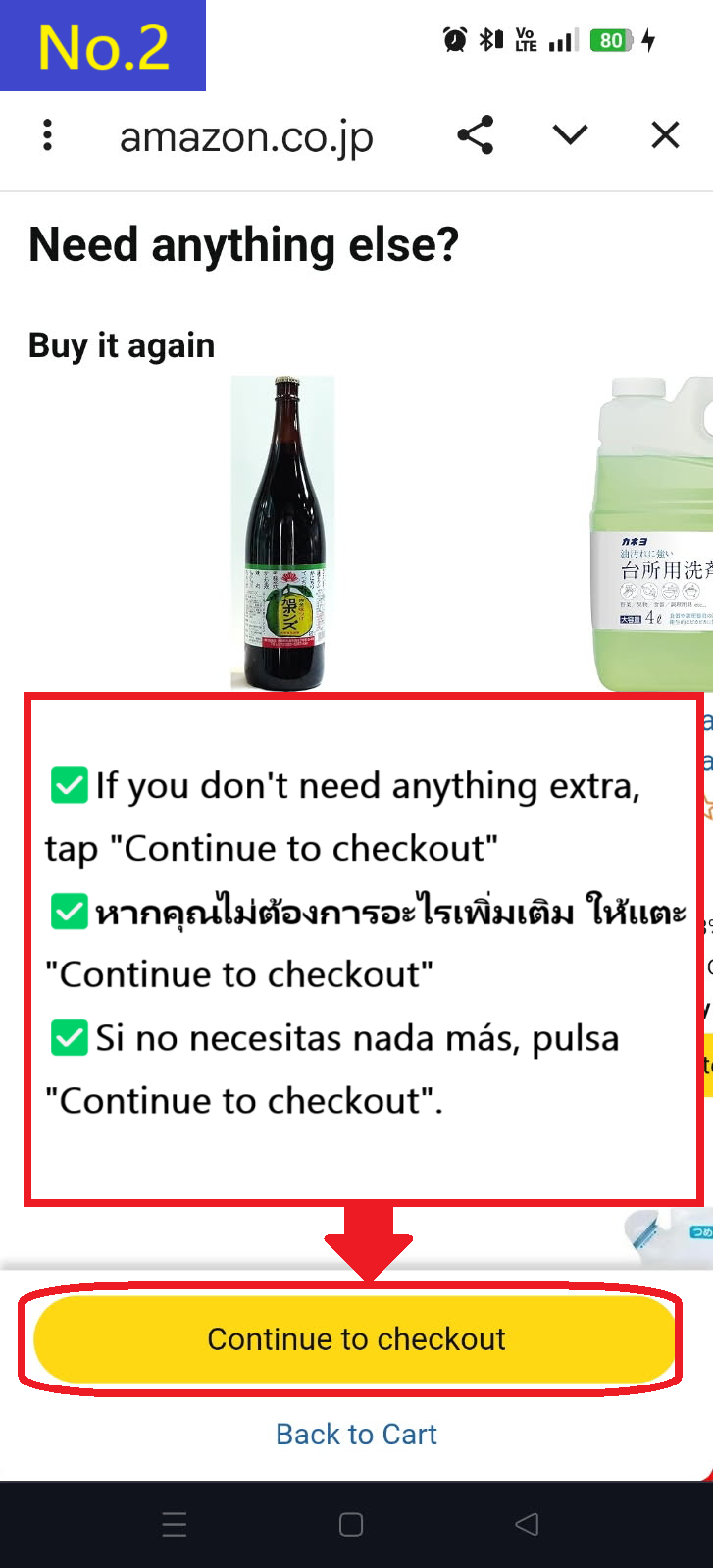
  • You will be recommended other products, but if you don't need them, tap Continue to checkout.
  • Image description of You will be recommended other products, but if you don't need them, tap Continue to checkout.

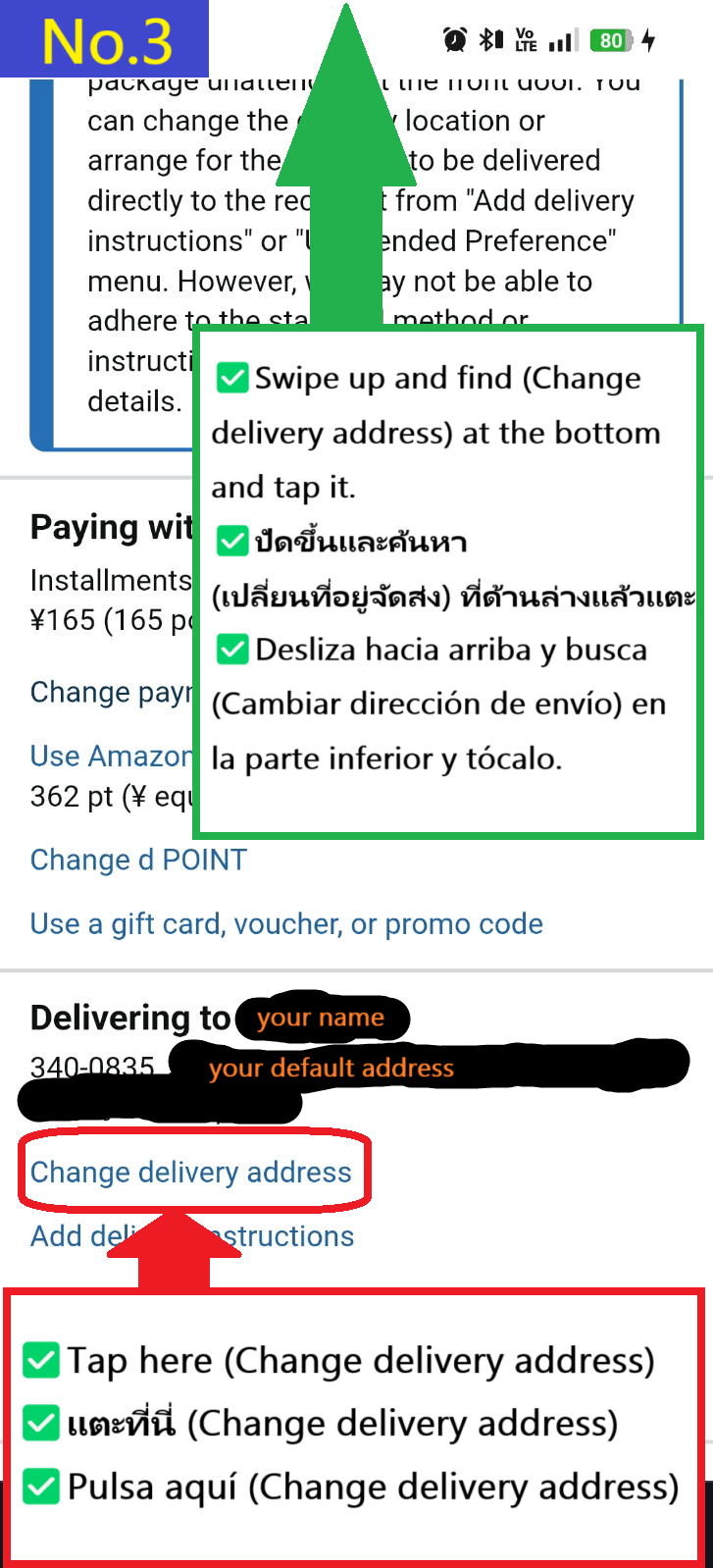
  • Tap Change delivery address at the bottom
  • Image description of Tap Change delivery address at the bottom

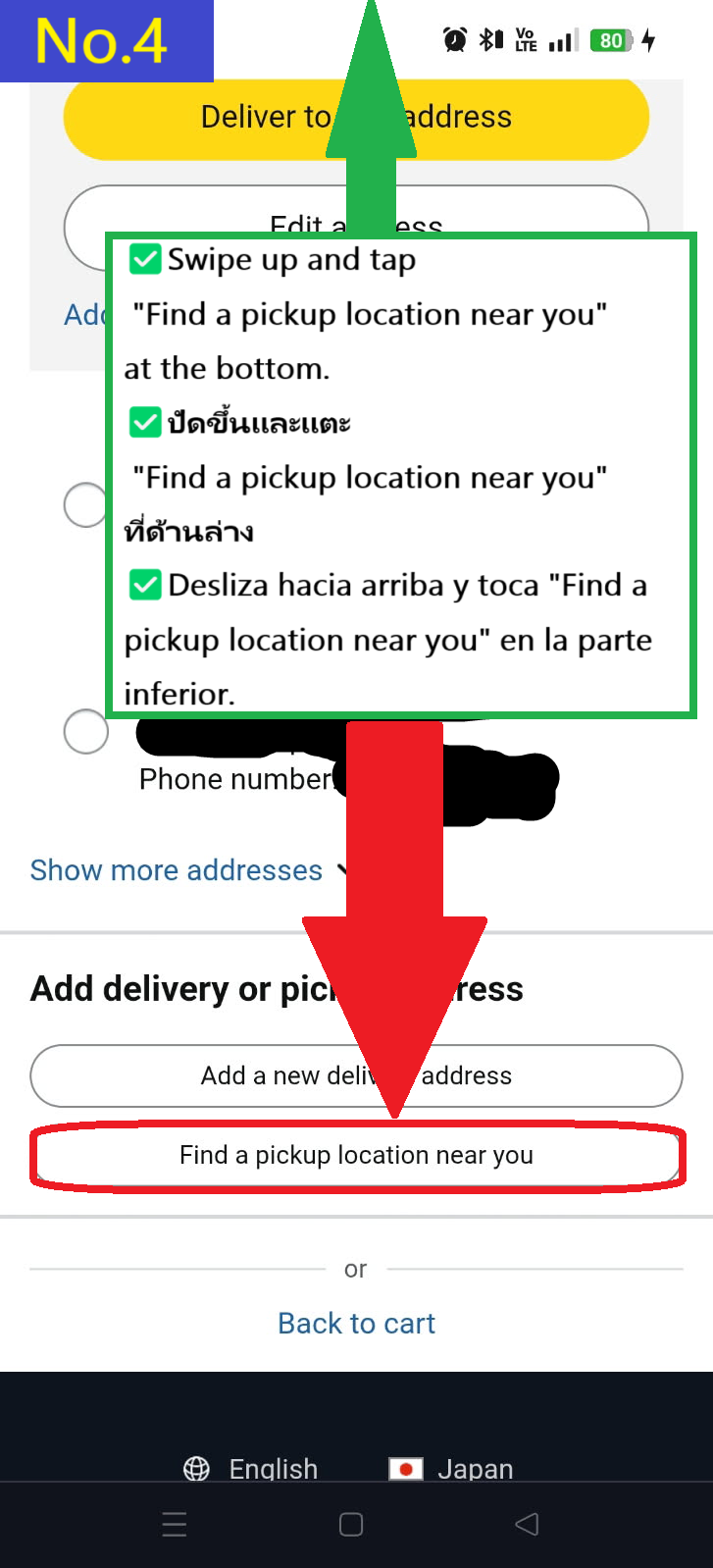
  • Tap Find a pickup location near you at the bottom.
  • Image description of Tap Find a pickup location near you at the bottom.

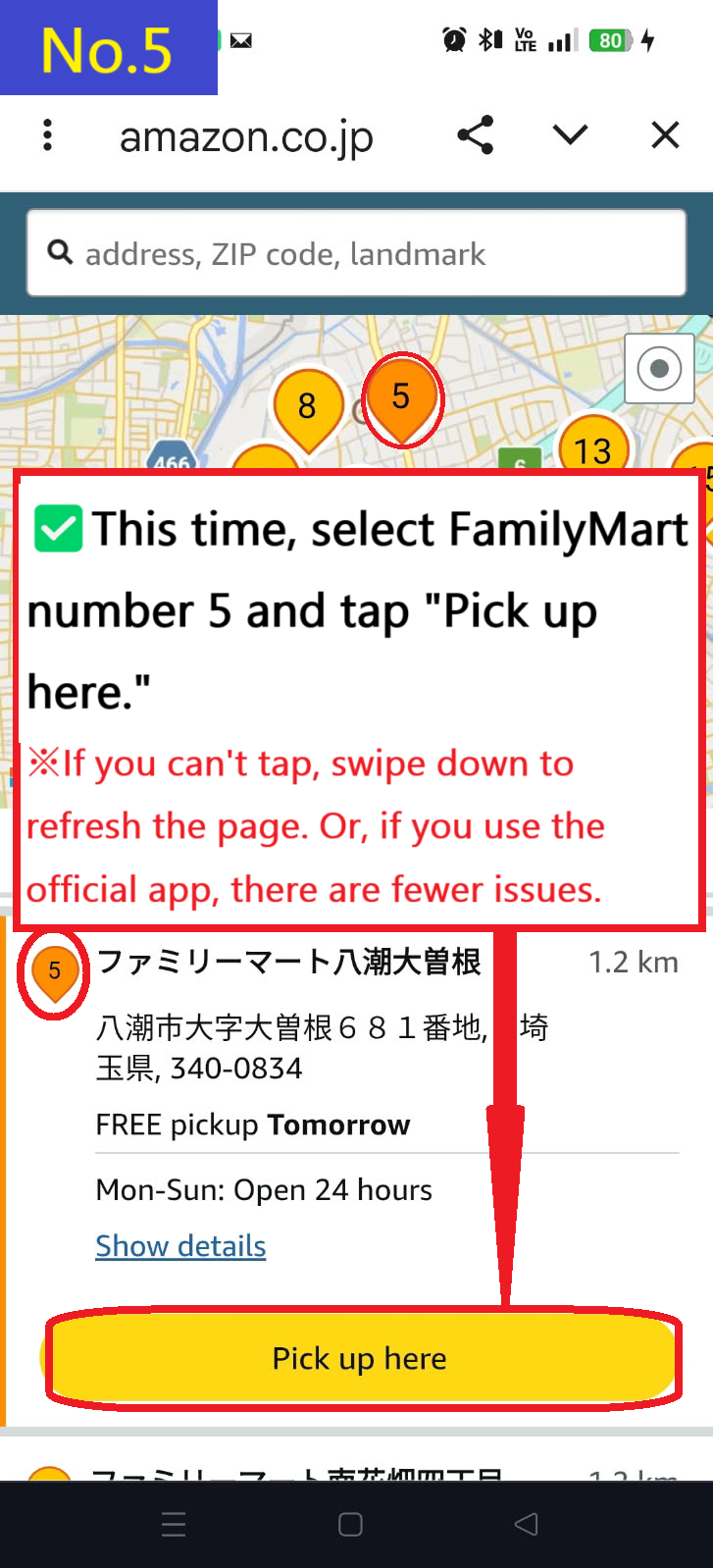
  • This time, select FamilyMart(ファミリーマート) Yashio Ozone store number 5 on the map and tap Pick up here.
    ※If you can't tap, swipe down on the screen to reload the screen, then select the store and tap Pick up here again.
    We recommend installing the official Amazon Japan app, as this bug will fix the problem.
  • Image description of This time, select FamilyMart(ファミリーマート) Yashio Ozone store number 5 on the map and tap Pick up here.

    ✅ Download the Amazon Japan Official App

    🍎 Download on the App Store
    🤖 Get it on Google Play


  • Select your preferred delivery option and tap "continue"
  • Image description of Select your preferred delivery option and tap continue

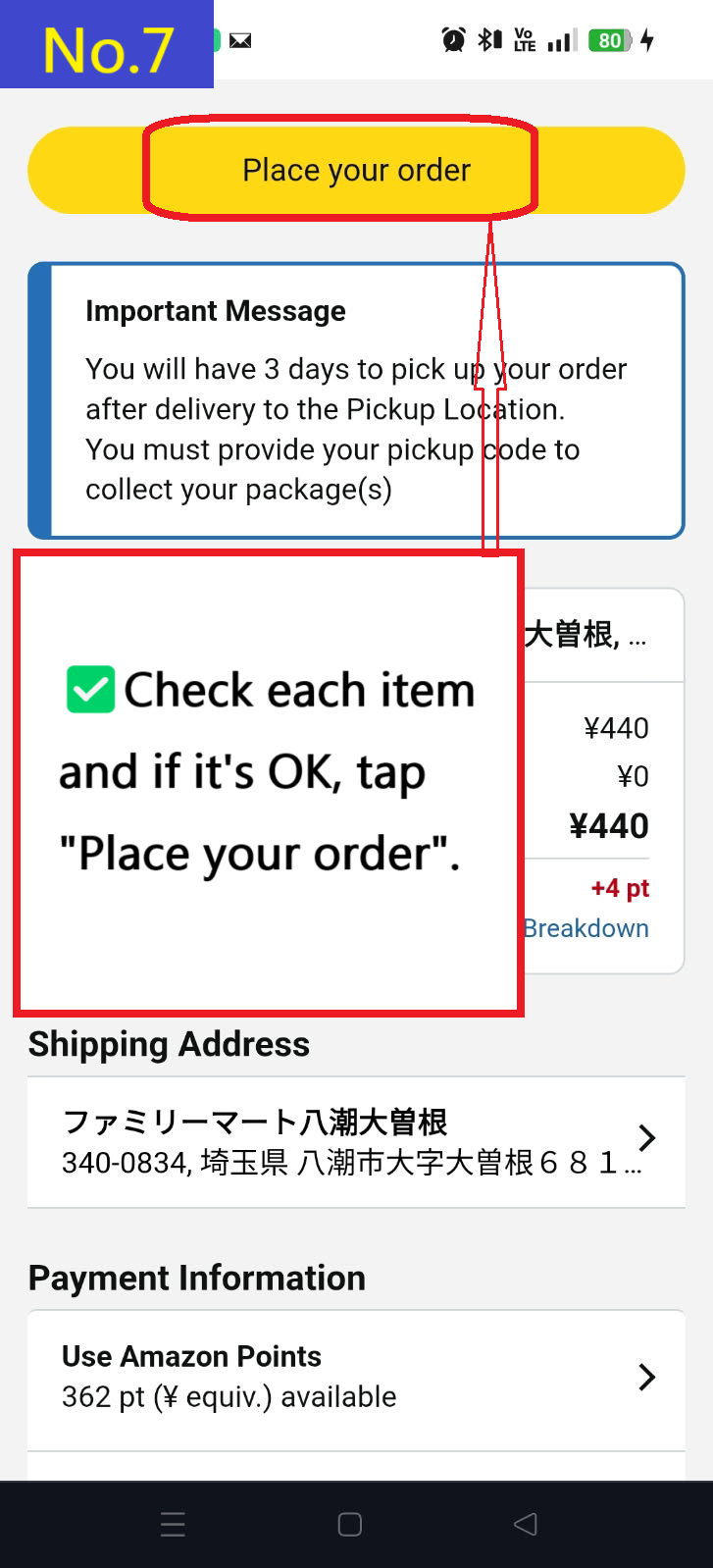
  • If you want to make this address the default, check default to this delivery address and tap Place your order.
  • Image description of If you want to make this address the default, check default to this delivery address and tap Place your order.

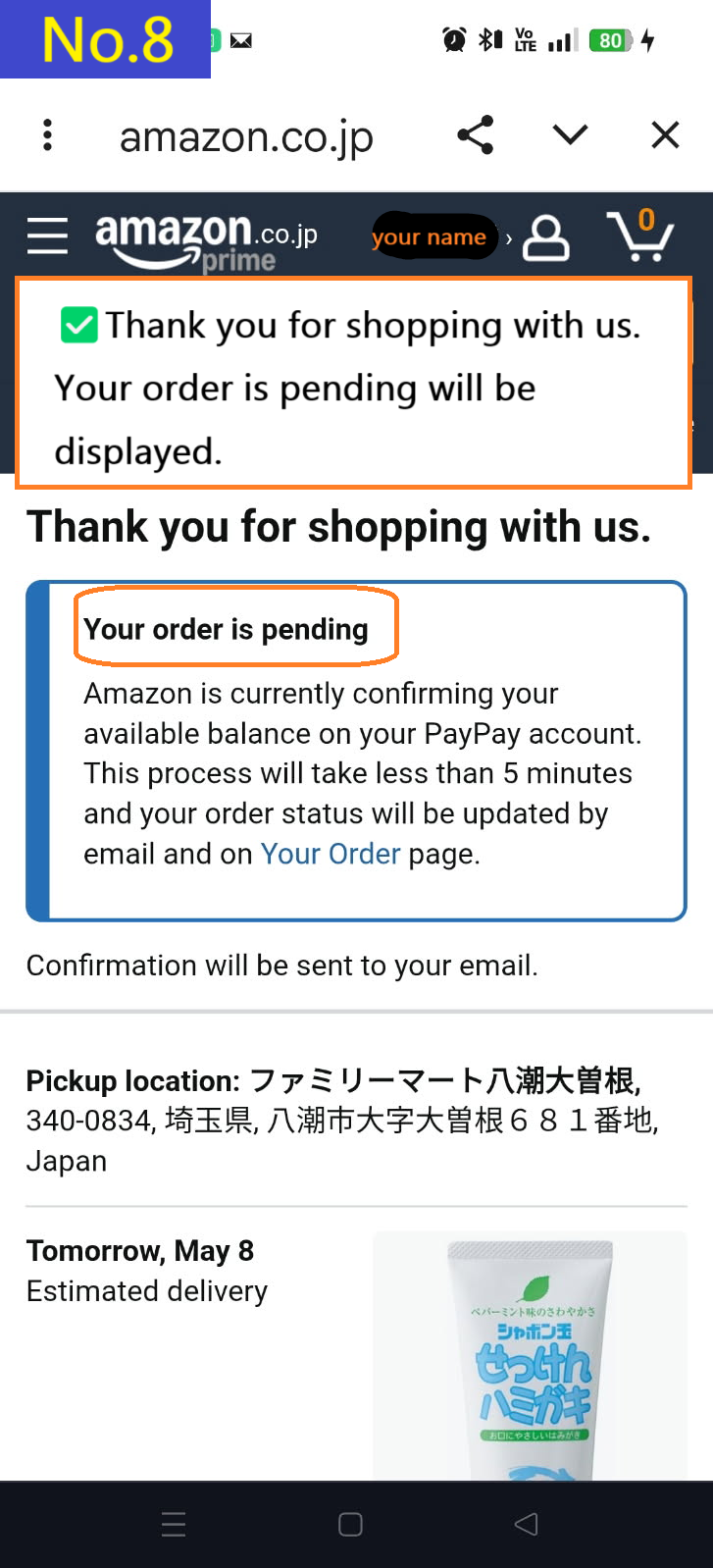
  • The order confirmation details page will appear.
  • Image description of The order confirmation details page will appear.

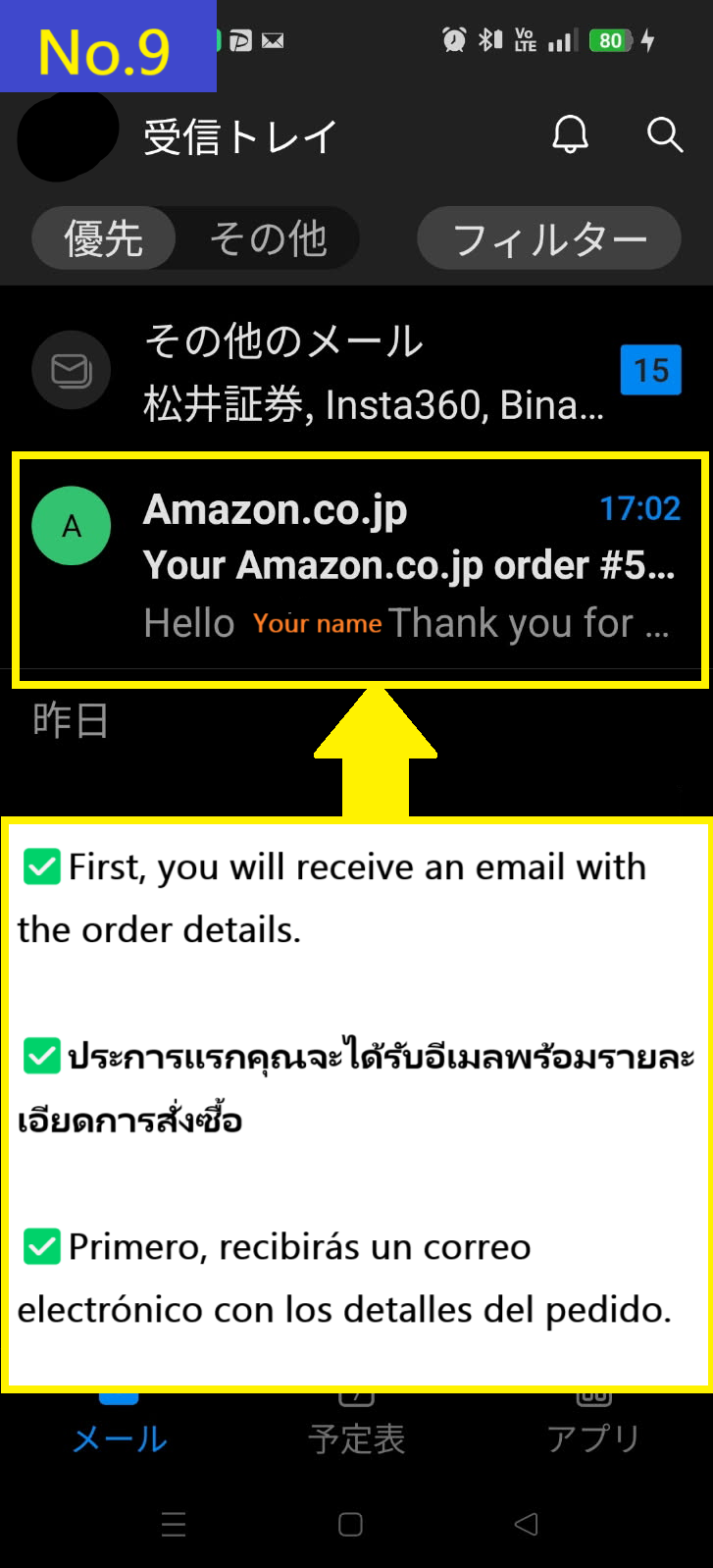
  • First, you will receive an order email.
  • Image description of First, you will receive an order email.

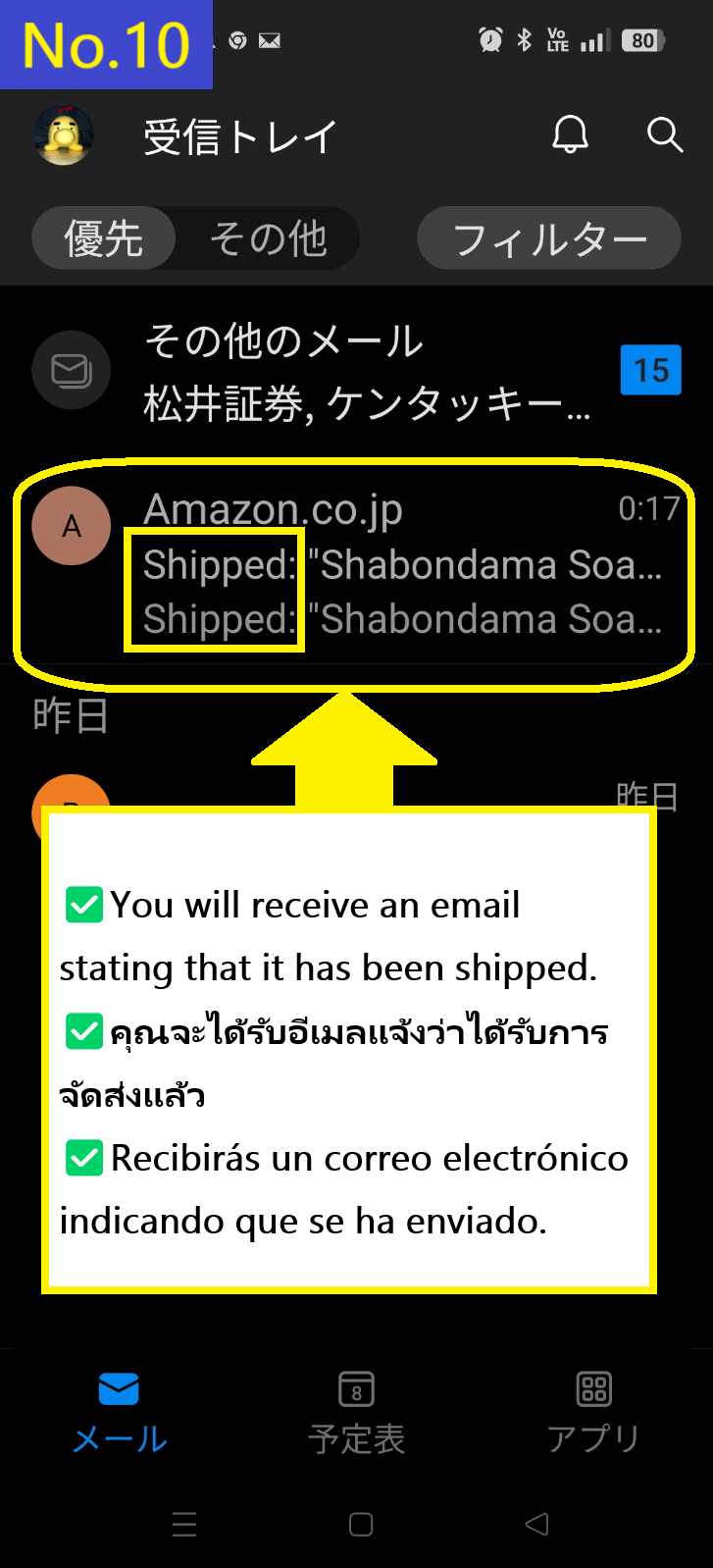
  • You will receive the "Shipped" email second.
  • Image description of You will receive the Shipped email second.

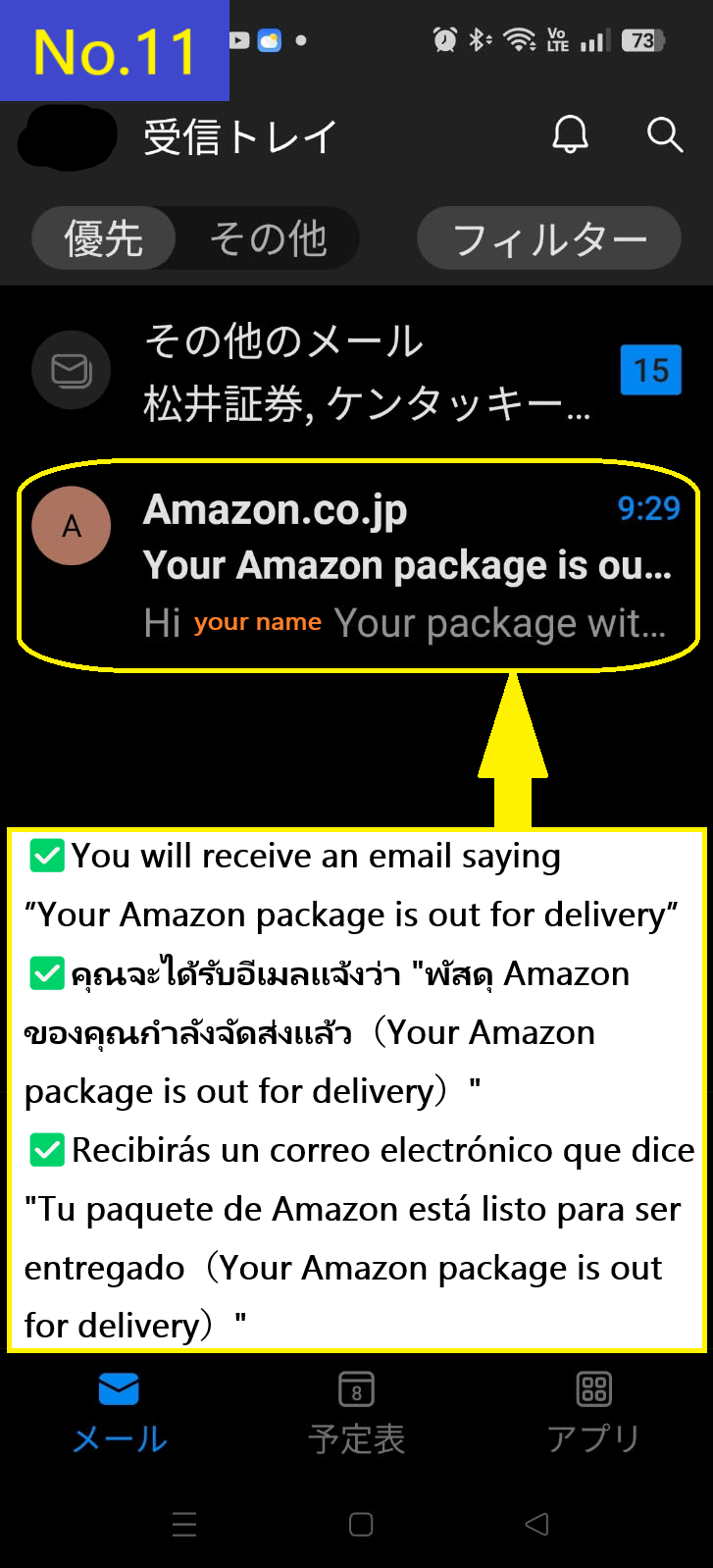
  • You receive the third email saying that the package is out for delivery.
  • Image description of You receive the third email saying that the package is out for delivery.

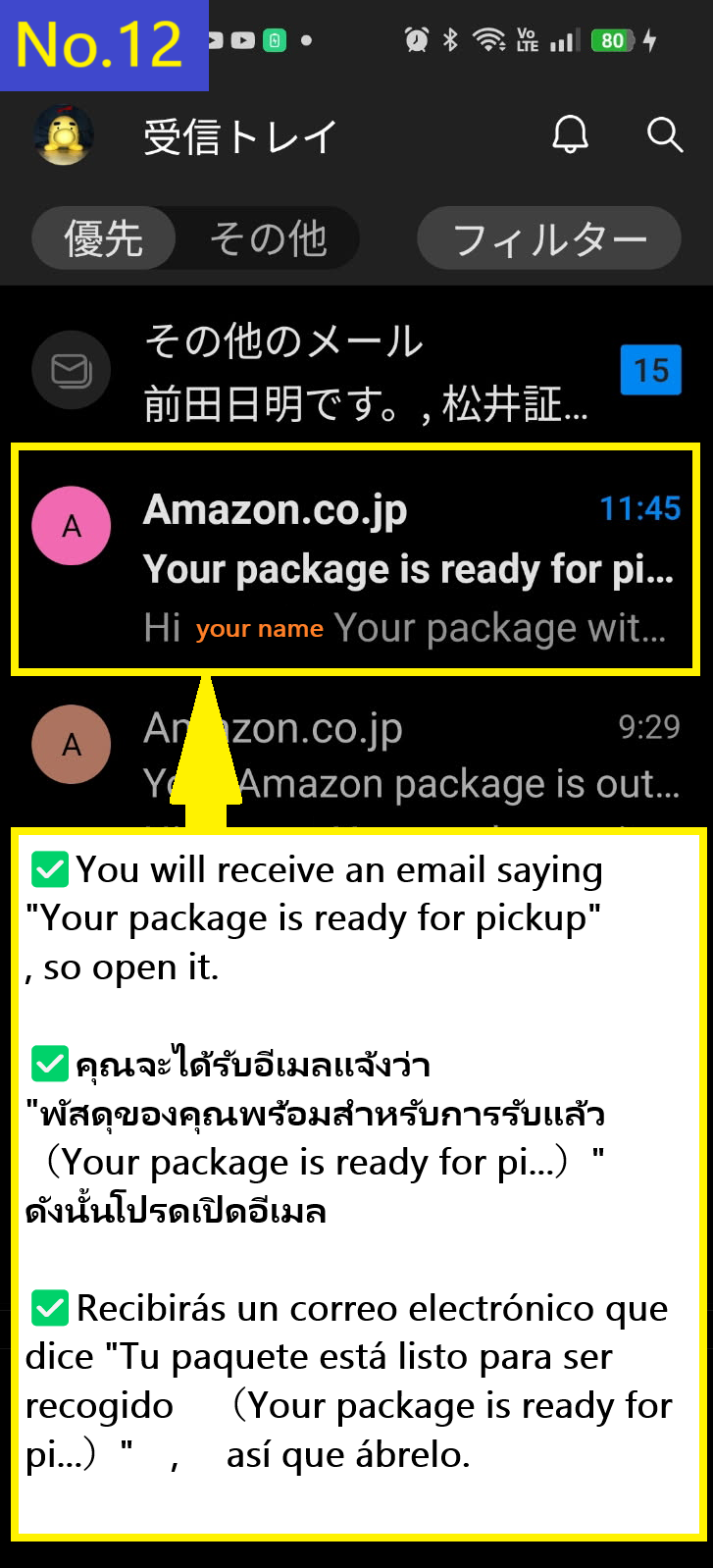
  • You will receive a fourth email saying your package is ready for pickup.
  • Image description of You will receive a fourth email saying your package is ready for pickup.

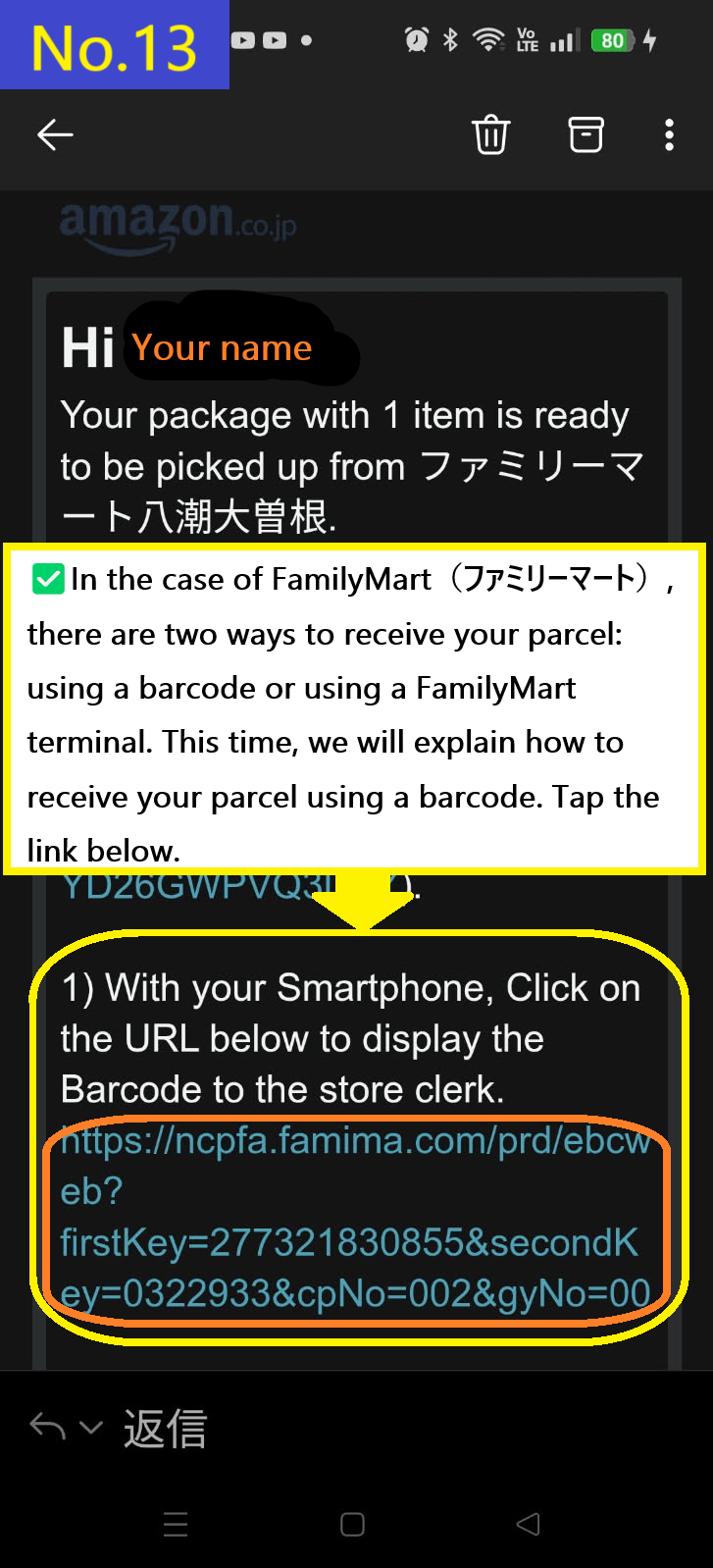
  • In the case of FamilyMart(ファミリーマート), there are two ways to receive your parcel: using a barcode or using a FamilyMart terminal. This time, we will explain how to receive your parcel using a barcode. Tap the link below. This is very easy and recommended.
  • Image description of In the case of FamilyMart(ファミリーマート), there are two ways to receive your parcel: using a barcode or using a FamilyMart terminal. This time, we will explain how to receive your parcel using a barcode. Tap the link below. This is very easy and recommended.

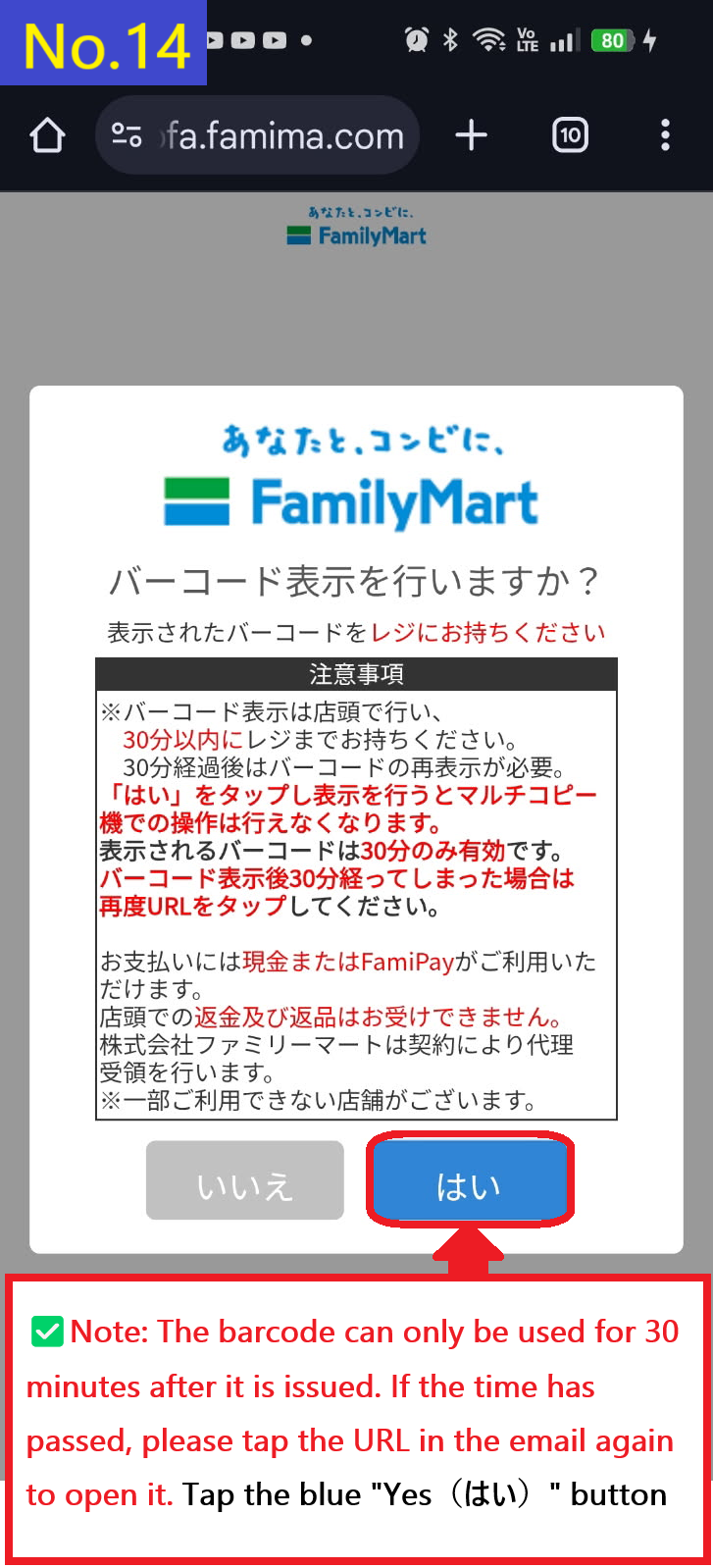
  • This will take you to the barcode generation screen. The barcode is only valid for 30 minutes after it is issued, so it is best to do so before entering the store to receive it. If 30 minutes have passed, you will need to re-acquire the barcode from the URL in the email. Tap the blue "Yes" button at the bottom right.
  • Image description of This will take you to the barcode generation screen. The barcode is only valid for 30 minutes after it is issued, so it is best to do so before entering the store to receive it. If 30 minutes have passed, you will need to re-acquire the barcode from the URL in the email. Tap the blue

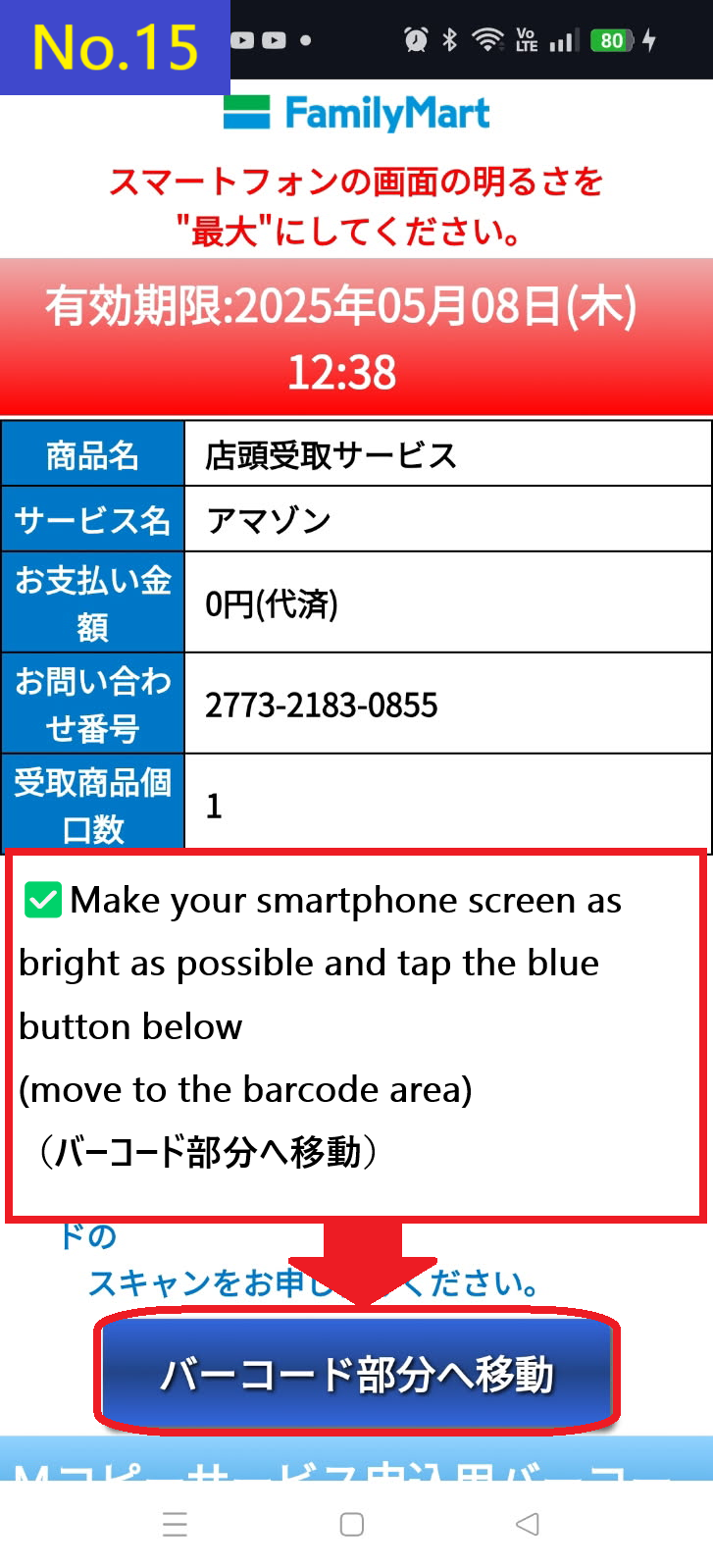
  • Tap the blue button at the bottom of the screen move to the barcode section(バーコード部分へ移動)
  • Image description of Tap the blue button at the bottom of the screen move to the barcode section(バーコード部分へ移動)

  • As mentioned above, the validity period is 30 minutes. Please present this barcode at the FamilyMart cash register. If the validity period has passed, please click on the URL in the email again to reissue the barcode.
  • Image description of As mentioned above, the validity period is 30 minutes. Please present this barcode at the FamilyMart cash register. If the validity period has passed, please click on the URL in the email again to reissue the barcode.

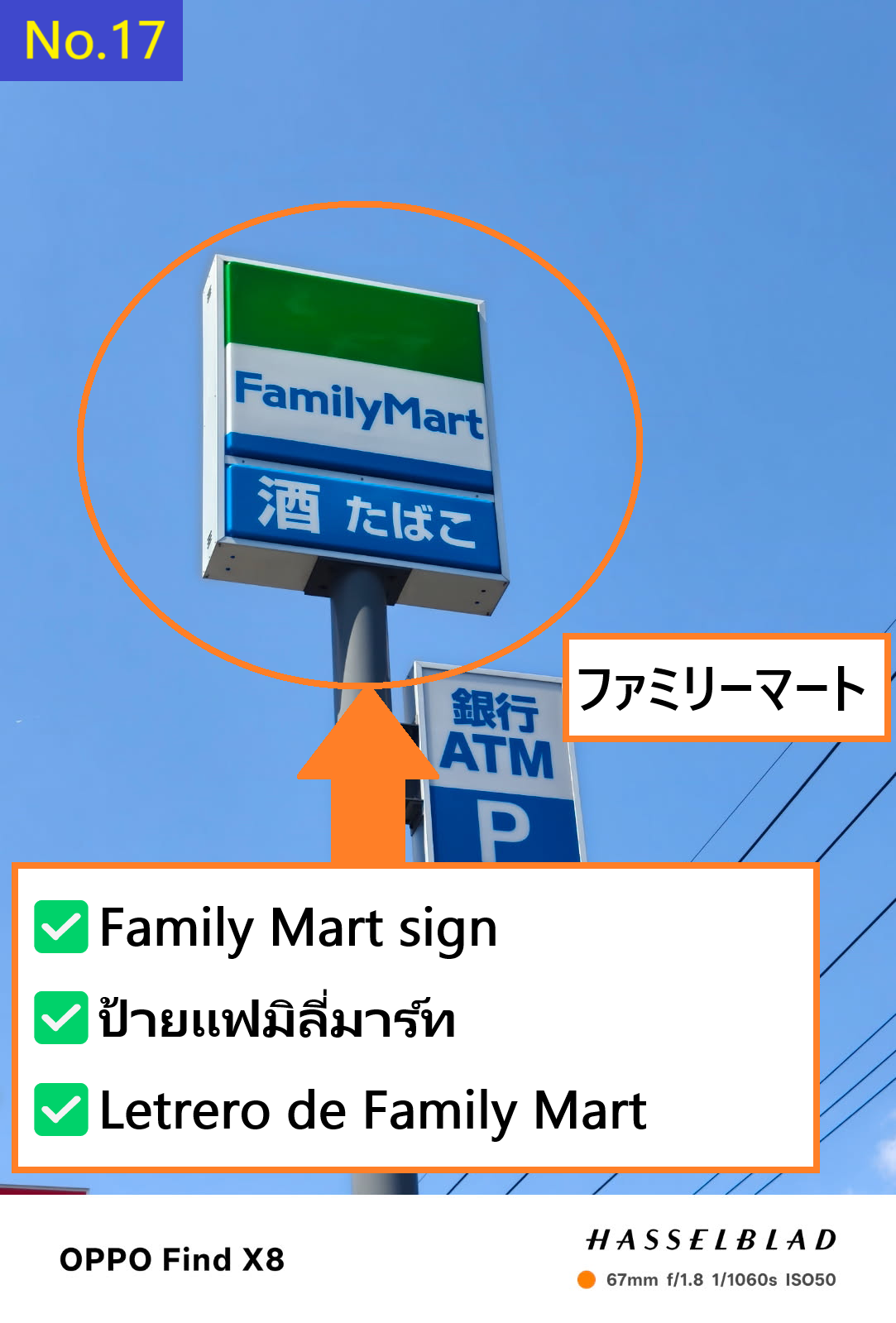
  • This is the Family Mart(ファミリーマート) sign.
  • Image description of This is the Family Mart(ファミリーマート) sign.

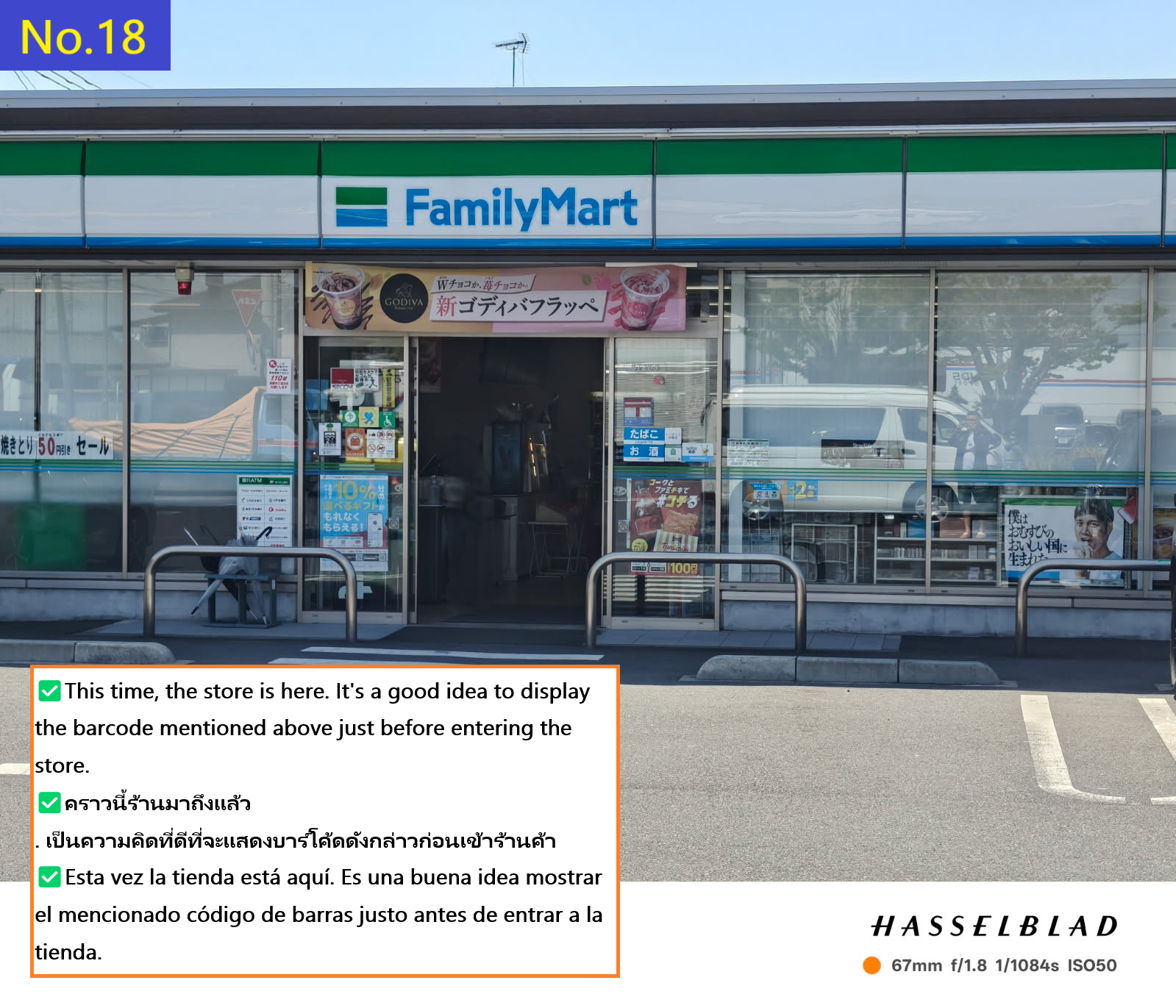
  • This is the store where I picked up my order this time.
  • Image description of This is the store where I picked up my order this time.

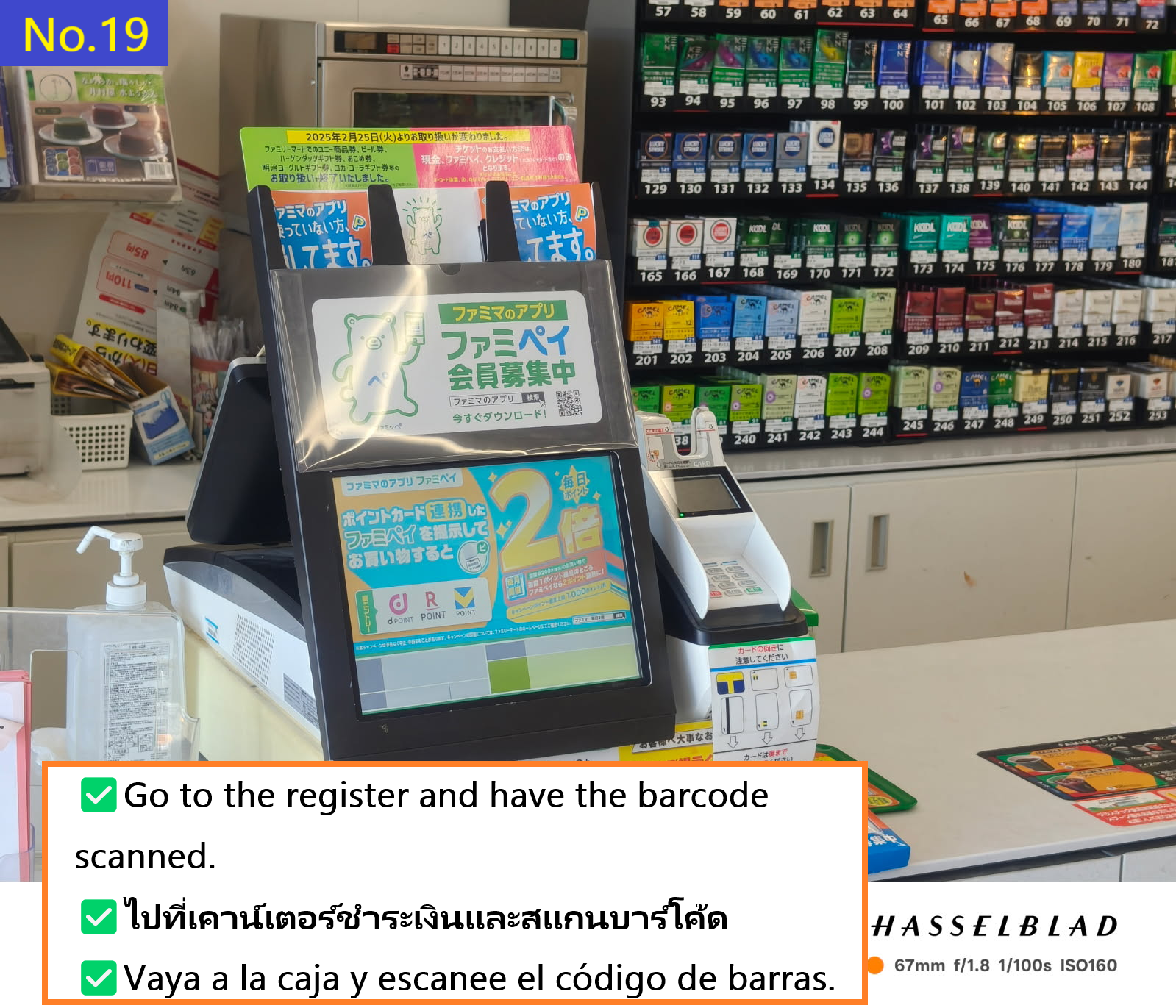
  • Go to the cash register and have the clerk scan the barcode.
  • Image description of Go to the cash register and have the clerk scan the barcode.

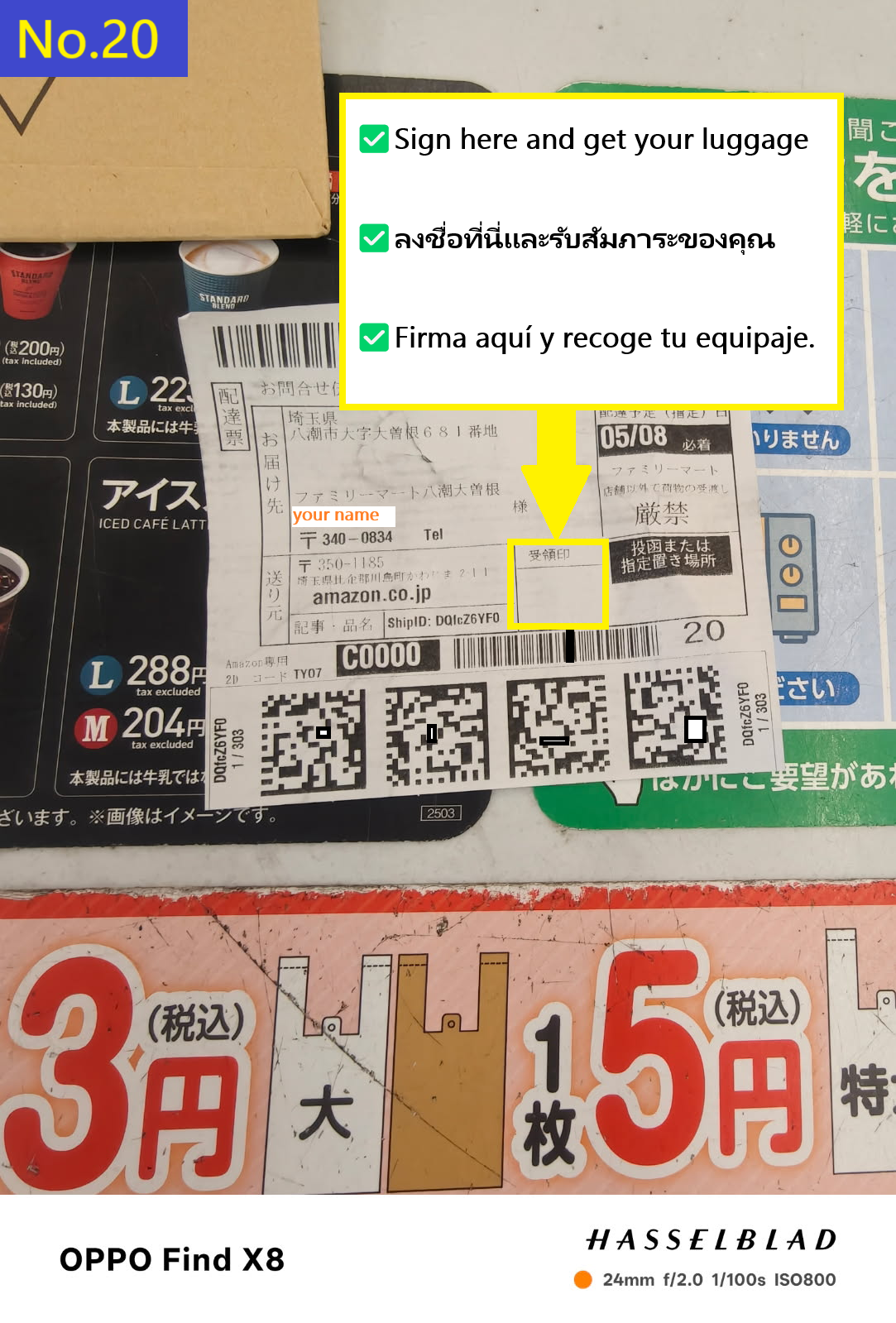
  • Sign here, receive your package and receipt, and you're done.
  • Image description of Sign here, receive your package and receipt, and you're done.
    📷📝 Search Products (Text or Image)